The Contacts section within the Customers tab acts as your command center for managing all customer-related data in Xola. Here, you have the ability to update customer contact details, view complete reservation histories, add internal customer notes, remove credit cards on file, and quickly access signed Xola waivers for compliance and record-keeping.
With a few clicks, you can export your entire customer database as a .CSV spreadsheet, making it easy to leverage your customer information in external marketing tools such as MailChimp or Constant Contact, or to analyze guest trends outside the platform.
This central hub puts comprehensive customer insights and data management at your fingertips, enabling targeted communication, streamlined service, and more effective guest engagement.
User Access: Administrator, Reservationist or Marketer roles have access to the Customer Tab in Xola.
Reservationist Lite do not access to the Customer tab, but can access the contact information from the purchases tab.
To grant access to users, click here.
What's covered in this article:
- View and edit Customer information
- Merging Customer records
- Unmerging Customer records
- Deleting Customer cards on file
- Export Customer information to a spreadsheet
- Contact Settings
View and edit Customer information
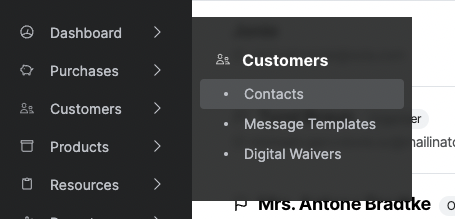
Navigate to Customers > Contacts and search for your customer by name or email.
Customer Record Types
Xola creates customer records for a reservation's Organizer and any non-organizers. If a customer makes a reservation with more than one person in the group, Xola may collect non-organizer information via questionnaire responses, waiver submissions, and addition to split-pay reservations. This information can be viewed on both the Purchase and the Contact pages.
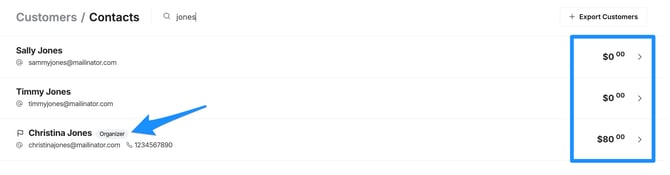
- The Organizer is the customer whose information is initially entered for the reservation.
- When someone joins a reservation by signing a waiver or joining a split payment, these customer records will not be specified as an Organizer.
- Waitlisted customer records will show with the tag "Waitlist Only." The customer record will no longer be tagged as waitlisted if they are invited to book and complete the reservation.
Organizer vs Non-Organizer Example
In this example, Christina, Timmy, and Sally Jones are all participating in the same reservation. Christina originally reserved the experience and is logged as the Organizer. Christina forwarded the waiver link to Timmy and Sally, and when they filled it out, their information was entered as a customer record but not as an Organizer:
Customer Record Fields
- Lifetime Value: A customer's lifetime value will appear beneath their name. Here, you can see:
- How much this customer has spent with your business.
- How many guests they have reserved.
- How many coupons they have redeemed.
- Edit Primary Contact Info: Click the Edit Contact Info button to edit the customer name, email, or phone number.
- Credit Cards: Here, you can view and delete any card(s) on file for a customer. Click the trashcan icon to delete a saved card.
- Customer Notes: Customer notes will appear in this field and will also export in the .CSV file. These are not customer-facing notes. You can add a note using the Add Note button.
- Timeline: The Timeline contains all purchase events and waivers signed by a customer. Click any reservation, gift, or store credit to view it in the Purchases tab. You can also download a signed waiver using the download button.
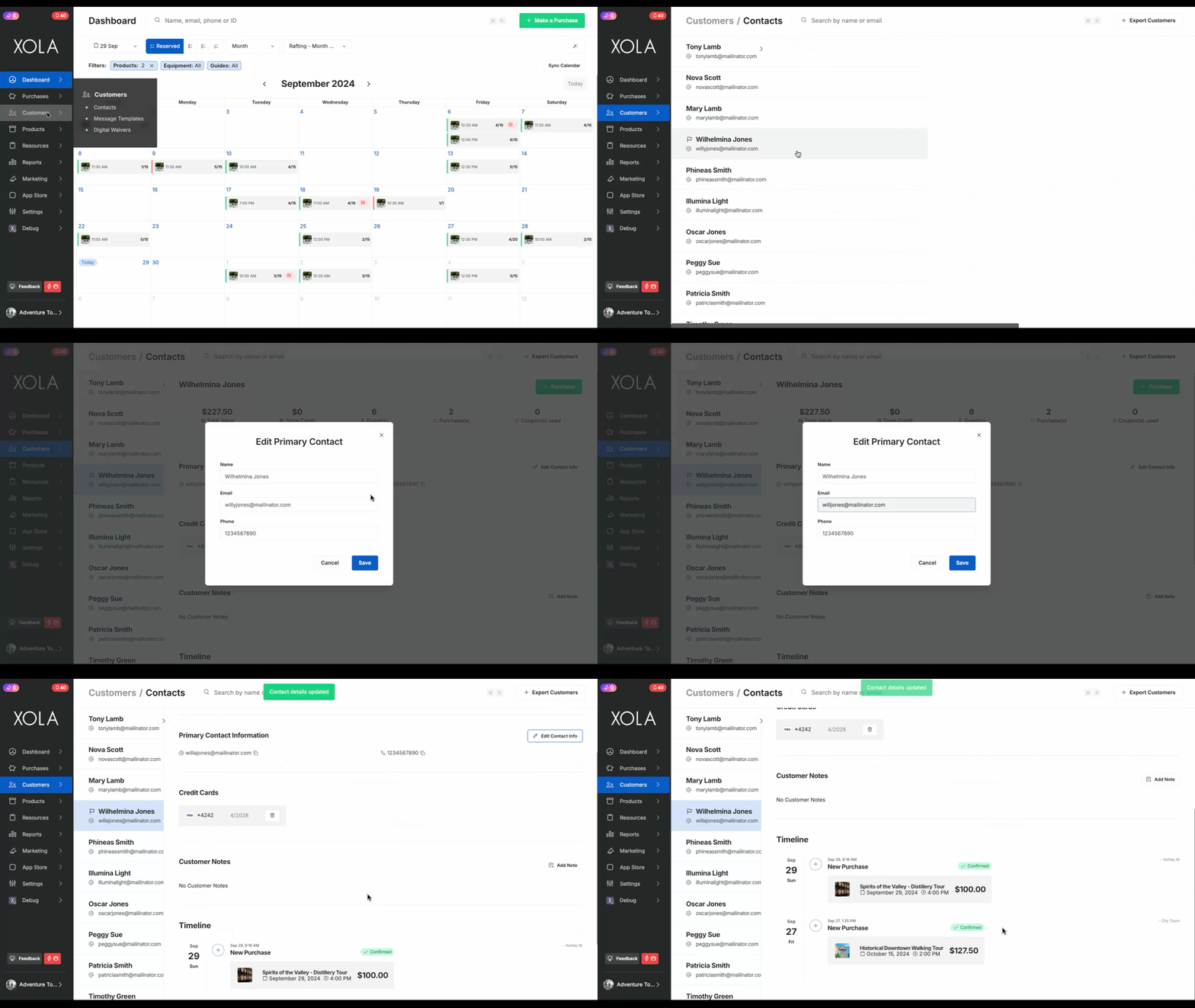
Tip: You can rebook this customer from their customer profile by selecting the Purchase Button (more on rebooking customers here).
Merging Customer records
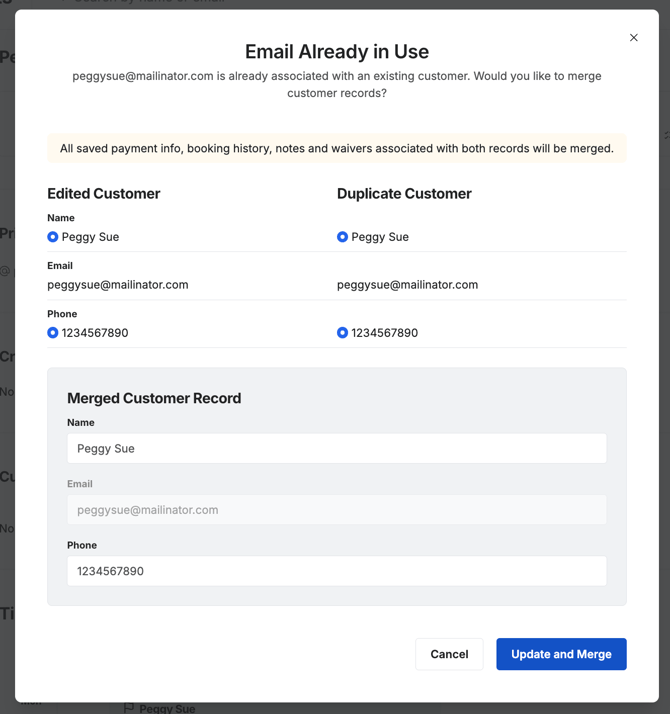
If you edit a customer's email address and it is the same as another customer record in Xola, it will ask you if you would like to merge the records together. You can choose which name and phone number you want to keep or change those fields to something new. You can also opt to apply the merged customer details to past purchases.
Unmerging Customer records
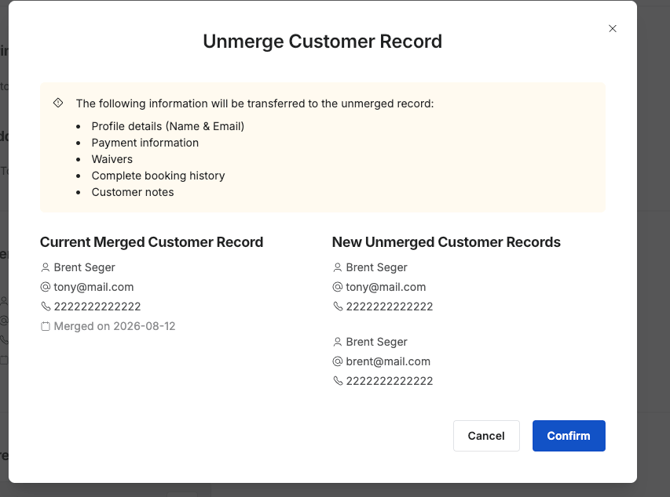
If you merge two customer records by mistake, or want to split them back apart, you can undo the merge.Unmerge restores both customer records to how they looked before the merge. This includes each customer's name, phone number, bookings, waivers, tags, notes, and cards on file.
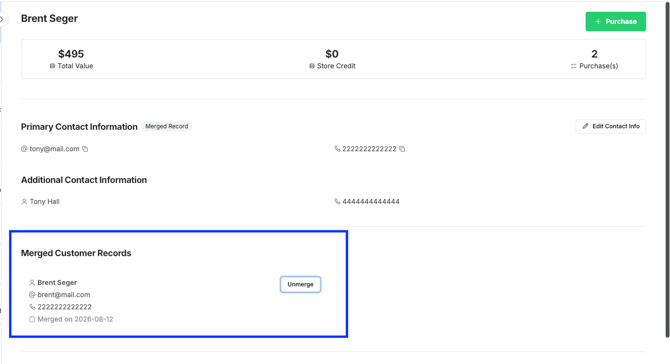
To unmerge a customer record:
- Navigate to Customers > Contacts
- Search for the merged customer.
- Select Unmerge.
- Select Confirm to restore both customer profiles to their pre-merge state.
Deleting Customer cards on file
If you have Administrator or Reservationist permission levels in Xola, you can delete a customer's card on file from Customers > Contacts.
Click the trashcan icon to delete a saved card. You can still refund the card after it is deleted, but you cannot charge it without re-entering the information.
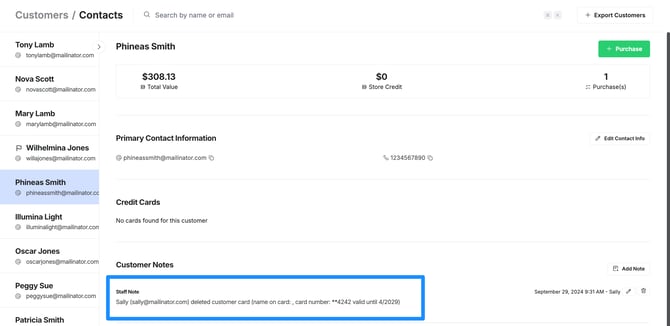
Xola will automatically record which user deletes a card on file in the Customer Notes section of the customer record. If you don't see this immediately, try refreshing your page.
Export Customer information to a spreadsheet
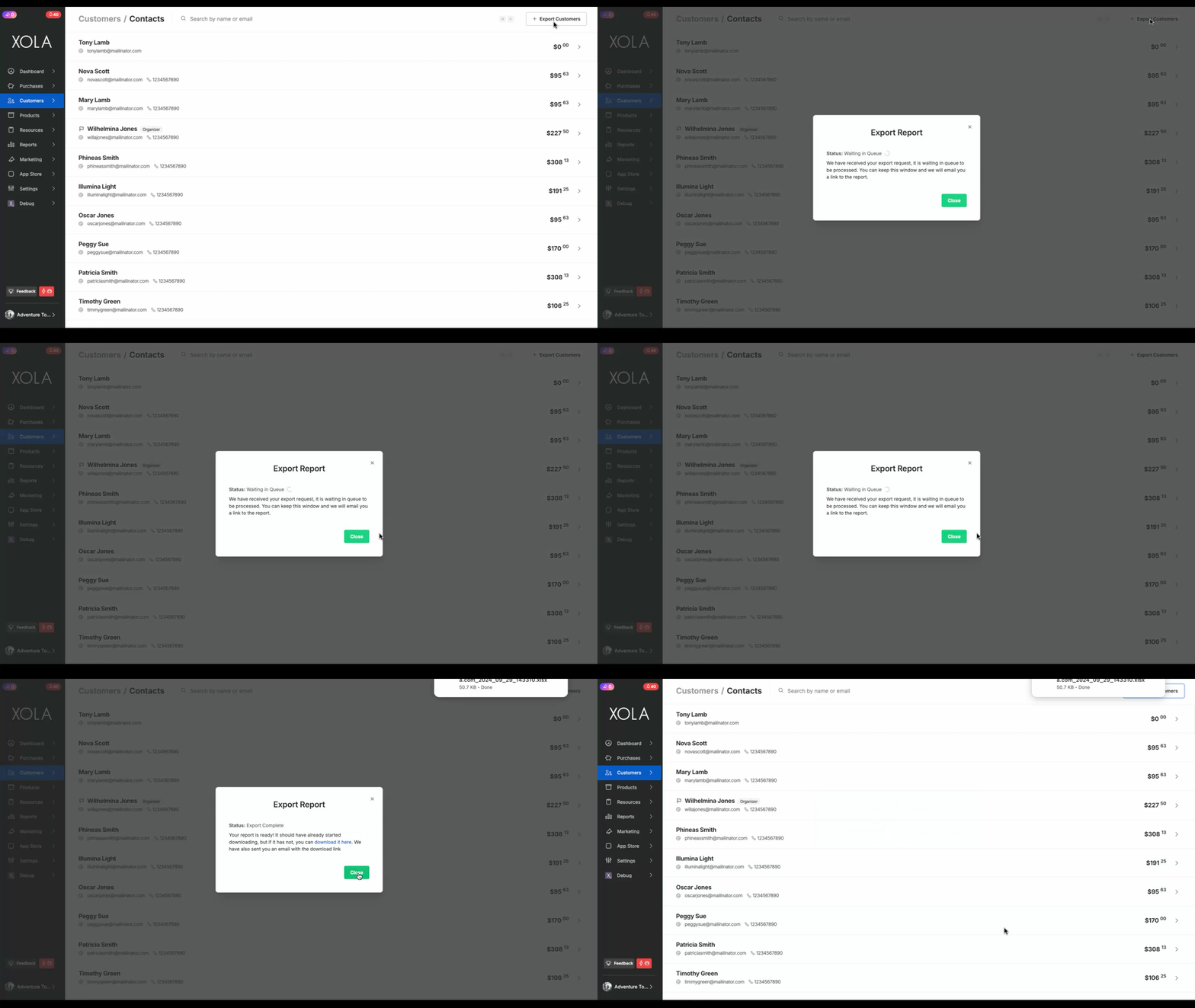
Export your customer database to a spreadsheet for use outside of Xola. This might be handy if you want to use past guests' contact info to power a marketing campaign.
- Navigate to Customers > Contacts.
- Select the Export Customers Button > located on the right side of the page. Your customer list will appear in your downloads as a .xlsx file.
Contact Settings
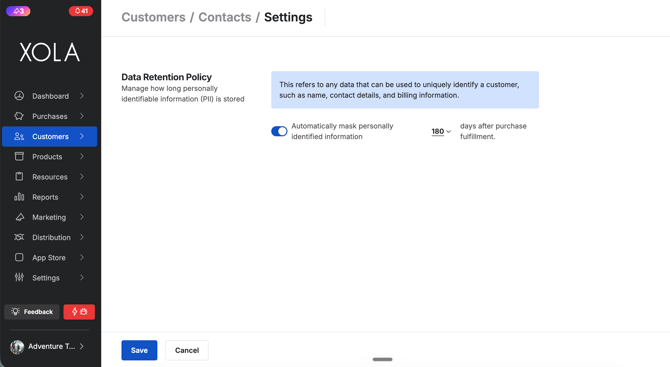
The Contact Settings page allows you to manage how customer contact information is stored within Xola. This includes configuring your Data Retention Policy to help protect personally identifiable information (PII) and support privacy compliance requirements.
What is Personally Identifiable Information (PII)?
Personally identifiable information (PII) refers to any customer data that can be used to identify an individual, including:
- Customer names
- Email addresses
- Phone numbers
- Billing information
- Other contact details
Configure Your Data Retention Policy
The Data Retention Policy setting allows you to automatically mask customer PII after a specified period of time following purchase fulfillment.
To configure your retention policy:
- Navigate to Customers > Contacts > Settings.
- Enable Automatically mask personally identifiable information.
- Select the number of days you would like customer data to remain visible after the purchase has been fulfilled.
- Click Save to apply your changes.
How Data Masking Works
Once the selected retention period has passed, Xola will automatically mask customer PII stored within the platform. This helps reduce long-term storage of sensitive customer information while maintaining the reservation and transaction records associated with the booking.