---
title: Xola Distribution Network
description: This article explains how to utilize the Xola Distribution Network to collaborate with other companies using Xola, allowing you to sell each other's experiences individually or as bundled packages. Learn how to set up your distribution profile, add and manage operator partnerships, create partner packages, and handle purchases and reporting within the network.
---
[Skip to content](https://support.xola.com/xola-distribution-network#main-content)
English
Show submenu for translations
[](https://www.xola.com/)
- [Home](https://support.xola.com/)
- [24/7 Live Support](https://www.xola.com/support/)
Open main navigation
Close main navigation
- [Home](https://support.xola.com/)
- [24/7 Live Support](https://www.xola.com/support/)
- English
Show submenu for translations
- [Login](https://xola.com/_public/login.html)
[Login](https://xola.com/_public/login.html)
How can we help you?
- There are no suggestions because the search field is empty.
1. [Help Center](https://support.xola.com/?hsLang=en)
2. [Integrations & Advanced Tools](https://support.xola.com/integrations-advanced-tools?hsLang=en)
3. [Partner & Agent Management](https://support.xola.com/integrations-advanced-tools?hsLang=en#partner-agent-management)
# Xola Distribution Network
## Seamlessly Connect, Collaborate, and Grow with Partner-Driven Sales and Experience Bundles
The **Xola Distribution Network** allows you to partner with other companies (Operators) who use Xola to sell each other's experiences. You can choose to distribute as a single experience or as a package bundled with some of your experiences.
This platform enables you to expand your reach by connecting directly with fellow operators in your area or network, opening up new sales channels and creating collaborative offerings without the need for third-party resellers. Through the Distribution Network, you can form mutual partnerships where you list your products with other operators and, in turn, offer their products through your own checkout or back office. This can help you provide more value for your customers, fill more open slots, and tap into new audiences.
You have flexibility in how you structure these collaborations - whether it’s a single tour or activity, or a customized package that presents a seamless multivendor experience at checkout. All pricing, commissions, and booking terms can be managed through configurable templates, making it easy to set up the business relationship that works best for both sides. Operators can work together to create powerful cross-promotional campaigns, appealing bundled deals, or targeted solutions for large groups and tour operators. By leveraging the Xola Distribution Network, you enhance your product lineup and strengthen key partnerships - helping your business grow and deliver greater guest satisfaction.
**User Access:** **Administrator** roles have access to set up and manage Operators in Xola.
**Administrator, Reservationist Lite** or **Reservationist** roles can make and view Partner reservations in Xola.
**Equipment Manager, Guide Manager** or **Guide** roles can only view Partner reservations on the Roster.
**Marketer** roles can only view Operators in the Distribution Tab.
**Administrator** or **Accountant** roles can view Partner reservations in Reporting.
To **grant access** to users, [click here](https://seller.xola.app/settings/users).
[Watch the Xola Distribution Network video tutorial](https://demo.xola.com/showcase/cmoixgsl0001jvp0jb65s8t2v?utm_source=link)
---
**What's covered in this article:**
- [How to enable Xola Distribution Network](https://support.xola.com/xola-distribution-network#enable)
- [How to Set up Operators](https://support.xola.com/xola-distribution-network#setup)
- [Setting up your Distribution Profile](https://support.xola.com/xola-distribution-network#profile)
- [Adding an Operator](https://support.xola.com/xola-distribution-network#adding)
- [Manage Operators](https://support.xola.com/xola-distribution-network#manage)
- [Accepting a Connection Request](https://support.xola.com/xola-distribution-network#accept)
- [Updating Operator Requests](https://support.xola.com/xola-distribution-network#updating)
- [Removing an Operator](https://support.xola.com/xola-distribution-network#remove)
- [How to set up Partner Packages](https://support.xola.com/xola-distribution-network#partner-package)
- [How to Purchase Partner Experiences or Packages from the Back Office](https://support.xola.com/xola-distribution-network#purchase)
- [How to see Partner Purchases](https://support.xola.com/xola-distribution-network#see)
- [How Reporting works](https://support.xola.com/xola-distribution-network#report)
---
### How to Enable Xola Distribution Network
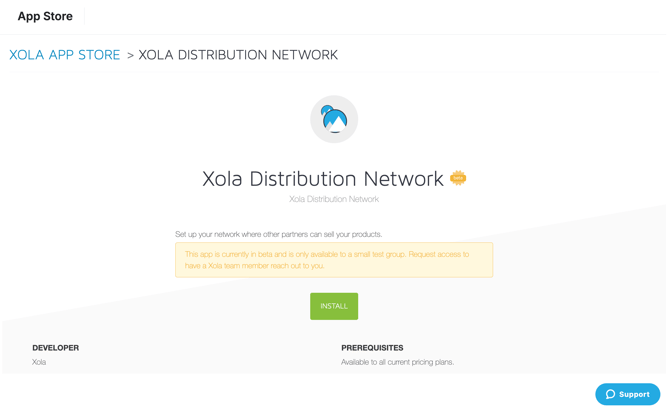
- Navigate to the **[Xola App Store](https://seller.xola.app/apps)**.
- Search **Xola Distribution Network**, and select the app tile.
- Click the green **Install** button shown in the screenshot below.
**Note:** If you need help in getting access to this feature, you can reach out to [support@xola.com](mailto:support@xola.com).
---
### How to set up Operators
#### Setting up your Distribution Profile
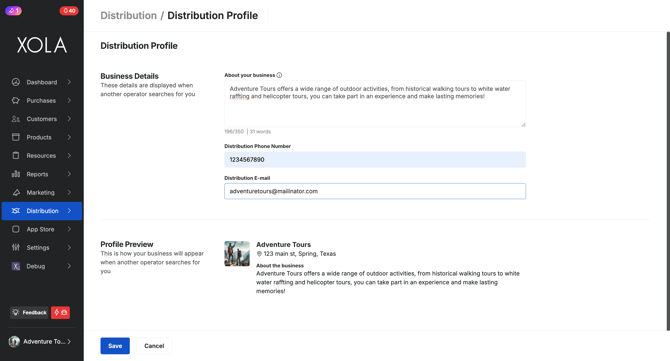
- Navigate to **[Distribution \> Distribution Profile](https://seller.xola.app/distribution/profile)** and fill out the **Business Details**.
- **About your business:** Enter a brief summary about your business that will be displayed to other Operators who add you to their distribution network. It will not be displayed to customers.
- **Distribution phone number**: Enter a phone number where other Xola Operators can contact you.
- **Distribution E-mail**: Enter an email address where other Xola Operators can contact you.
- **Profile Preview:** Preview how your profile will be displayed for other Operators when they search for you in the distribution network.
- - Next, you will need to create a [terms template](https://support.xola.com/terms-templates-agents-operators?hsLang=en) if you do not already have one created.
- Click on the blue **Create Template**.
- Please refer to [this article](https://support.xola.com/terms-templates-agents-operators?hsLang=en) to learn how to set up a terms template.
#### Adding an Operator
To add an Operator to your distribution network:
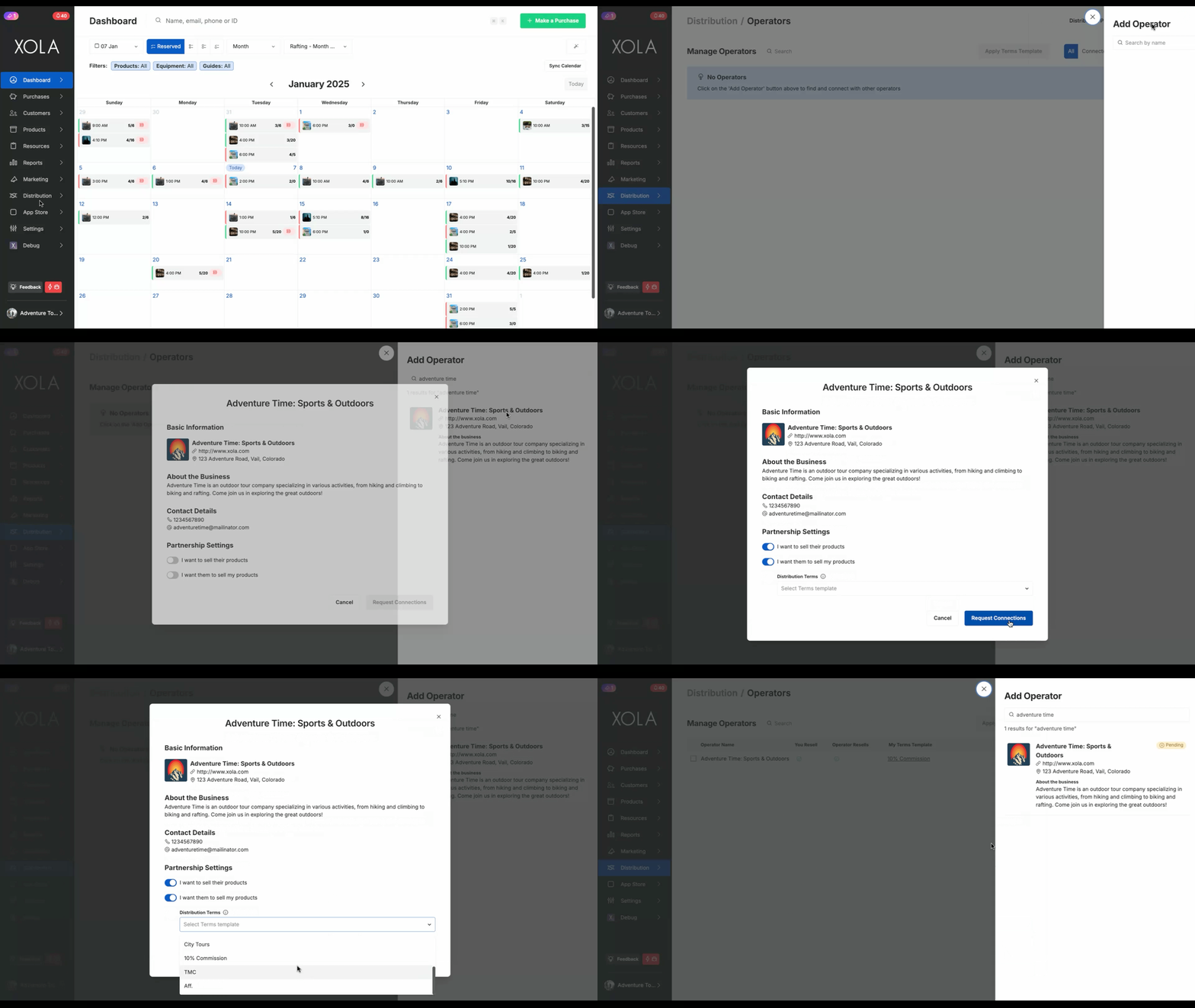
- Navigate to **[Distribution \> Operators](https://seller.xola.app/distribution/operators)** \> Add an Operator.
- Search the Operator's name and then click on the result.
- Next, set up the Partnership:
- **Partnership Settings**: Toggle on the option:
- **I want to sell their products:** This will allow you to sell the operator you are connecting with products.
- **I want them to sell my products:** This will allow the operator you are connecting with to sell your products.
- **Distribution Terms:** Apply a [terms template](https://support.xola.com/terms-templates-agents-operators?hsLang=en#individual-operators) to the Operator, this will apply when the Operator sells your products.
**Tip:** If you do not want any commissions or discounts applied, you will need to [create a terms template](https://support.xola.com/terms-templates-agents-operators?hsLang=en) without commissions or discounts and apply that template here.
- Click **Request Connection**.
- This connection will remain pending until the other Operator accepts it.
- If you want to delete the request, click on the icon and click the red delete button at the bottom of the screen that pops up.
### Managing Operators
#### Accepting a Connection Request
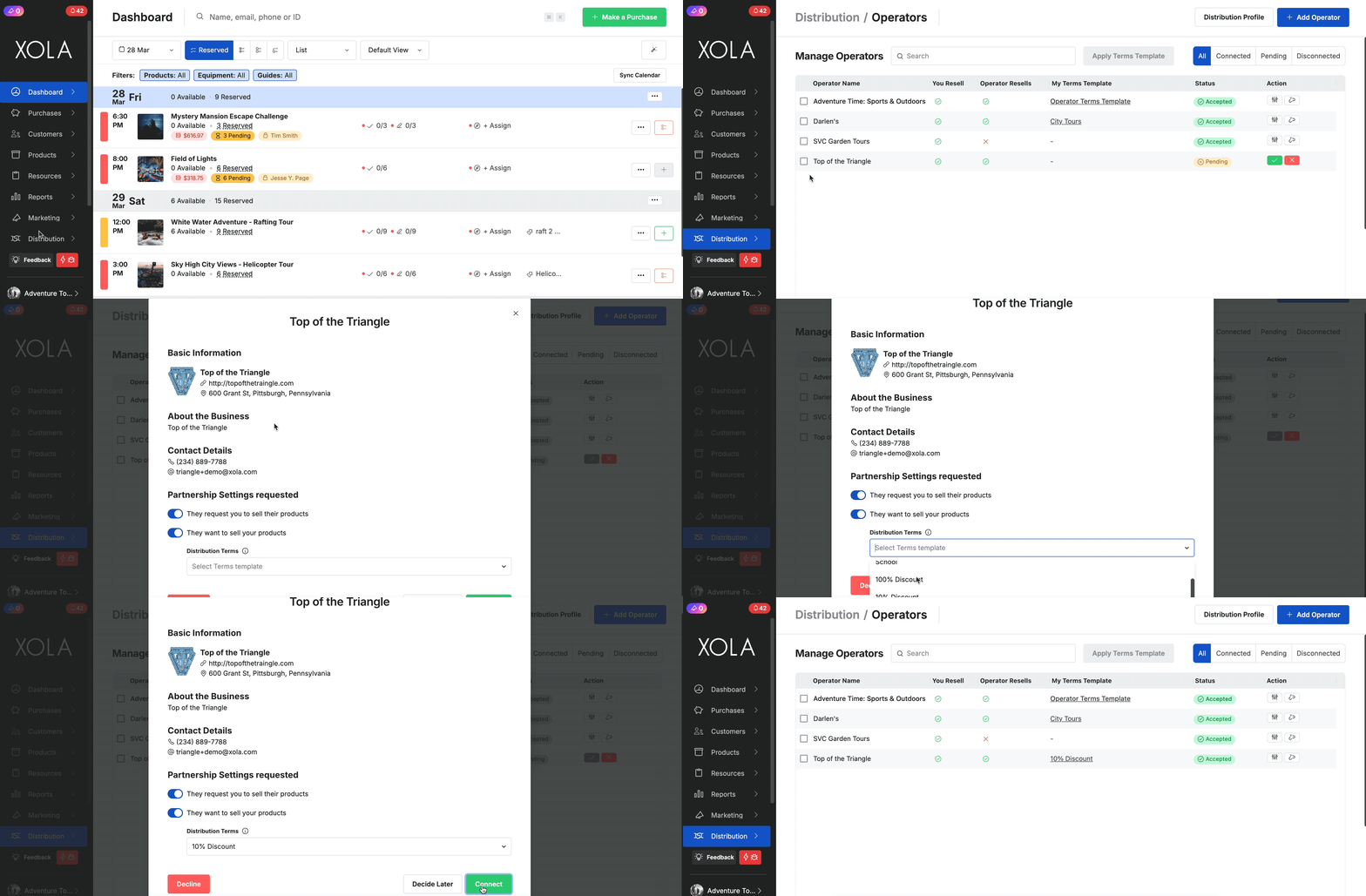
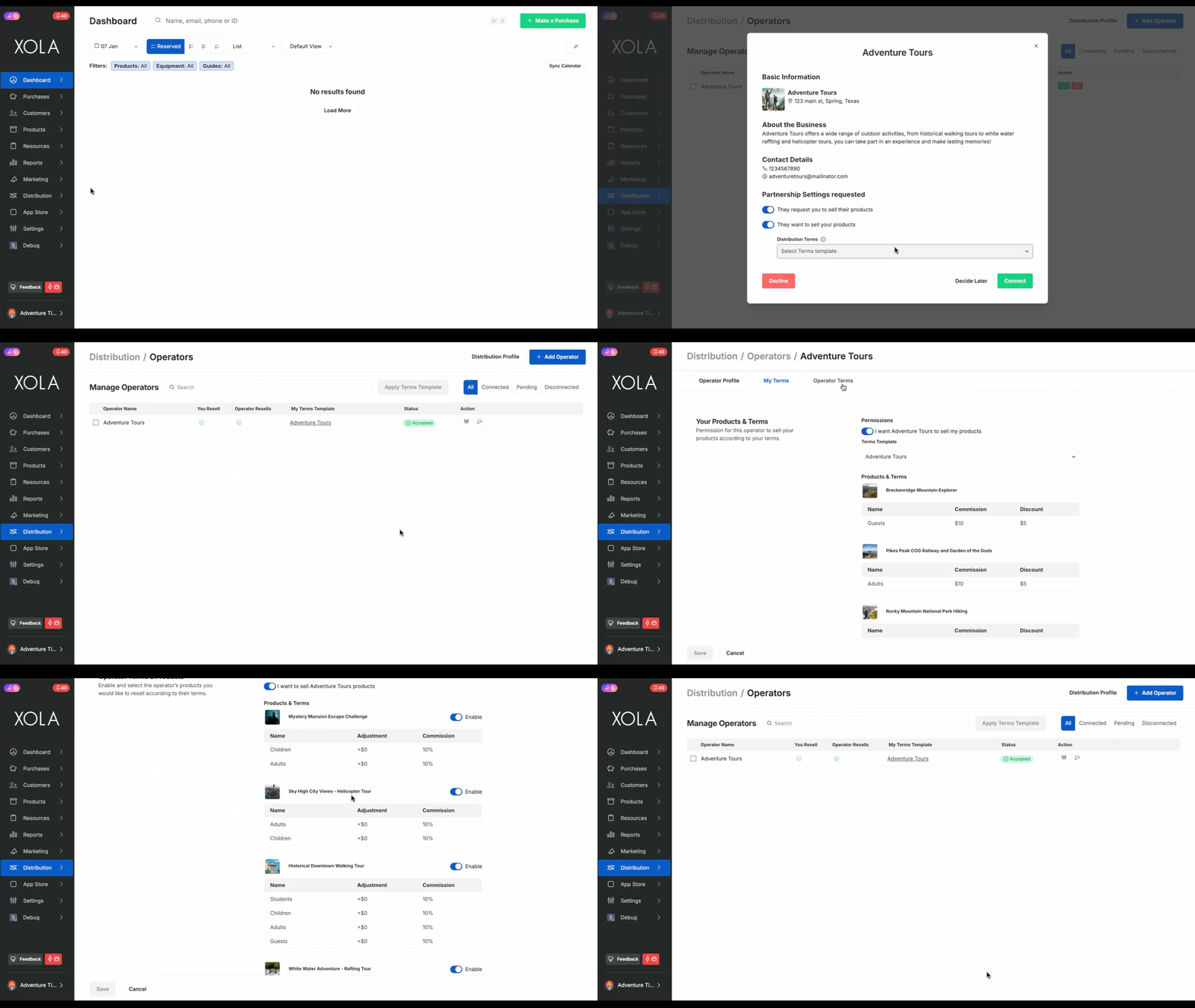
If another Operator adds you to their distribution network, you can view your Operator Connection Requests by navigating to **[Distribution \> Operators](https://seller.xola.app/distribution/operators)**.
- Click the  icon to accept the Operator request.
- Next, set up the Partnership:
- **Partnership Settings**: Toggle on the option:
- **I want to sell their products:** This will allow you to sell the operator you are connecting with products.
- **I want them to sell my products:** This will allow the operator you are connecting with to sell your products.
- **Distribution Terms:** Apply a [terms template](https://support.xola.com/terms-templates-agents-operators?hsLang=en#individual-operators) to the Operator, this will apply when the Operator sells your products.
**Tip:** If you do not want any commissions or discounts applied, you will need to [create a terms template](https://support.xola.com/terms-templates-agents-operators?hsLang=en) without commissions or discounts and apply that template here.
- Click the  icon to decline the Operator request.
- This will send them a notification you declined the request.
#### Updating Operator Requests
If you need to update your Terms or Partnership settings after you have accepted a request, navigate to **[Distribution \> Operators.](https://seller.xola.app/distribution/operators)**
- Under the **Action** column, click on the  icon.
- **Operator Profile:** This shows you the Operator's profile and how you can contact them.
- **My Terms:** Manage the permission for the Operator to sell your products according to your terms.
- Adjust the [terms template](https://support.xola.com/terms-templates-agents-operators?hsLang=en) applied to the Operator and dictate which experiences any commissions/discounts are applied to.
- **Operator Terms:** Enable and select the Operator’s products you would like to resell according to their terms.
#### Removing an Operator
Once you remove an Operator from your distribution network, you will no longer be able to distribute their products, including any packages that have been configured containing this operator's products.
To remove an Operator:
- Navigate to **[Distribution \> Operators](https://seller.xola.app/distribution/operators)**.
- Under the **Action** column, click on the icon.
- Click **Remove**.
---
### How to set up Partner Packages
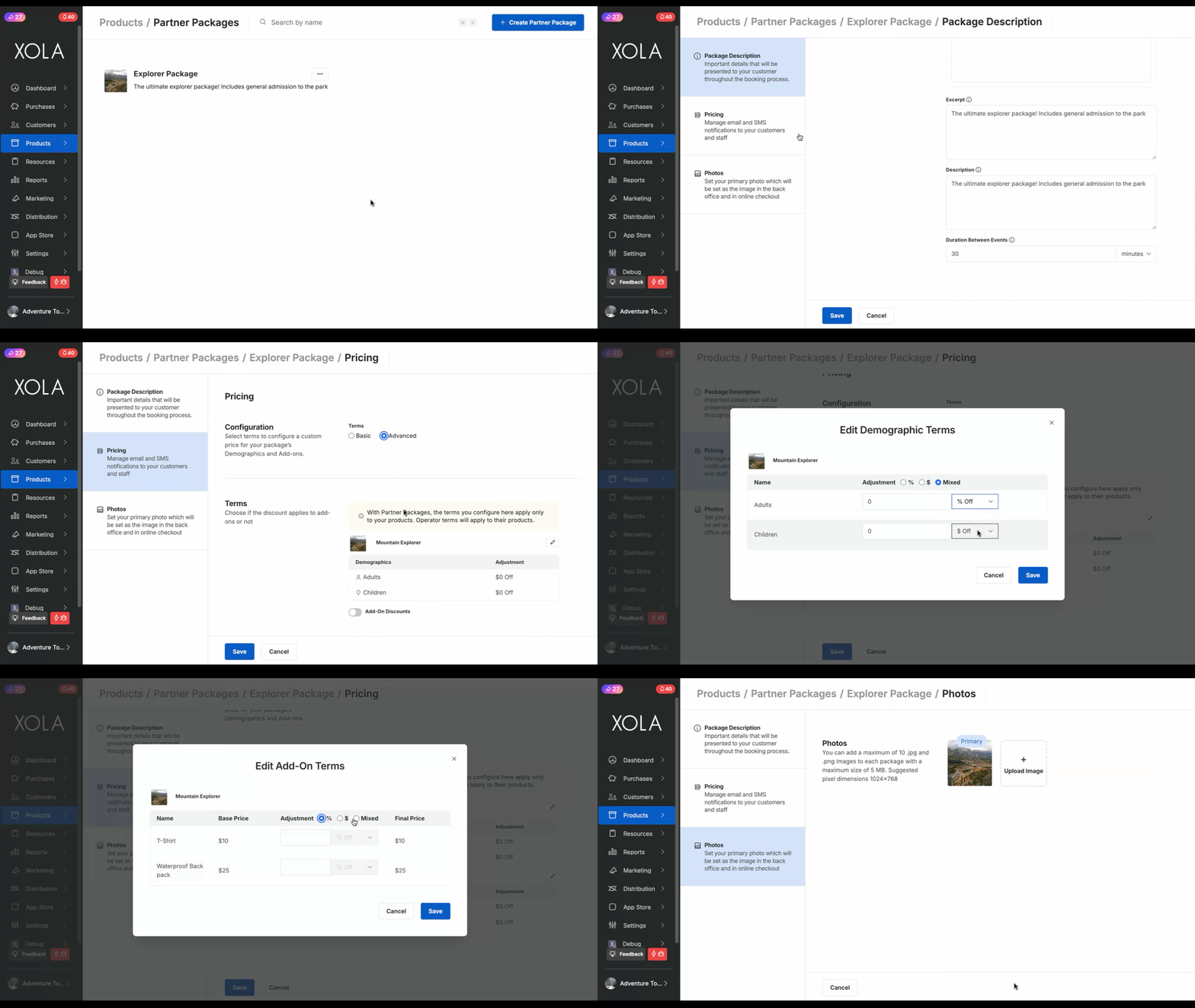
You can set up packages that include your experiences as well as your operators' for customers to purchase at checkout. To set up a partner package:
- Navigate to [Products \> Partner Packages](https://seller.xola.app/products/partnerPackages).
- Click **+Create Partner Package** in blue at the top right corner.
#### Package Description
- **Title:** Enter a title for the package (this text is shown to the customer at checkout).
- **Your Experiences:** Choose the experiences from your company you want to sell in this package.
- **Partner Experiences**: Choose the experiences from your operator you want to sell in this package.
Only experiences with per-person pricing configured are eligible to be part of a package.
- - **Excerpt:** Enter text that briefly describes the package for the customer. This text is shown to the customer at checkout.
- **Description:** Enter text that is only visible through distribution channels like Viator, Get Your Guide, etc. If you don't have integrations set up with distribution channels, you can copy and paste the content from the **Excerpt** section here.
- **Duration between Events**: if you would like to require a minimum time between events, you can enter the time frame here.
- Click **Save**.
**Note:** With partner packages, the terms you configure here will only apply to your products. Operator terms will apply to their products.
#### Pricing
- **Basic Terms:** This option will allow you to configure a percentage based discount to your experience. You will also be able to choose whether you would like to include or exclude add-ons from that discount.
- **Advanced Term:** This option will allow you to configure a mixture of dollar and percentage-based discounts per demographic for your experience. You will also be able to configure these discounts to add-ons.
- Click **Save**.
#### Photos
- Next, you will need to upload a photo for each partner package you make. This photo will be displayed to customers at checkout when they make a partner package purchase. The primary photo for each experience is also displayed to customers; however, individual experience photos are displayed a bit less prominently than your Partner package’s primary photo.
Partner Package photos are configured the same way that Experience photos are. Check out [this article](https://support.xola.com/product-experiences-set-up?hsLang=en#photo) for instructions on how to upload and manage photos.
#### How to Manage Existing Partner Packages
Once you’ve created a Partner Package, you can manage it by navigating to [Products \> Packages.](https://seller.xola.app/products/partnerpackage) Here, you’ll find tools to edit, preview, duplicate, hide, or delete the experience. Below are the available actions:
- **Edit**: Hover over the Package and click the **Edit** button to make changes.
- Click on the icons for the following:
- **Edit:** Allow you to make changes to the Partner Package.
- **Manage Photos:** Click on this to add or manage photos on this Partner Package.
- **Preview Checkout:** See a preview of the Partner Package checkout in a new window, based on your checkout preferences.
- **Delete**: This permanently removes the Partner Package from your Xola account. However, if the Partner Package has existing reservations, it will remain visible on your dashboard and in reports.
---
### How to Purchase Partner Experiences or Packages from the Back Office
- From the [Dashboard](https://seller.xola.app/dashboard) or [Purchases tab](https://seller.xola.app/purchases), click the green **+Make a Purchase** button.
- Choose the Partner Experience and Partner Package in the dropdown menu at the top right. This will display all your Operators you are connected with experiences and packages that you can sell.
- In the product selection section, click on the experience your customer wants to purchase.
Each experience clearly displays the operator’s name alongside it, ensuring you always know who is providing the product.
- Enter Purchase Details.
- Quantity of guests
- Date & Time of the event
- Modify the purchase details if needed.
- Enter Customer Details
- Enter payment details.
You will only be able to enter a credit card for Partner experiences. Cash, check or other Payment methods will not be displayed.
- If you selected a Partner Package to purchase, you will fill out the details for all the experiences in the Partner Package.
If you need more details on the items above, please read [this article](https://support.xola.com/make-purchases-through-back-office?hsLang=en).
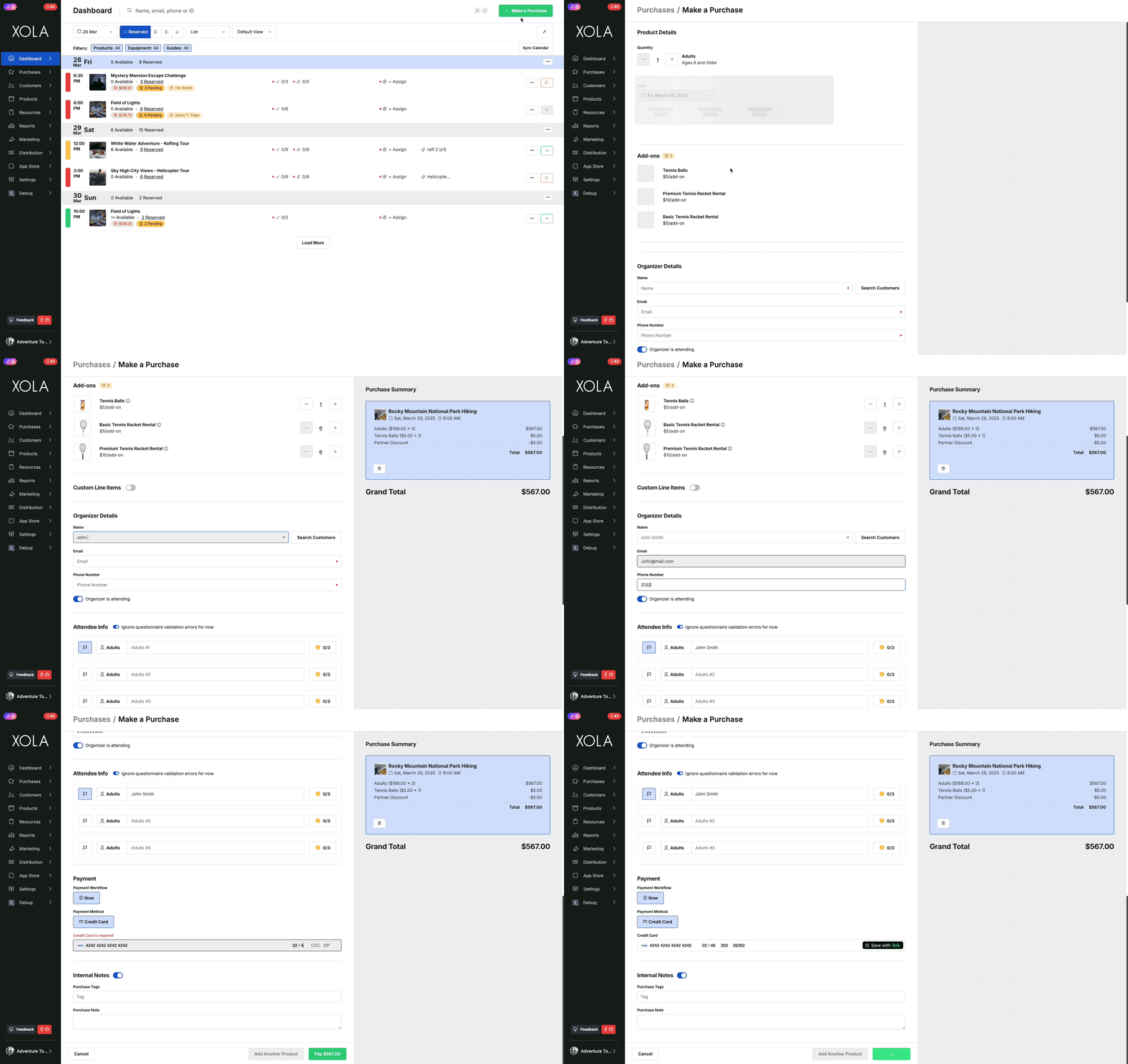
After you make the purchase, this will **not** show in your **Purchase Tab** because it is a purchase for the Operator. The Operator will now see the purchase you made in their Xola account. If you make a **Partner Package** purchase, your experience with the Package will show in your **Purchases tab.**
---
### How to See Partner Purchases
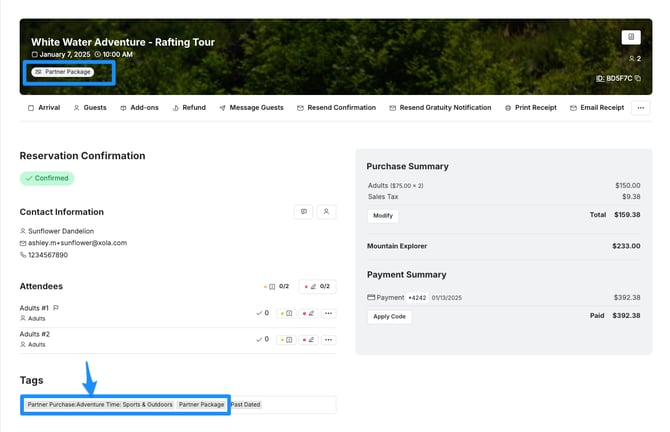
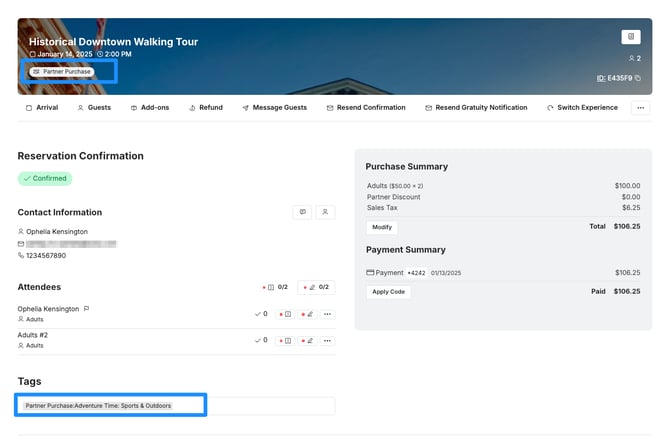
Once an Operator makes a purchase for your experience, it appears in the [Purchases tab](https://seller.xola.app/purchases) along with all other purchases. When you click on the purchase, it will display either a Partner Purchase or Partner Package icon in the title, and the Tags section will also include the name of the Operator who made the purchase.
---
### How Reporting Works
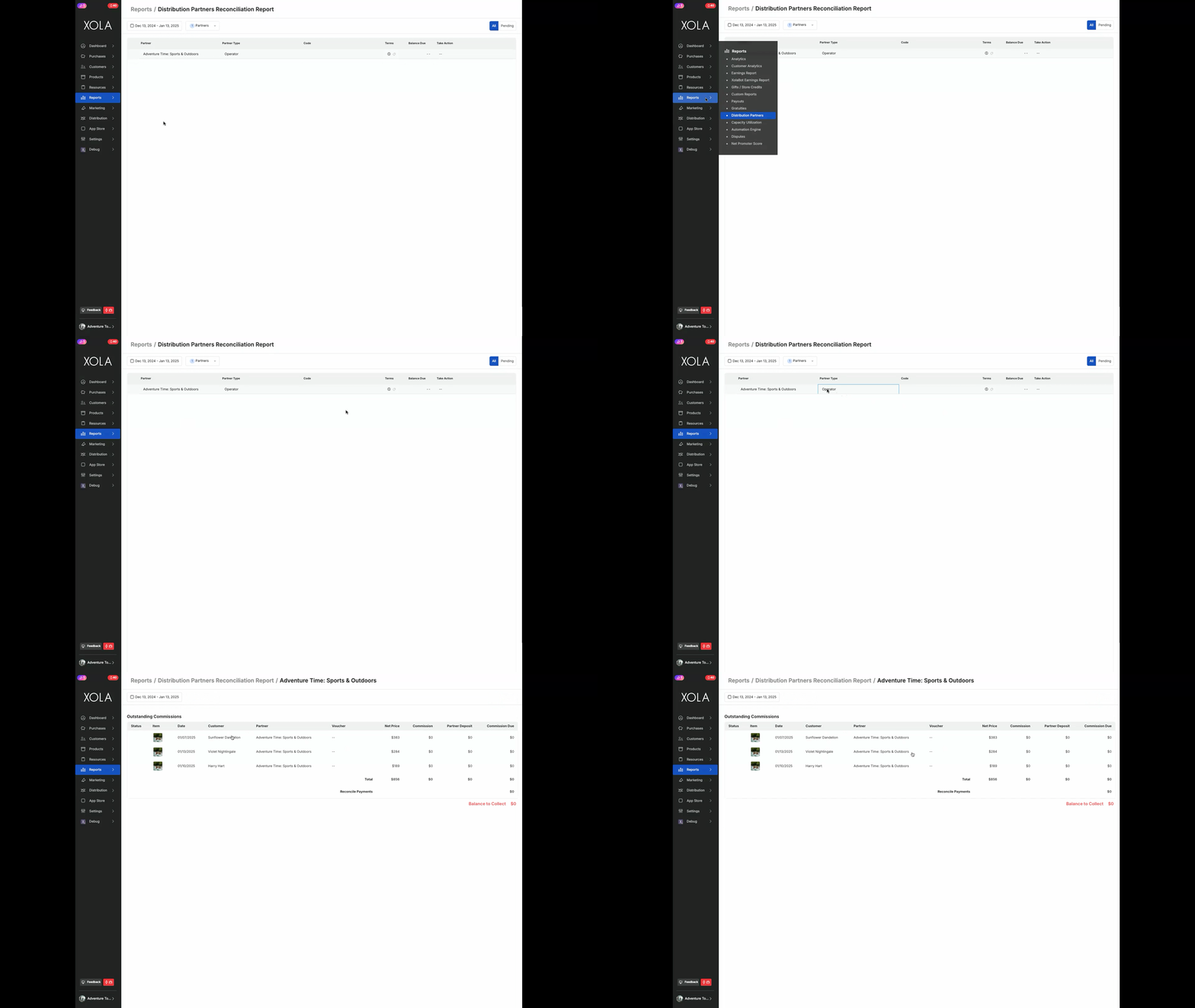
Similar to [Agents](https://support.xola.com/agent-management?hsLang=en), the **Distribution Partners Reconciliation Report** will show you partner purchases that have been made from the Operators you are connected with. To access the report:
- Navigate to **[Reports \> Distribution Partners](https://seller.xola.app/reports/distributionPartnersReconciliation)**.
- Click on the Operators Name to view the report.
- The reservations will appear along with additional terms details (commissions, partner deposit, etc).
**Note**: Only reservations that have occurred will populate in this report. Future reservations will not show on this report until they occur.
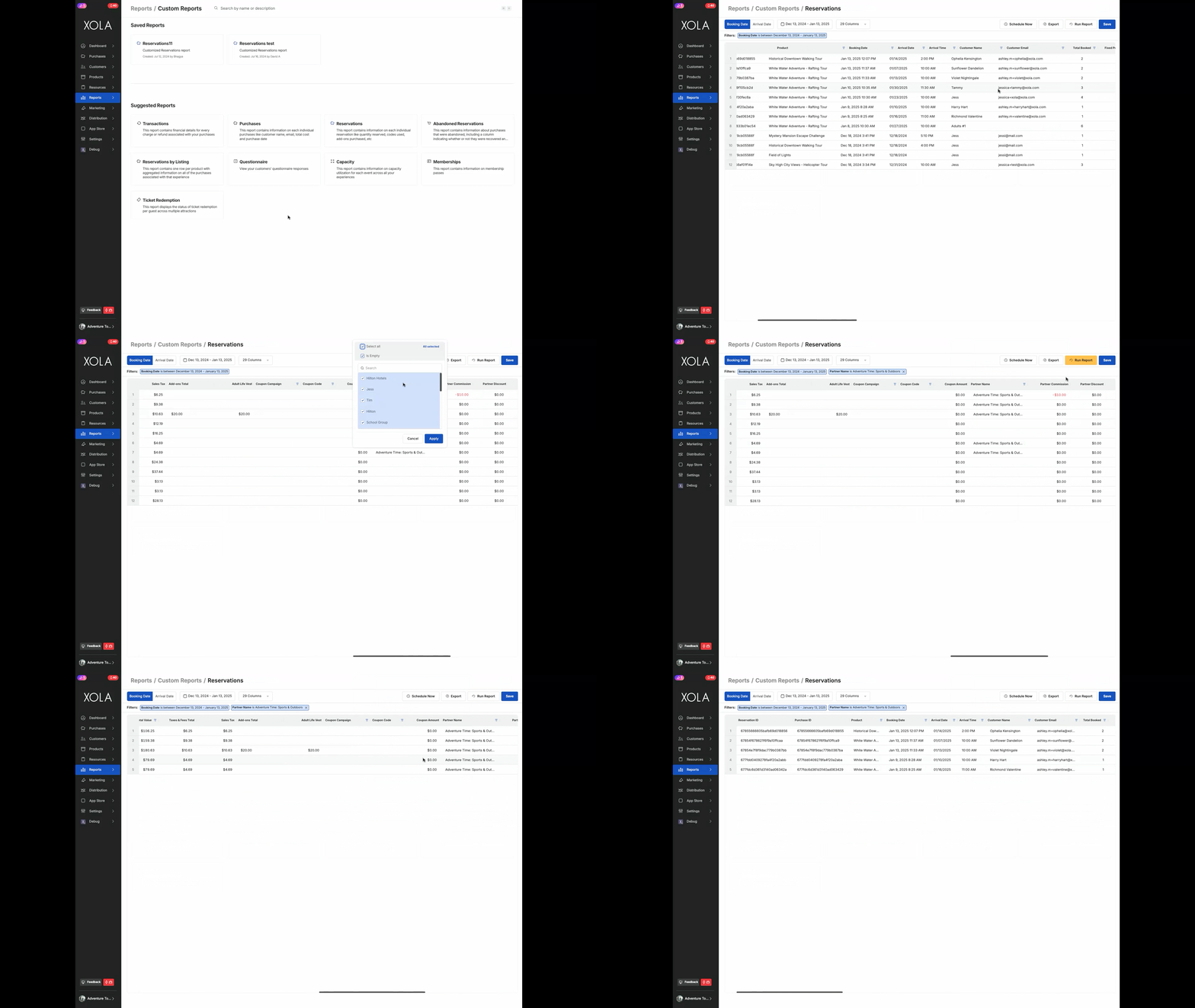
**Tip**: Operator purchases will also populate in the **[Custom Reservations Report under Reporting \> Custom Report](https://seller.xola.app/reports/customReports)**. You can use the Partner Name column filter to populate purchases by Operators.
- [Getting Started](https://support.xola.com/getting-started?hsLang=en#main-content)
- [Account Setup & Configuration](https://support.xola.com/getting-started?hsLang=en#account-setup-configuration)
- [Website Integration & Installation](https://support.xola.com/getting-started?hsLang=en#website-integration-installation)
- [Flex Plans](https://support.xola.com/getting-started?hsLang=en#flex-plans)
- [Managing Purchases & Customers](https://support.xola.com/managing-purchases-customers?hsLang=en#main-content)
- [Purchases Management](https://support.xola.com/managing-purchases-customers?hsLang=en#purchases-management)
- [Reservation Management](https://support.xola.com/managing-purchases-customers?hsLang=en#reservation-management)
- [Customer Management](https://support.xola.com/managing-purchases-customers?hsLang=en#customer-management)
- [Customer Data & Engagement](https://support.xola.com/managing-purchases-customers?hsLang=en#customer-data-engagement)
- [Reporting](https://support.xola.com/reporting?hsLang=en)
- [Integrations & Advanced Tools](https://support.xola.com/integrations-advanced-tools?hsLang=en#main-content)
- [Xola App Store Integrations](https://support.xola.com/integrations-advanced-tools?hsLang=en#xola-app-store-integrations)
- [Partner & Agent Management](https://support.xola.com/integrations-advanced-tools?hsLang=en#partner-agent-management)
- [Marketing & Tracking Integrations](https://support.xola.com/integrations-advanced-tools?hsLang=en#marketing-tracking-integrations)
- [Mobile and Hardware](https://support.xola.com/mobile-and-hardware?hsLang=en#main-content)
- [Mobile Tools and Apps](https://support.xola.com/mobile-and-hardware?hsLang=en#mobile-tools-and-apps)
- [Hardware Setup & Devices](https://support.xola.com/mobile-and-hardware?hsLang=en#hardware-setup-devices)
- Company
- [About Us](https://www.xola.com/about)
- [Careers](https://www.xola.com/team)
- [Press](https://www.xola.com/press)
- [Support](https://www.xola.com/support)
- [Security Policy](https://www.xola.com/security-policy/)
- Resources
- [Articles](https://www.xola.com/articles/)
- [Help Center](https://support.xola.com/)
- [Success Stories](https://www.xola.com/success-stories/)
- [App Store](https://www.xola.com/app-store)
- [Demo](https://www.xola.com/demo)
- [Xola Universe](https://www.xola.com/universe/)
- Documentation
- [API Documentation](https://developers.xola.com/)
- [Payment Services Agreement](https://www.xola.com/payment-services-agreement/)
- [Terms](https://www.xola.com/terms/)
[](https://www.xola.com/)
© 2026 Xola Inc. All rights reserved.
[Privacy Policy](https://www.xola.com/privacy-policy) [Terms of Service](https://www.xola.com/terms)