---
title: Terms Templates (Agents & Operators)
description: This article explains how to create and apply Terms Templates in Xola to manage discounts and commissions for agents and operators. Learn to set up basic and advanced terms, assign them to individual or multiple agents and operators, and streamline your distribution management.
---
[Skip to content](https://support.xola.com/terms-templates-agents-operators#main-content)
English
Show submenu for translations
[](https://www.xola.com/)
- [Home](https://support.xola.com/)
- [24/7 Live Support](https://www.xola.com/support/)
Open main navigation
Close main navigation
- [Home](https://support.xola.com/)
- [24/7 Live Support](https://www.xola.com/support/)
- English
Show submenu for translations
- [Login](https://xola.com/_public/login.html)
[Login](https://xola.com/_public/login.html)
How can we help you?
- There are no suggestions because the search field is empty.
1. [Help Center](https://support.xola.com/?hsLang=en)
2. [Integrations & Advanced Tools](https://support.xola.com/integrations-advanced-tools?hsLang=en)
3. [Partner & Agent Management](https://support.xola.com/integrations-advanced-tools?hsLang=en#partner-agent-management)
# Terms Templates (Agents & Operators)
## Simplify Agent and Operator Management with Terms Templates
**Terms Templates** in **Xola** allow you to define and manage **discount** and **commission parameters** for your **Agents** and **Operators** within the **Distribution tab**. These templates help streamline your distribution process by ensuring consistent and accurate pricing rules across your network of partners.
You can create **configurable templates** that can be applied broadly across multiple **Agents** and **Operators**, or you can set up templates tailored to a specific user. This flexibility allows you to manage unique commission structures or promotional discounts with ease, all while maintaining a centralized and organized workflow.
By using **Terms Templates**, you remove the **guesswork** from managing commissions and discounts, reduce the potential for errors, and save time when setting up or updating distribution relationships. It’s an essential tool for **efficiently managing your distribution strategy** within your **Xola account**.
**User Access:** **Administrator** or **Reservationist** roles have access to set up and manage Terms Templates in Xola.
**Marketer** roles can only view Terms Templates in Xola.
To **grant access** to users, [click here](https://seller.xola.app/settings/users).
---
**What's covered in this article:**
- [How to Set Up Terms Templates](https://support.xola.com/terms-templates-agents-operators#how-to-set-up-terms-templates)
- [Applying Terms Templates](https://support.xola.com/terms-templates-agents-operators#applying-terms-templates)
- [Individual Agents](https://support.xola.com/terms-templates-agents-operators#individual-agents)
- [Multiple Agents](https://support.xola.com/terms-templates-agents-operators#multiple-agents)
- [Individual Operators](https://support.xola.com/terms-templates-agents-operators#individual-operators)
- [Multiple Operators](https://support.xola.com/terms-templates-agents-operators#multiple-operators)
---
### How to Set Up Terms Templates
- Navigate to **[Distribution \> Terms Templates](https://seller.xola.app/distribution/termsTemplates)**.
- To create a new terms template, click on the blue **Create Template** button at the top right.
- Next, add the Terms.
- **Title:** Enter a title for the terms template to easily identify for future use.
- **Products:** Select the products to which the terms template will apply. Select all is chosen by default.
**Note:** The products you choose here are what the Agent will see when making reservations via the [Agent Portal](https://support.xola.com/agent-user?hsLang=en), and the terms will only apply to these products.
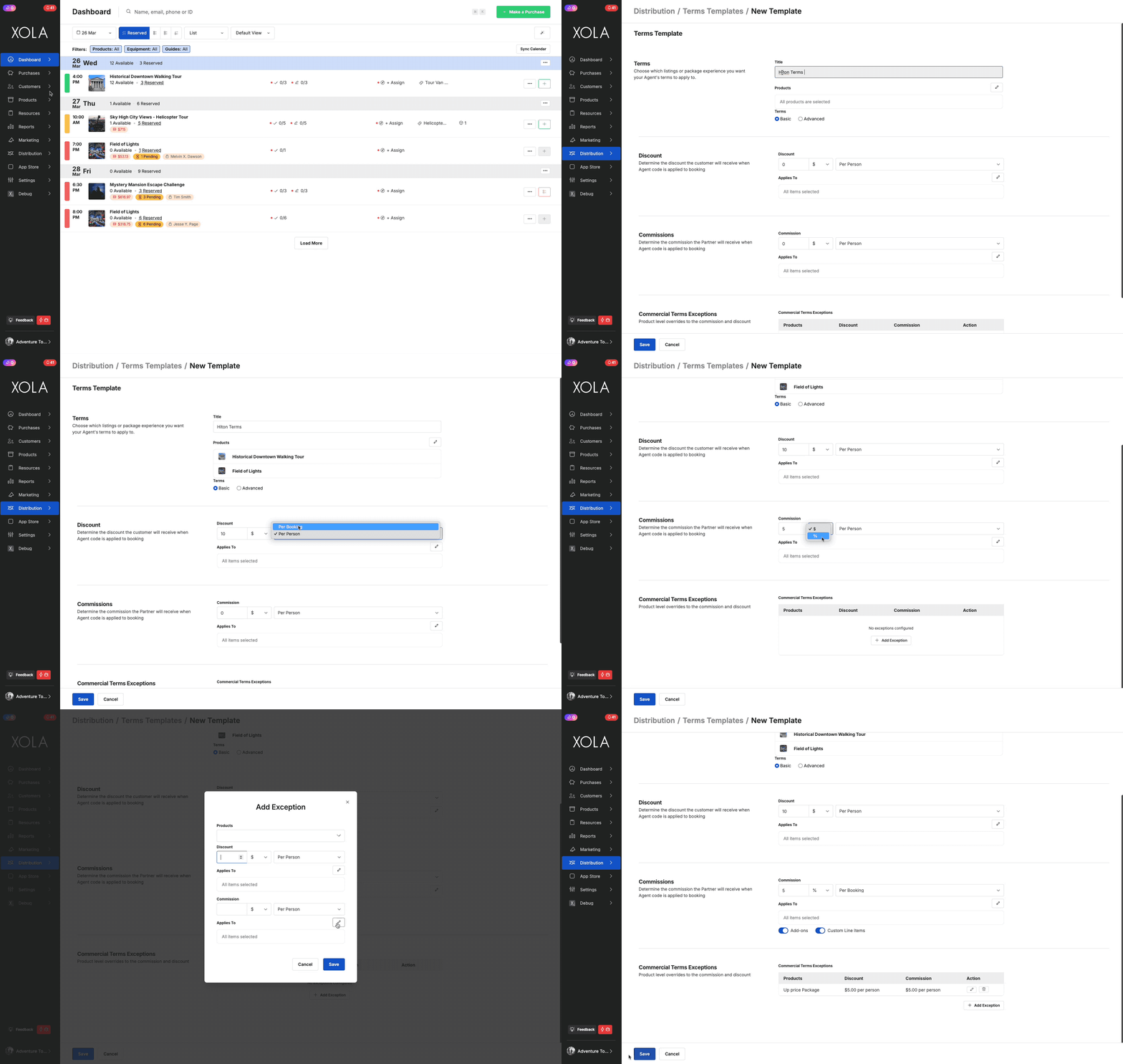
- Now, configure the Term Types.
- **Basic:** These terms will consist of discounts and/or commissions applied in dollar amounts per person/per booking or as a percentage of the reservation amount.
- **Discount:** You can set the discount as a dollar amount per person or a percentage of the reservation amount.
- **Applies To:** You can select the demographics the discount applies to.
- **Commission:** You can set the commission as a dollar amount per person or a percentage of the reservation amount.
- **Applies To:** You can select the demographics the commission applies to.
- **Commercial Terms Exceptions:** This allows you to configure a different discount and/or commission for specific demographics.
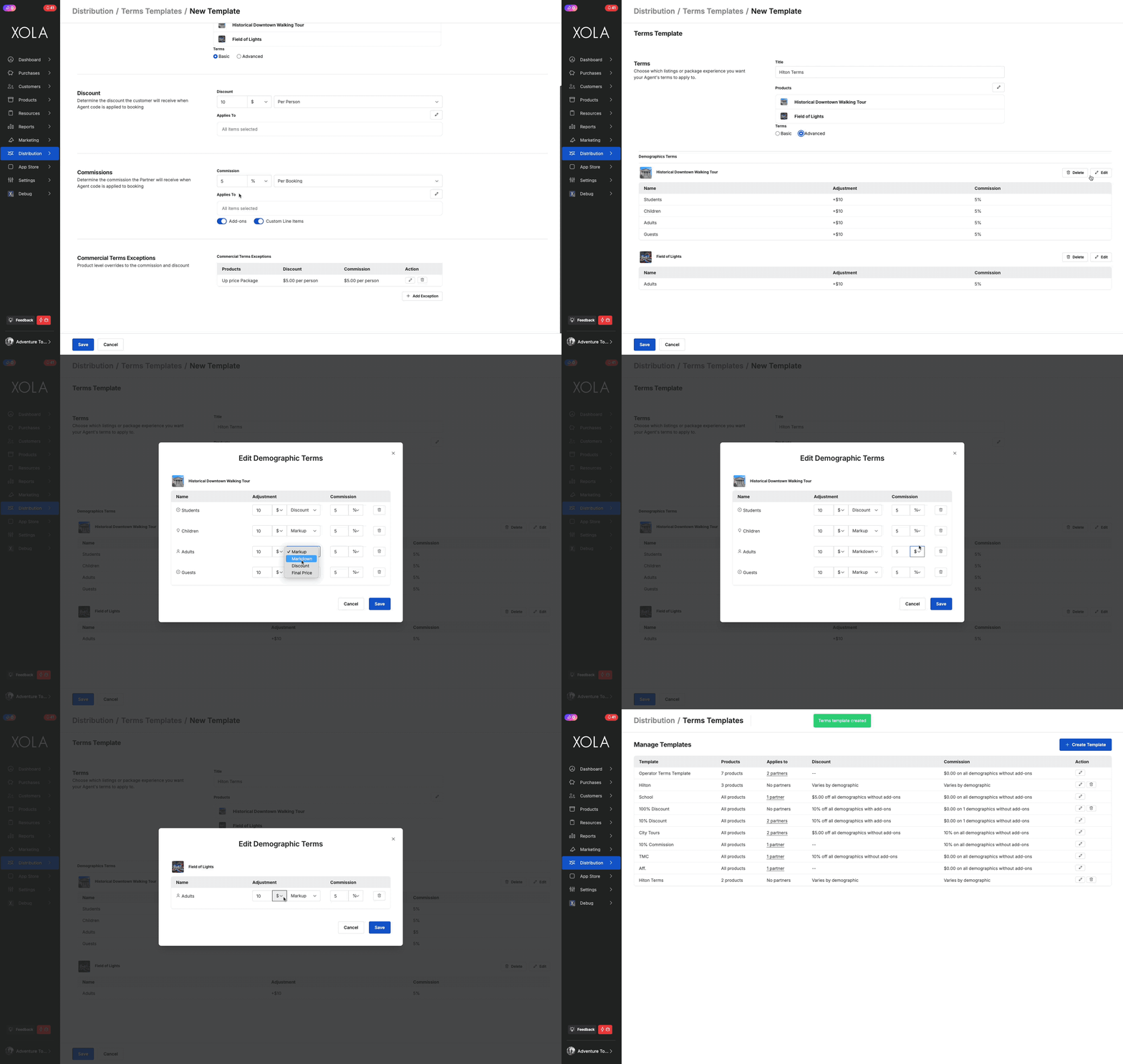
- - **Advanced:** These terms will consist of price adjustments and/or commission rules applied to specific demographics within the experiences selected.
- **Adjustments**
- **Markup:** a dollar amount or percentage to be applied on top of the price set for that demographic in that experience.
- **Markdown:** a dollar amount or percentage to be marked down from the price set for that demographic in that experience. This will reduce the ticket price of the demographic itself.
- **Discount:** a dollar amount or percentage to be deducted from the price set for that demographic in that experience. This will appear as a line item in the Purchase Summary.
- **Final Price:** A specific amount that is set as the final ticket price.
- **Commissions**: You can set the commission per demographic as a dollar or percentage-based amount.
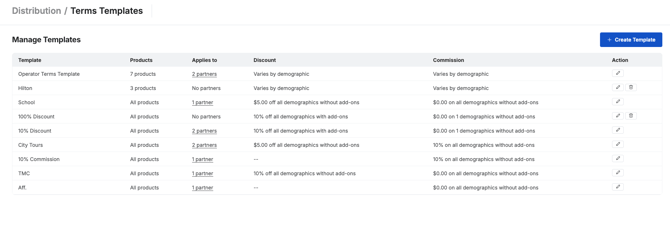
- Once you save a new terms template, it will be added to the list.
- You can edit the terms at any time by clicking the  icon.
- If the template is not applied to any agents or operators, you can delete it by clicking the  icon.
---
### **Applying Terms Templates**
#### Individual Agents
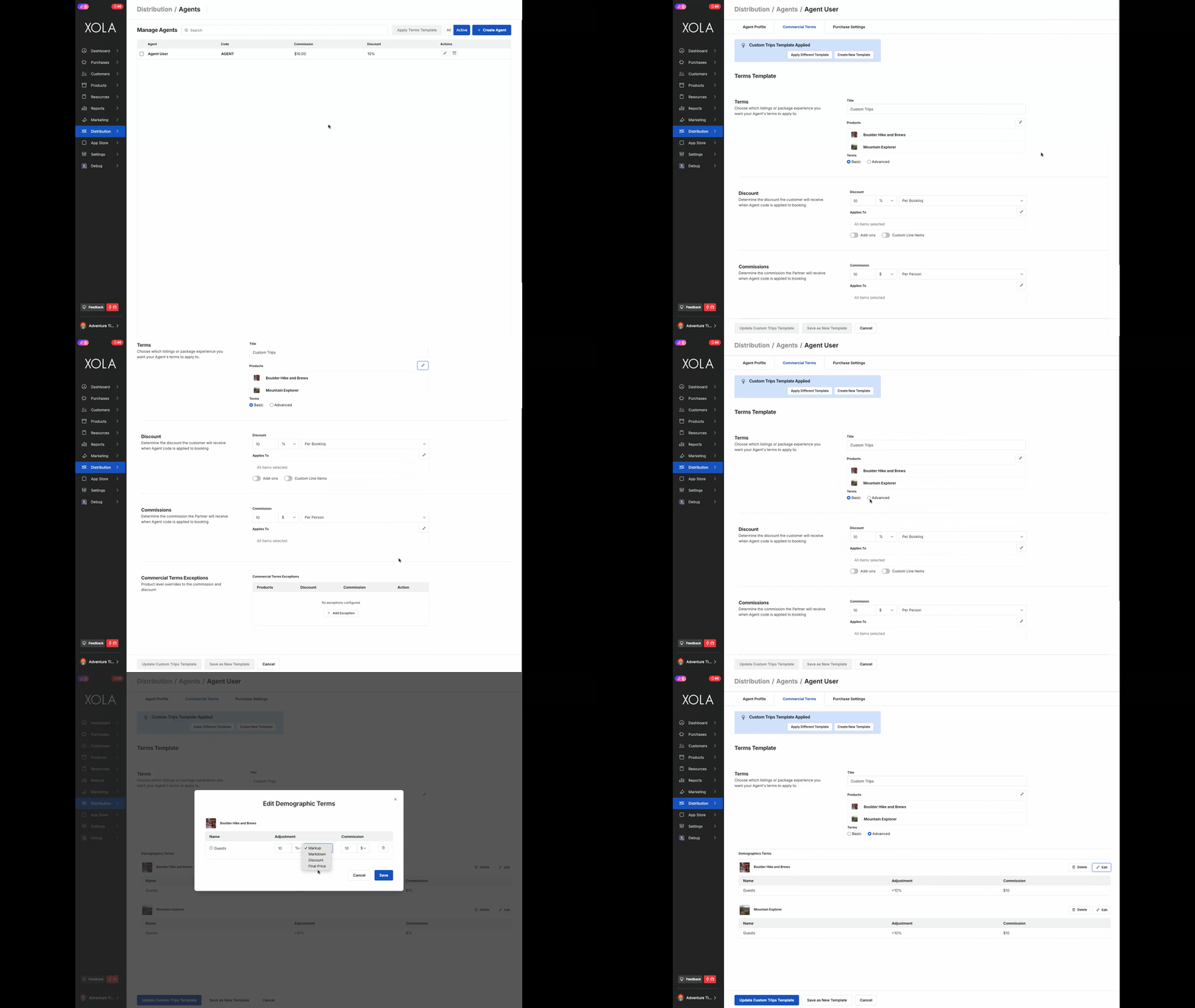
- Navigate to **[Distribution \> Agents](https://seller.xola.app/distribution/agents)**. Under the **Action** column, click the  icon.
- Within the Agent Profile, click on the **Commercial Terms** tab.
- Here you can click **Apply Different Template** and find the template you created.
- Click **Apply Template.**
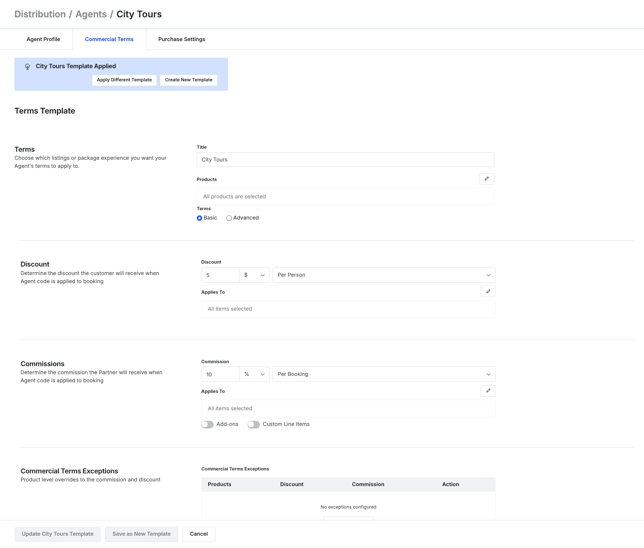
- You can also edit the template by simply hitting the  icon with the term you want to change.
- After you save it, you will see options at the bottom of the screen:
- **Update Terms Template:** This will update the template you already created and **update it for any other agent or operator using it.**
- **Save as New Template:** This will create a new Terms Template that will be saved and can be used for other agents or operators.
### 
#### Multiple Agents
- Navigate to **[Distribution \> Agents](https://seller.xola.app/distribution/agents)**.
- Now click the boxes next to each Agent you want to apply a Terms Template to.
- Click **Apply Terms Template** at the top.
- Find the template you created and click **Apply Template**.
- This will add this Terms Template to each agent selected.
---
#### Individual Operators
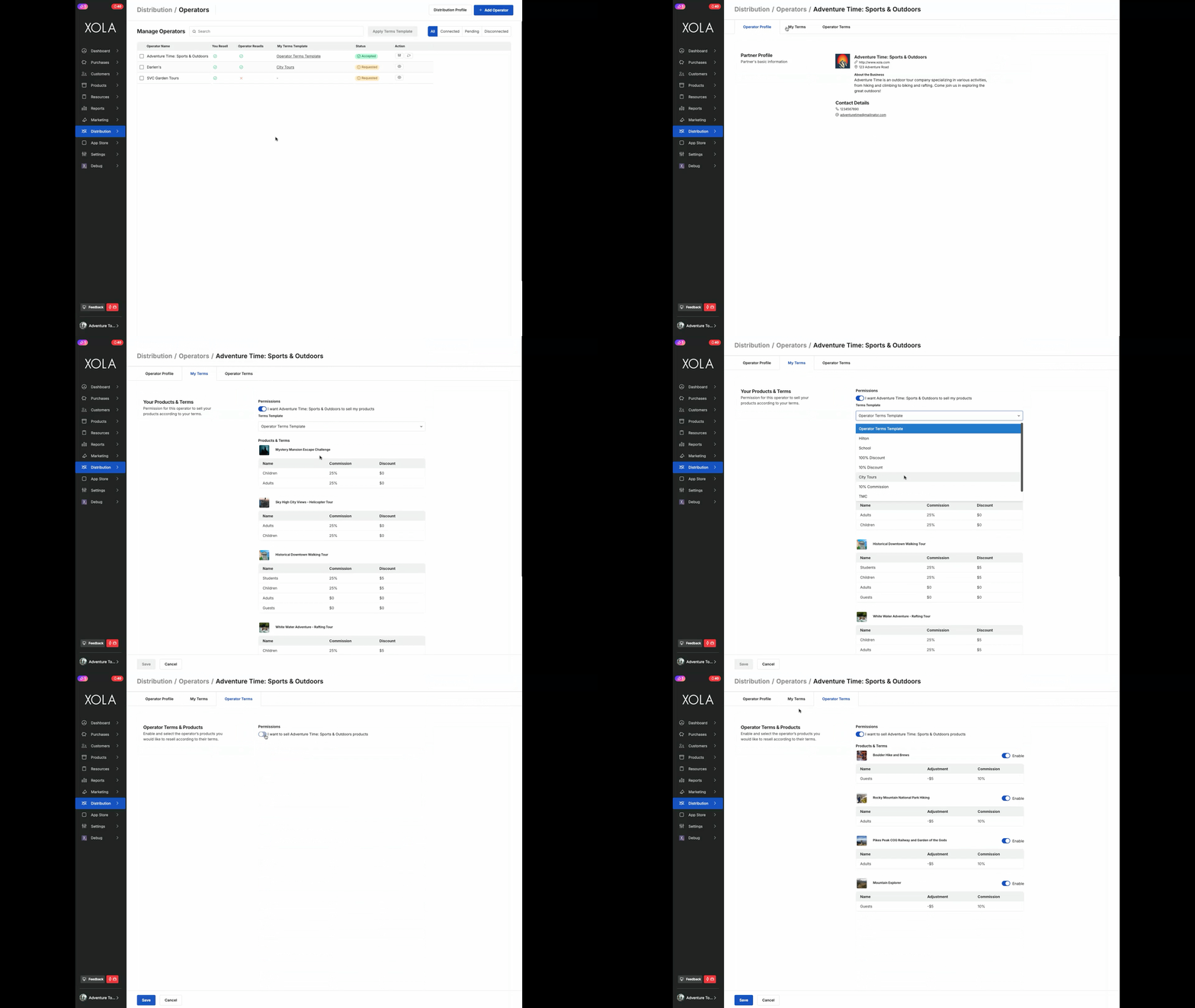
- Navigate to **[Distribution \> Operators](https://seller.xola.app/distribution/operators)**[.](https://seller.xola.app/distribution/operators) Under the **Action** column, click on the icon.
- Next, go to the **My Terms** tab which details the commercial terms that are configured for your products.
- Under the **Terms Template** section, there is a dropdown.
- Click the dropdown and select the terms template you created.
- Click **Save** at the bottom.
#### Multiple Operators
- Navigate to **[Distribution \> Operators](https://seller.xola.app/distribution/operators)**.
- Now click the boxes next to each Operator you want to apply a Terms Template to.
- Click **Apply Terms Template** at the top.
- Find the template you created and click **Apply Template**.
- This will add this Terms Template to each Operator selected.
- [Getting Started](https://support.xola.com/getting-started?hsLang=en#main-content)
- [Account Setup & Configuration](https://support.xola.com/getting-started?hsLang=en#account-setup-configuration)
- [Website Integration & Installation](https://support.xola.com/getting-started?hsLang=en#website-integration-installation)
- [Flex Plans](https://support.xola.com/getting-started?hsLang=en#flex-plans)
- [Managing Purchases & Customers](https://support.xola.com/managing-purchases-customers?hsLang=en#main-content)
- [Purchases Management](https://support.xola.com/managing-purchases-customers?hsLang=en#purchases-management)
- [Reservation Management](https://support.xola.com/managing-purchases-customers?hsLang=en#reservation-management)
- [Customer Management](https://support.xola.com/managing-purchases-customers?hsLang=en#customer-management)
- [Customer Data & Engagement](https://support.xola.com/managing-purchases-customers?hsLang=en#customer-data-engagement)
- [Reporting](https://support.xola.com/reporting?hsLang=en)
- [Integrations & Advanced Tools](https://support.xola.com/integrations-advanced-tools?hsLang=en#main-content)
- [Xola App Store Integrations](https://support.xola.com/integrations-advanced-tools?hsLang=en#xola-app-store-integrations)
- [Partner & Agent Management](https://support.xola.com/integrations-advanced-tools?hsLang=en#partner-agent-management)
- [Marketing & Tracking Integrations](https://support.xola.com/integrations-advanced-tools?hsLang=en#marketing-tracking-integrations)
- [Mobile and Hardware](https://support.xola.com/mobile-and-hardware?hsLang=en#main-content)
- [Mobile Tools and Apps](https://support.xola.com/mobile-and-hardware?hsLang=en#mobile-tools-and-apps)
- [Hardware Setup & Devices](https://support.xola.com/mobile-and-hardware?hsLang=en#hardware-setup-devices)
- Company
- [About Us](https://www.xola.com/about)
- [Careers](https://www.xola.com/team)
- [Press](https://www.xola.com/press)
- [Support](https://www.xola.com/support)
- [Security Policy](https://www.xola.com/security-policy/)
- Resources
- [Articles](https://www.xola.com/articles/)
- [Help Center](https://support.xola.com/)
- [Success Stories](https://www.xola.com/success-stories/)
- [App Store](https://www.xola.com/app-store)
- [Demo](https://www.xola.com/demo)
- [Xola Universe](https://www.xola.com/universe/)
- Documentation
- [API Documentation](https://developers.xola.com/)
- [Payment Services Agreement](https://www.xola.com/payment-services-agreement/)
- [Terms](https://www.xola.com/terms/)
[](https://www.xola.com/)
© 2026 Xola Inc. All rights reserved.
[Privacy Policy](https://www.xola.com/privacy-policy) [Terms of Service](https://www.xola.com/terms)