---
title: Taxes and Fees Setup
description: Set up taxes and fees in your account settings to manage additional charges on bookings. Customize per person, per reservation, or percentage-based fees, and assign them to specific products.
---
[Skip to content](https://support.xola.com/taxes-and-fees-setup#main-content)
English
Show submenu for translations
[](https://www.xola.com/)
- [Home](https://support.xola.com/)
- [24/7 Live Support](https://www.xola.com/support/)
Open main navigation
Close main navigation
- [Home](https://support.xola.com/)
- [24/7 Live Support](https://www.xola.com/support/)
- English
Show submenu for translations
- [Login](https://xola.com/_public/login.html)
[Login](https://xola.com/_public/login.html)
How can we help you?
- There are no suggestions because the search field is empty.
1. [Help Center](https://support.xola.com/?hsLang=en)
2. [Getting Started](https://support.xola.com/getting-started?hsLang=en)
3. [Account Setup & Configuration](https://support.xola.com/getting-started?hsLang=en#account-setup-configuration)
# Taxes and Fees Setup
## Advanced Tax & Fee Management: Precise, Flexible Controls for Transparent, Compliant Pricing
**Xola Taxes and Fees** provides a **comprehensive, highly configurable framework** that ensures you meet both **regulatory compliance** and your **unique business goals**. With Xola, you can apply charges in **multiple ways**—set **flat fees per reservation**, configure **per-person** or **per-day charges** for **multi-day experiences**, and calculate **percentage-based taxes** on any part of the purchase, such as the **entire reservation**, **specific demographics**, or **add-ons**.
You have **full control** to define exactly which **products**, **guest types**, **memberships**, and **add-ons** a given tax or fee applies to. You can also tailor charges by **purchase source**, including **online checkout**, **back office**, **kiosks**, or **integrated apps**.
This level of **flexibility** makes it easy to manage everything from **government taxes** and **park fees** to **resort charges**, **service fees**, and more—while also allowing you to **adapt quickly** to changes in **local legislation** or **business strategy**. During checkout, guests receive a **clear, itemized breakdown** of all taxes and fees, helping eliminate confusion and **build trust**.
With Xola, managing taxes and fees isn’t just about **compliance**—it’s about delivering **transparency**, improving the **customer experience**, and giving your team the **confidence** that every charge is applied **correctly** and **consistently**.
**User Access:** **Administrator** roles have access to set up taxes and fees in Xola.
**Administrator, Reservationist Lite** or **Reservationist** roles can view and modify taxes and fees on reservations in Xola.
To **grant access** to users, [click here](https://seller.xola.app/settings/users).
---
**What's covered in this article:**
- [Setting up Taxes and Fees](https://support.xola.com/taxes-and-fees-setup#Settings)
- [Tax Promotional Value](https://support.xola.com/taxes-and-fees-setup#promotional)
- [Taxes & Fees in a Purchase](https://support.xola.com/taxes-and-fees-setup#taxes)
---
### Setting up Taxes and Fees
- Navigate to **[Settings \> Taxes & Fees](https://seller.xola.app/settings/taxesAndFees)** from the left-hand menu.
- To add a tax or fee, click the blue **Add Tax/Fee** button.
**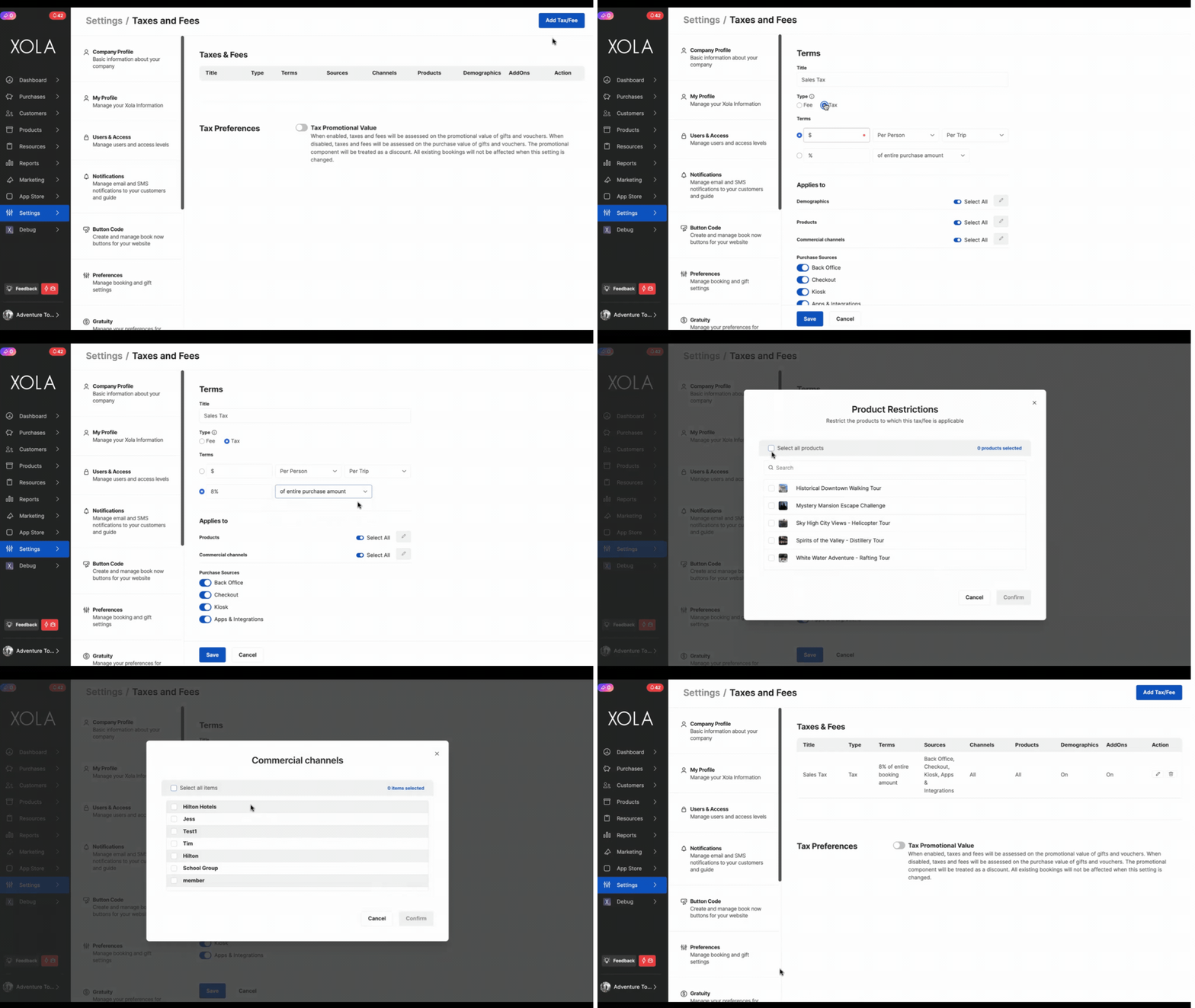**
#### Title:
- Name of the Tax or fee
#### Type:
The term type determines whether the amount is subject to the Xola service fee. Additionally, any taxes configured will not be assessed a Xola service fee, as taxes will only be assessed based on the total booking amount.
**Tax:** Does not affect the Xola service fee.
**Fee:** Affects the Xola service fee because it’s part of the total booking amount.
> **Example Breakdown:**
>
> - You have a ticket costing $50.
> There’s a $2 fee added.
> There’s a 5% sales tax on the ticket amount only.
> - Here’s how it works out:
> - Sales tax is 5% of $50 (the ticket amount), which is $2.50.
> The $2 fee also needs to be considered in the Xola service fee.
> - Final Calculation:
> - Total ticket amount: $50
> Additional fee: $2
> Sales tax on $50: $2.50
> Total before Xola service fee: $52 (ticket + fee)
> The Xola service fee is calculated on $52.
> So, the total amount you’ll pay is $52 (ticket + fee) + $2.50 (sales tax) + Xola service fee on $52.
#### Terms:
When setting up taxes or fees, you can choose to apply them as either a **fixed dollar amount ($)** or a **percentage (%)**. Based on this choice, you'll have different application options:
- **$ (Fixed Amount)**: Can be applied
- Per Person
- Per Reservation
- Per Add-on
- And further defined as applying *Per Event* or *Per Day*
- **% (Percentage)**: Can be applied
- To the entire reservation amount
- To the demographic amount only
- To add-ons only
**Types of Taxes and Fees**
**Per Person Tax or Fee**
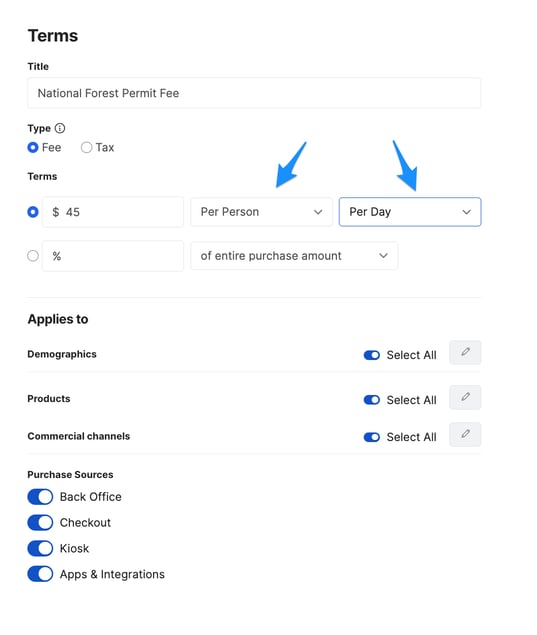
This tax or fee is charged based on the number of guests in a reservation. You can apply it:
- **Per Event**: One-time tax or fee per person
- **Per Day**: Charged for each person, for each day of a multi-day product.
> **Example (Per Event):**
> A "National Forest Permit Fee" of $45 per person will incur a $90 charge for a 2-person reservation ($45 x 2).
> **Example (Per Day):**
> For the same fee applied per day, a 2-person reservation for a 2-day experience would result in a $180 charge ($45 x 2 people x 2 days).
**Per Reservation Tax or Fee**
This is a flat tax or fee applied once per reservation, regardless of the number of guests.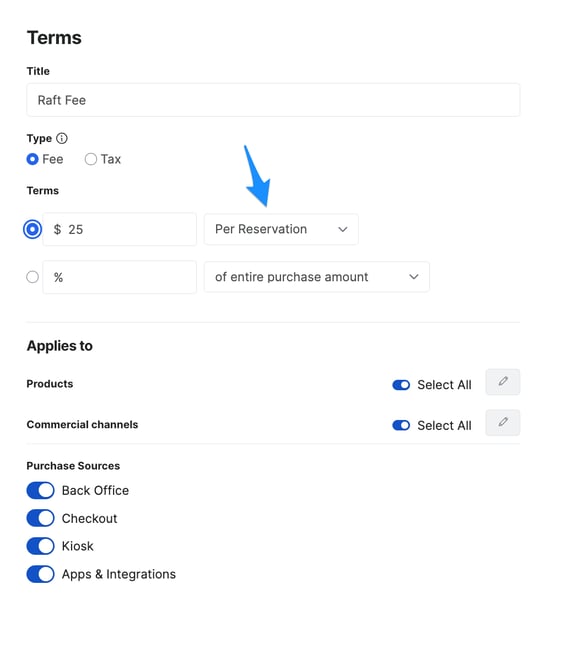
> **Example:** A "Raft Fee" of $25 per reservation means that whether the booking has 2 guests or 10, the fee will always be $25.
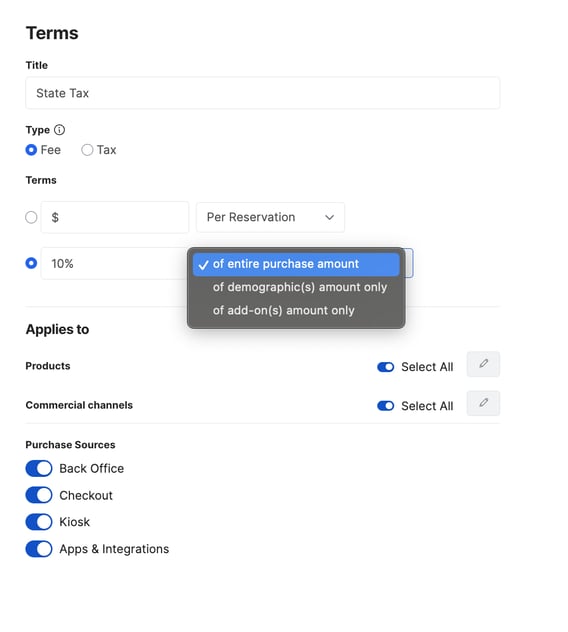
**Percentage-Based Tax or Fee**
This tax or fee is calculated as a percentage of part or all of the reservation total. You can choose to apply it to:
- The entire reservation amount
- Demographic amounts only (i.e., guest prices only)
- Add-ons only
> **Example (Entire Reservation):**
> A 10% “State Tax” on a $200 booking (2 guests at $100 each) results in a $20 tax.
> **Example (Demographic Amount Only):**
> A 10% “State Tax” on a booking with:
>
> - 1 Adult = $100
> - 1 Child = $50
> - Add-ons = $50
> Total = $200
>
> If applied to demographic amounts only ($150), the tax would be $15 (10% of $150).
#### Applies to:
- **Experiences:** Toggle off the **Select All** option and click the  icon to choose which experience you want this tax or fee to apply.
- **Demographics:** Toggle off the **Select All** option and click the  icon to choose which demographics you want this tax or fee to apply to. This option will only show when doing a per-person or demographic amount-only tax or fee.
- **Memberships:** Toggle off the **Select All** option and click the  icon to choose which memberships you want this tax or fee to apply to.
- **Commercial channels:** Toggle off the **Select All** option and click the  icon to choose which commercial channels you want this tax or fee to apply to.
- **Add-ons:** Toggle off the **Select All** option and click the  icon to choose which add-ons you want this tax or fee to apply to. This option will show only when doing a per-add-on or add-on amount only tax or fee.
#### Purchase Sources:
Toggle on and off which purchase source you want the tax or fee to be applied to:
- **Back Office:** These are reservations made in your Xola account from the [Make a Purchase](https://support.xola.com/make-purchases-through-back-office?hsLang=en) button
- **Checkout:** These are reservations made on your website through the Xola [book now button](https://support.xola.com/button-installation?hsLang=en).
- **Kiosk:** These are reservations made through the [Xola Kiosk App](https://support.xola.com/self-serve-kiosk?hsLang=en).
- **Apps & Integrations:** These are reservations made through apps and integrations connected in Xola.
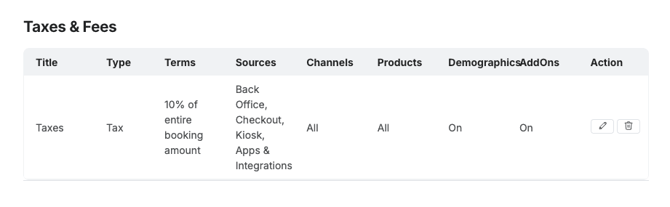
Once you've created a tax or fee, you can manage it by navigating to **[Settings \> Taxes & Fees](https://seller.xola.app/settings/taxesAndFees)**. Here, you'll find tools to edit or delete the tax or fee. Below are the available actions:
- **Edit:** Click the  icon to make changes.
- **Delete:** Click the  icon to delete the tax or fee.
---
### Tax Promotional Value
Currently, when a Voucher or Gift offer has been redeemed, the taxes that the guest is responsible for are based on the value of the experience. In some cases, taxes must be based on the value of the purchase price of the Voucher or Gift offer. In this case, you must adjust your taxes and fees by using our **Tax Promotional Value** toggle to accommodate this. Below are examples of having this feature enabled or disabled.
Please review how to set up **[Vouchers](https://support.xola.com/xola-coupons?hsLang=en#voucher)** and **[Gift Offers](https://support.xola.com/gifts-and-gift-offers?hsLang=en)** before setting your Tax Preferences.
**When toggled on**, taxes and fees will be assessed on the promotional value of gifts and vouchers.
**When toggled off**, taxes and fees will be assessed on the purchase value of gifts and vouchers. The promotional component will be treated as a discount.
All existing reservations will not be affected when this setting is changed.

#### Tax promotional value with a Voucher:
**In this example, we are assuming the following:**
Experience Price = $200
Service Fee = 3%
Sales Tax = 10%
Park Fee = $10 per purchase
Voucher: Promotional Price = $150 and Purchase Price = $100
| **Promotional Value Enabled** | **Promotional Value Disabled** |
| --- | --- |
| 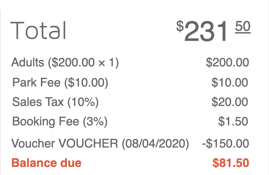 For this, Voucher sales tax is assessed on the total for the Experience ($200.00), and the Service Fee is assessed on the amount after the voucher is applied ($50.00). | 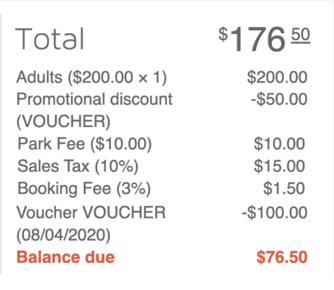 This voucher's sales tax is assessed on the total booking amount after the promotional discount (Promotional price minus purchase price: $50.00) is applied ($150.00). The Service Fee is assessed after the remaining voucher has been taken off ($50.00). |
---
#### Tax promotional value on Gift offer when restrictions are honored:
**In this example, we are assuming the following:**
Experience Price = $200
Service Fee = 3%
Sales Tax = 10%
Park Fee = $10 per purchase
Gift Value = $150 and Purchases Price= $100
| **Promotional Value Enabled** | **Promotional Value Disabled** |
| --- | --- |
| 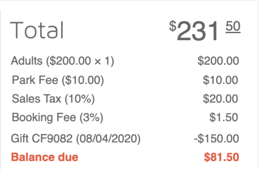 This gift code was within the restrictions of the Gift offer, giving the customer the full Gift Value ($150.00). Sales tax is assessed on the total for the Experience ($200.00), and the Service Fee is assessed on the amount after the gift was applied ($50.00). | 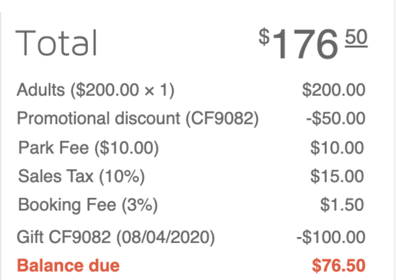 This gift code was used within the restrictions of the Gift offer, giving the customer the Full Value of the Gift offer as a Promotional Discount (Promotional Price minus purchase price: $50.00) was applied. The rest of the Gift Offer ($100.00) was taken off. Sales tax is assessed on the total for the Experience after the promotional discount ($150.00), and the Service Fee is assessed on the amount after the gift has been fully applied ($50.00). |
---
#### Tax promotional value on Gift offer where restrictions are not honored:
**In this example, we are assuming the following:**
Experience Price = $200
Service Fee = 3%
Sales Tax = 10%
Park Fee = $10 per purchase
Gift Value = $150 and Purchases Price= $100
| **Promotional Value Enabled** | **Promotional Value Disabled** |
| --- | --- |
| 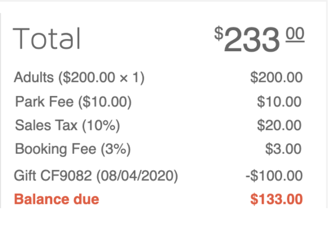 This gift code was used outside the restrictions of the Gift offer, giving the customer the Purchase Price ($100.00). Sales tax is assessed on the total for the Experience ($200.00), and the Service Fee is assessed on the amount after the gift was applied ($100.00). | 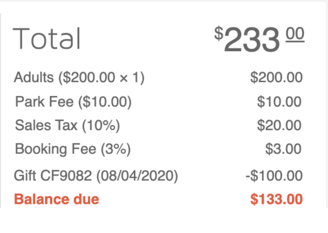 This gift code was used outside the restrictions of the Gift offer, giving the customer the Purchase Price ($100.00). Sales tax is assessed on the total for the Experience ($200.00), and the Service Fee is assessed on the amount after the gift was applied ($100.00). |
When restrictions are not honored, regardless of whether the tax promotional value is enabled or disabled, the gift value will be assessed similarly. This is because the full purchase price covers some of the balance, and no promotional value is being given/used.
#### Tax promotional value with Gift offer and gift, not 100% utilized:
**In this example, we are assuming the following:**
Experience Price = $50
Service Fee = 3%
Sales Tax = 10%
Park Fee = $10 per purchase
Gift Value = $150 and Purchases Price= $100
| **Promotional Value Enabled** | **Promotional Value Disabled** |
| --- | --- |
| 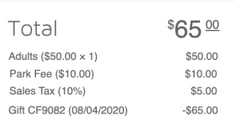 This gift code, giving the customer the Full Value of the Gift offer ($65.00), was applied. Sales tax is assessed on the total for the Experience ($50). | 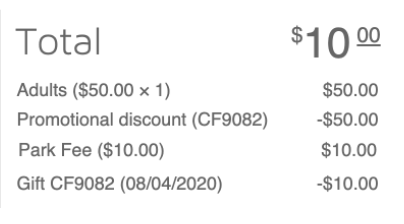 This gift code was used, giving the customer the Full Value of the Gift offer as a Promotional Discount (Promotional Price minus purchase price: $50.00) was applied. The rest of the Gift Offer ($10.00) was taken off. Sales tax and service fees are assessed based on the total experience after the promotional discount ($0). |
**Note:** When a gift code covers the whole balance, no balance due line will show, and you can click the **Reserve** button at the bottom of the checkout.
---
### Taxes & Fees in a Purchase
If a tax or fee has been applied to a product in **Settings**, it will automatically apply when a customer checks out for that experience. If there is only one tax or fee, it will appear as a single line item under the **Payment Summary**.
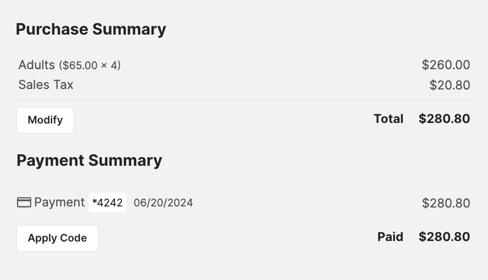
When you issue a refund, you'll also see the tax/fee change according to the configurations set above.
> For example, if you refund a portion of the booking shown above, the taxes will decrease to $10.40 as the tax is set to be applied as a percentage of the reservation amount. Since a refund has taken place and the reservation amount has decreased, so has the tax amount applied to the reservation.

- [Getting Started](https://support.xola.com/getting-started?hsLang=en#main-content)
- [Account Setup & Configuration](https://support.xola.com/getting-started?hsLang=en#account-setup-configuration)
- [Website Integration & Installation](https://support.xola.com/getting-started?hsLang=en#website-integration-installation)
- [Flex Plans](https://support.xola.com/getting-started?hsLang=en#flex-plans)
- [Managing Purchases & Customers](https://support.xola.com/managing-purchases-customers?hsLang=en#main-content)
- [Purchases Management](https://support.xola.com/managing-purchases-customers?hsLang=en#purchases-management)
- [Reservation Management](https://support.xola.com/managing-purchases-customers?hsLang=en#reservation-management)
- [Customer Management](https://support.xola.com/managing-purchases-customers?hsLang=en#customer-management)
- [Customer Data & Engagement](https://support.xola.com/managing-purchases-customers?hsLang=en#customer-data-engagement)
- [Reporting](https://support.xola.com/reporting?hsLang=en)
- [Integrations & Advanced Tools](https://support.xola.com/integrations-advanced-tools?hsLang=en#main-content)
- [Xola App Store Integrations](https://support.xola.com/integrations-advanced-tools?hsLang=en#xola-app-store-integrations)
- [Partner & Agent Management](https://support.xola.com/integrations-advanced-tools?hsLang=en#partner-agent-management)
- [Marketing & Tracking Integrations](https://support.xola.com/integrations-advanced-tools?hsLang=en#marketing-tracking-integrations)
- [Mobile and Hardware](https://support.xola.com/mobile-and-hardware?hsLang=en#main-content)
- [Mobile Tools and Apps](https://support.xola.com/mobile-and-hardware?hsLang=en#mobile-tools-and-apps)
- [Hardware Setup & Devices](https://support.xola.com/mobile-and-hardware?hsLang=en#hardware-setup-devices)
- Company
- [About Us](https://www.xola.com/about)
- [Careers](https://www.xola.com/team)
- [Press](https://www.xola.com/press)
- [Support](https://www.xola.com/support)
- [Security Policy](https://www.xola.com/security-policy/)
- Resources
- [Articles](https://www.xola.com/articles/)
- [Help Center](https://support.xola.com/)
- [Success Stories](https://www.xola.com/success-stories/)
- [App Store](https://www.xola.com/app-store)
- [Demo](https://www.xola.com/demo)
- [Xola Universe](https://www.xola.com/universe/)
- Documentation
- [API Documentation](https://developers.xola.com/)
- [Payment Services Agreement](https://www.xola.com/payment-services-agreement/)
- [Terms](https://www.xola.com/terms/)
[](https://www.xola.com/)
© 2026 Xola Inc. All rights reserved.
[Privacy Policy](https://www.xola.com/privacy-policy) [Terms of Service](https://www.xola.com/terms)