---
title: Refunding / Returning Payments / Change Guest Quantity
description: This article provides detailed instructions on handling refunds, returning payments, and modifying guest quantities in Xola. Learn how to reduce purchase values with refunds, return payments without altering bookings, adjust guest counts with corresponding payment changes, and process refunds across multiple payment methods.
---
[Skip to content](https://support.xola.com/refunding-returning-payments-change-guest-quantity#main-content)
English
Show submenu for translations
[](https://www.xola.com/)
- [Home](https://support.xola.com/)
- [24/7 Live Support](https://www.xola.com/support/)
Open main navigation
Close main navigation
- [Home](https://support.xola.com/)
- [24/7 Live Support](https://www.xola.com/support/)
- English
Show submenu for translations
- [Login](https://xola.com/_public/login.html)
[Login](https://xola.com/_public/login.html)
How can we help you?
- There are no suggestions because the search field is empty.
1. [Help Center](https://support.xola.com/?hsLang=en)
2. [Managing Purchases & Customers](https://support.xola.com/managing-purchases-customers?hsLang=en)
3. [Purchases Management](https://support.xola.com/managing-purchases-customers?hsLang=en#purchases-management)
# Refunding / Returning Payments / Change Guest Quantity
## Flexible Refunds and Reservation Adjustments to Support Seamless Guest Service and Financial Clarity
In **Xola**, there are many ways to **adjust the purchase value** of a **reservation**, giving you **flexibility** to handle **customer requests**, **operational changes**, and **accounting requirements** with confidence. Whether you need to issue a **partial or full refund** due to **cancellations**, **guest no-shows**, **dissatisfaction**, or **changes in reservation details**, Xola makes it easy to process these **adjustments** while keeping **accurate records**.
Quickly **update the guest count** if someone drops out of a group, **change a reservation’s value** due to **switching experiences** or **modifying add-ons**, or issue a refund when a guest used the **wrong payment method**—all from a single, **intuitive interface**. Your **refund options** go beyond simple returns: you can send payments back to the **original payer**, **split refunds** across **multiple payment methods** if several people contributed, or process **overpayments** resulting from last-minute changes.
Xola’s **refund workflow** always prioritizes **financial security**: to protect you and your **cash flow**, you’ll only be able to refund if your **Xola balance** exceeds the amount being returned. If your **refund exceeds available funds**, Xola will prompt you to **top up your balance** before proceeding, keeping your **accounting clean** and avoiding **operational hiccups**.
No matter the scenario—**unexpected weather**, a **guest error**, or a **business adjustment**—Xola ensures you have the tools to deliver **seamless service** and maintain **positive customer experiences**, all while staying in full control of your **reservation finances**.
For Canadian customers, special care is taken with Interac transactions, which require the physical card present for refunds - ensuring compliance and clarity in all regions.
**User Access:** **Administrator** or **Reservationist** roles can refund reservations in Xola.
To **grant access** to users, [click here](https://seller.xola.app/settings/users).
---
**What's covered in this article:**
- [Reduce purchase value and return payment](https://support.xola.com/refunding-returning-payments-change-guest-quantity#reduce)
- [Return payment only](https://support.xola.com/refunding-returning-payments-change-guest-quantity#return)
- [Change guest quantity](https://support.xola.com/refunding-returning-payments-change-guest-quantity#change)
- [Refund to multiple methods of payment](https://support.xola.com/refunding-returning-payments-change-guest-quantity#multiple)
- [Refund excess payment](https://support.xola.com/refunding-returning-payments-change-guest-quantity#excess)
---
### Reduce purchase value and return the payment
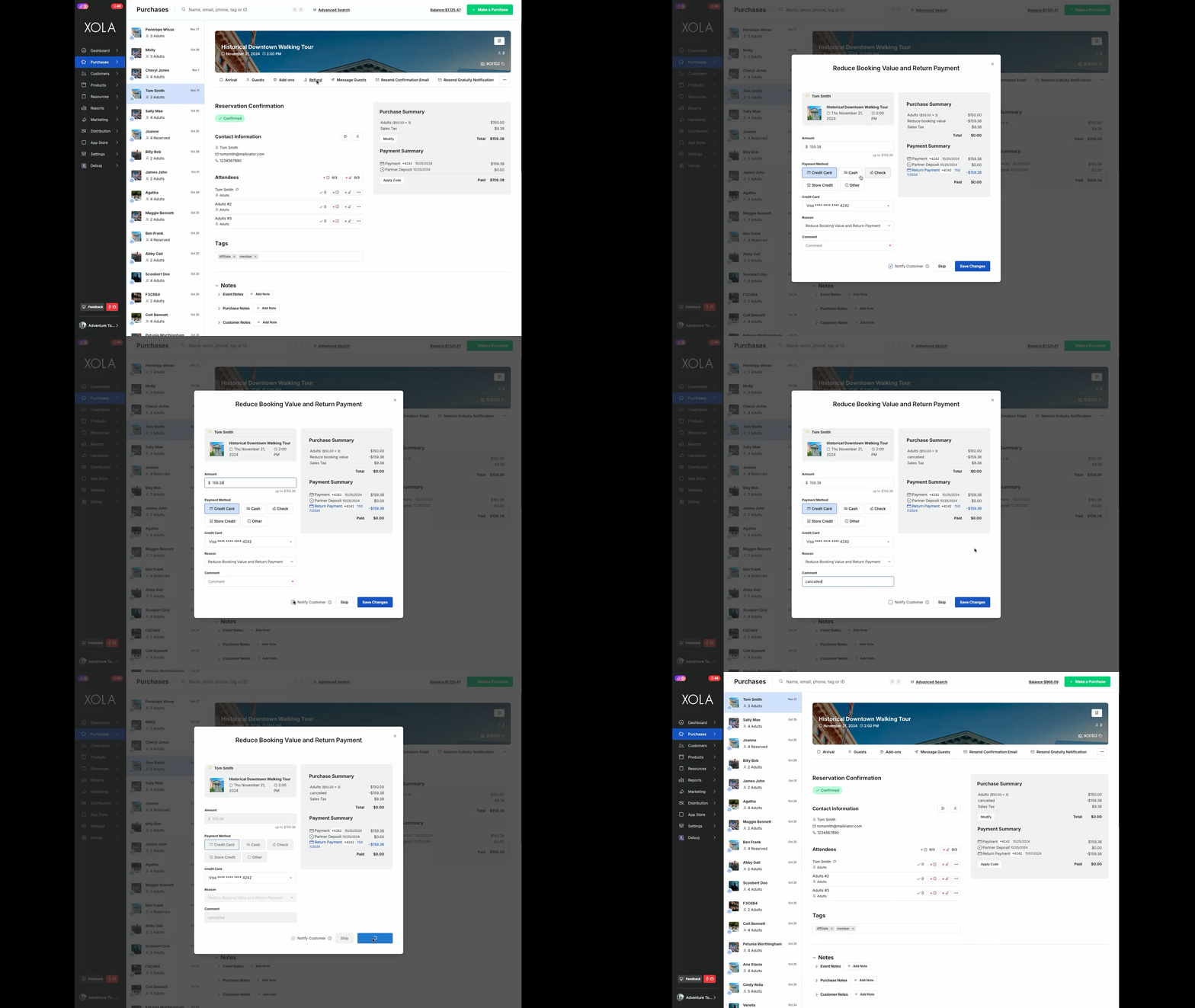
This option reduces the customer's total purchase value and sends full or partial payment back to the customer.
**When to use:** When you need to offer a customer a discount or full refund on their balance or payment. This might be due to something like bad weather conditions or placating an unhappy customer.
**How to do:**
- Navigate to the[Purchase tab](https://seller.xola.app/purchases/).
- Find the reservation and click the **Refund** button in the action bar.
- Select **Reduce booking value and return payment**.
- Ensure the total amount is populated in the **Amount** field. If this is a partial refund, type in the amount to be refunded into the field.
- Select the **method** to which you want to return the payment**.**
**Note:** Xola will always default to the original payment method the customer used to pay.
- Add a reason for the refund in the **Comment** field.
- Click **Save Changes**.
When issuing credit card refunds, you may not refund more than the amount originally charged to the customer's credit card.
---
### Return payment only
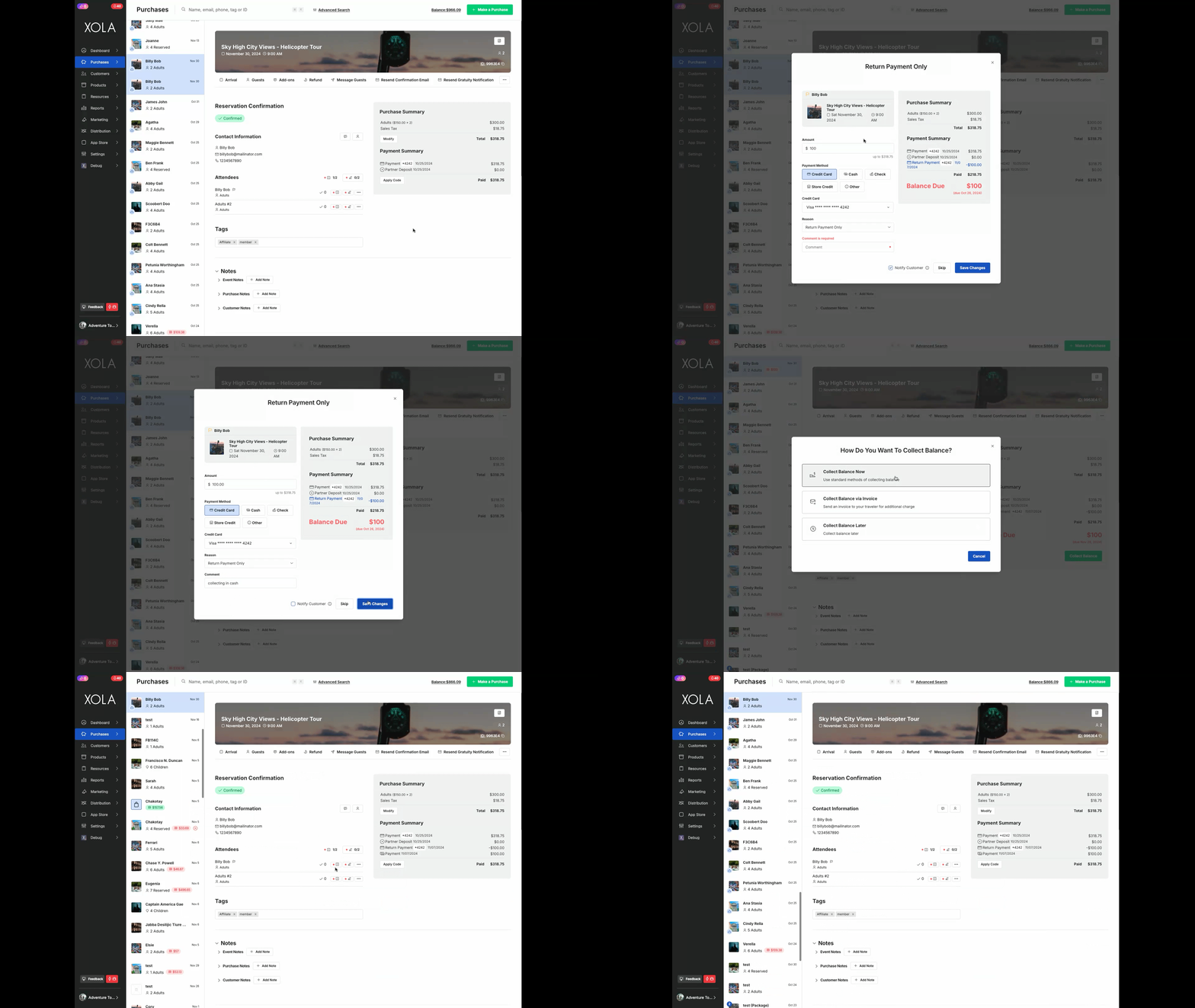
**What this does:** Returns payment to one customer in order to collect that money either in a new form of payment or from another paying customer. Using the Return Payment feature will always open a balance on the purchase for the amount returned.
**When to use:** To split payment when one customer has paid for several guests, and those guests would like to pay their share. Or you can allow a customer to switch from cash payment to putting the balance on a credit card.
**How to do:**
- Navigate to the[Purchase tab](https://seller.xola.app/purchases/).
- Find the reservation and click the **Refund** button in the action bar.
- Select **Return payment only**.
- Ensure the total amount is populated in the **Amount** field. If this is a partial refund, type in the amount to be refunded into the field.
- Select the **method** to which you want to return the payment**.**
**Note:** Xola will always default to the original payment method the customer used to pay.
- Add a reason for the return of payment in the **Comment** field.
- Click **Return Payment.**
- In the Purchase, click **Collect Balance.**
- In the popup window, under **Method**, select how you would like to collect the balance (card, cash, etc).
- Click **Collect**.
When issuing credit card refunds, you may not refund more than the amount originally charged to the customer's credit card.
---
### Change guest quantity
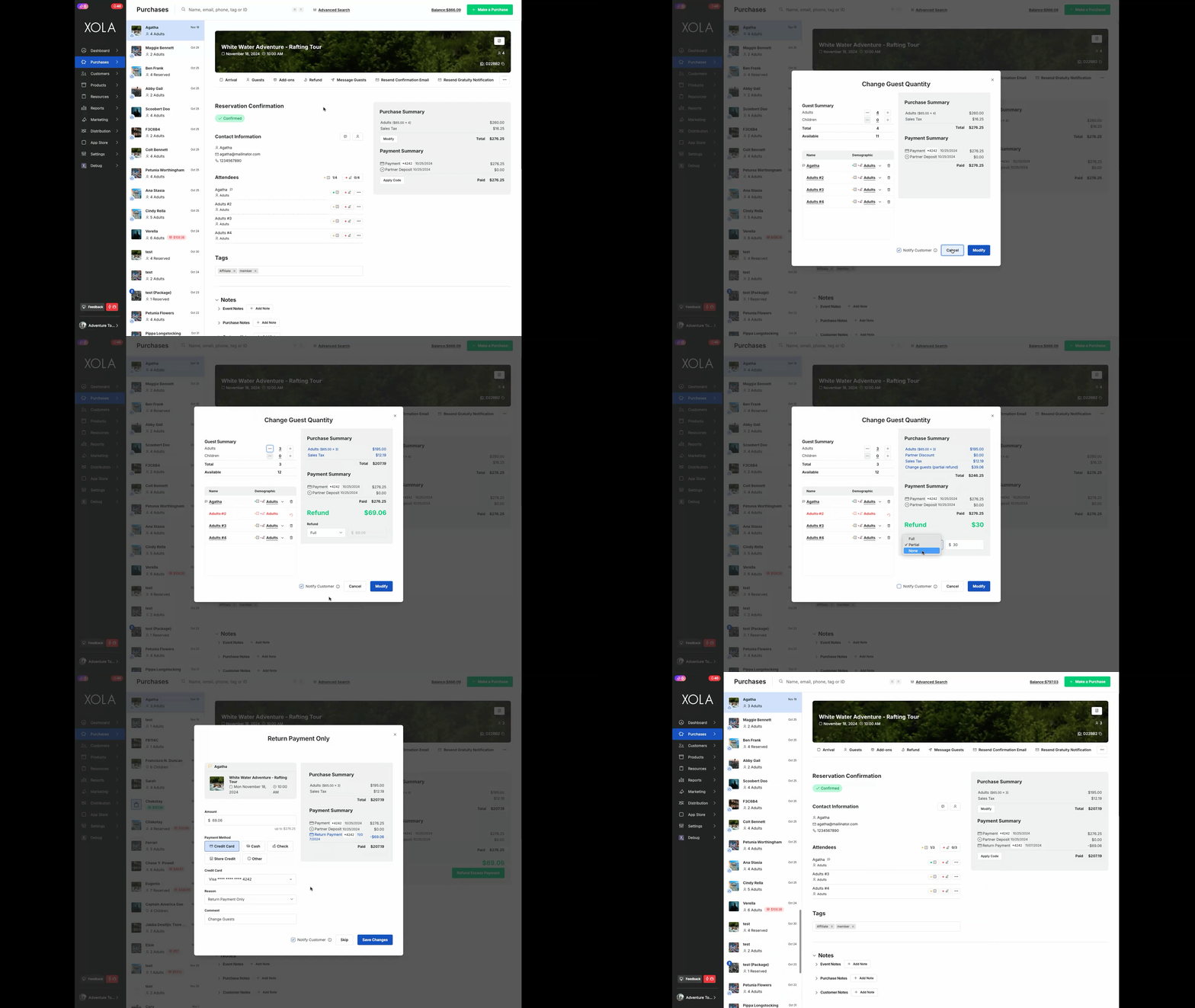
**What this does:** Reduces or increases guest count and gives you the option to refund the full or partial price of the ticket or collect the balance.
**When to use:** It's important to reduce the guest quantity when a guest cancels or does not show up as part of a group. This will maintain an accurate guest count and allow you the option of refunding in full, in partial, or not at all.
**How to do:**
- Navigate to the[Purchase tab](https://seller.xola.app/purchases/).
- Find the reservation and click the **Refund** button in the action bar.
- Select **Reduce guest count** or use the + or - by the demographic to add or remove guests.
**Tip:** If you use Waivers or Questionnaire and the names are already filled in, you will need to use the ** icon** next to the guest's name to remove the particular guest from the purchase.
- Click the **Refund dropdown** menu, and select either **Full, Partial or None** as the amount to be refunded.
- Click **Modify**.
- If you select to issue a refund, you will be presented with an additional window to process the refund.
- Ensure the total amount is populated in the **Amount** field. If this is a partial refund, type in the amount to be refunded into the field.
- Select the **method** to which you want to return the payment**.**
**Note:** Xola will always default to the original payment method the customer used to pay.
- Click **Save Changes.**
You can also change the guest quantity by clicking **Guests** in the action bar on the Purchase instead of Refund and following steps 3 through 8 to achieve the same result.
---
### Refund to multiple methods of payment
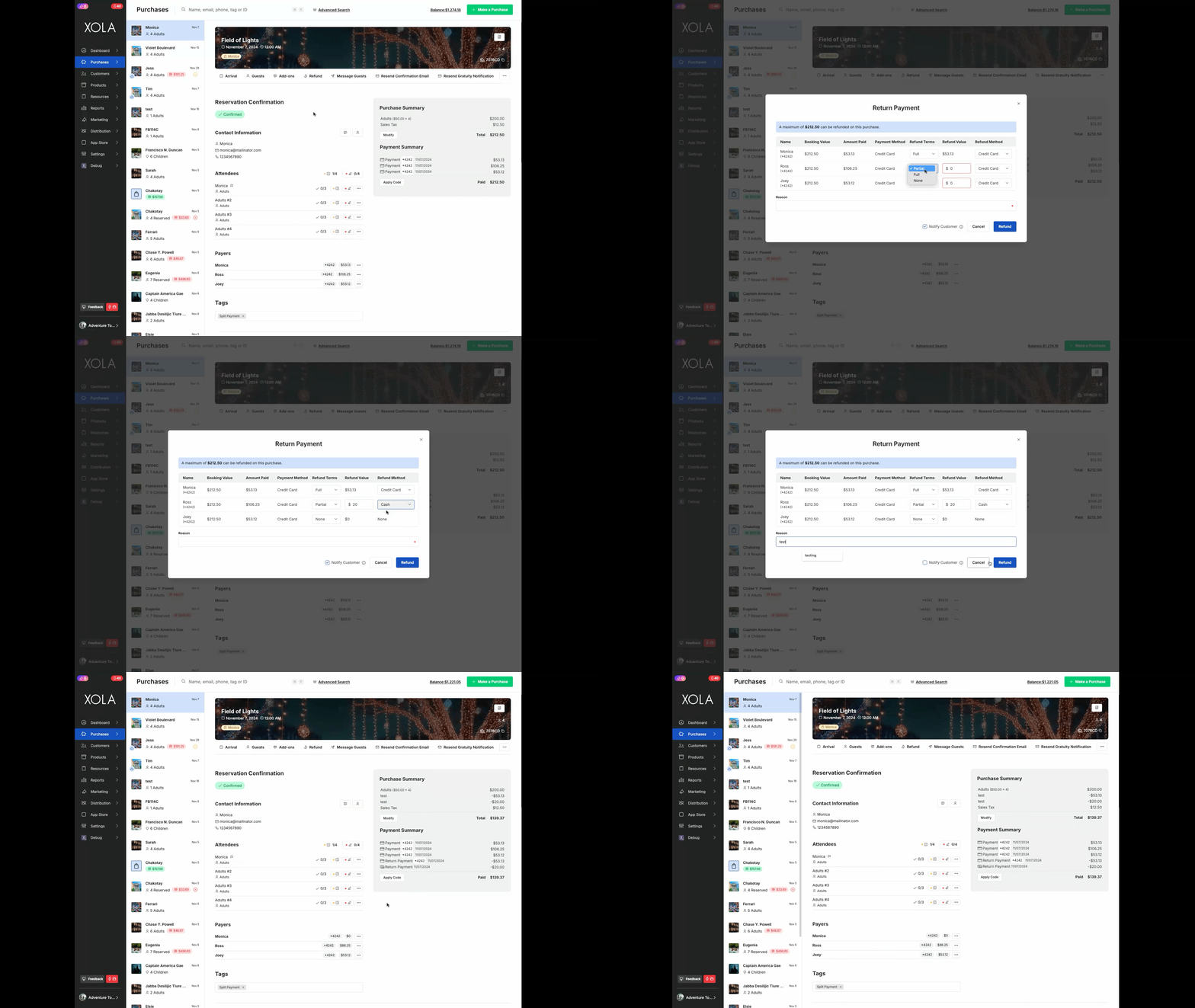
You may process multiple customers' credit cards or payment methods on one purchase. As such, you may need to issue a refund to multiple methods of payment.
- Navigate into the [Purchase tab](https://seller.xola.app/purchases/) and click on a purchase for which two or more customers have paid.
- From the Actions Bar at the top, click **Refund.**
- In the popup window, you'll see a list of all the payment methods used on the purchase.
- Under **Refund Terms**, click on the drop-down and select **Partial, Full, or None** for each guest.
- Under **Refund** **Method,** click on the drop-down and select the method of payment for that guest.
- Click the **Refund** button.
### 
---
### Refund excess payment
Several modifications, such as adjusting guest count, changing arrival, or switching experiences can decrease the balance on a purchase. The steps below detail how to refund excess payment on a purchase.
- As soon as excess payment is detected, a green **Refund Excess Payment** button will appear in the customer purchase.
- Click **Refund Excess Payment.**
- In the window that opens, the **Amount** field will default to the full amount of the balance. If you're collecting the full balance, simply choose the method of payment and click **Save Changes**. If you only want to collect a partial amount, type in the amount, choose the payment method and then click **Save Changes**.
- You’ll immediately see the balance adjust in the purchase to reflect full or partial settling.

**Note:** If you wish to add funds to your account to issue refunds, please refer to the [article here](https://support.xola.com/how-to-manage-refunds-and-balances?hsLang=en).
**Tip:** All refunds will show in the [Purchase Tab Timeline](https://support.xola.com/purchases-tab?hsLang=en#timeline) with the last 4 of the Credit Card.
- [Getting Started](https://support.xola.com/getting-started?hsLang=en#main-content)
- [Account Setup & Configuration](https://support.xola.com/getting-started?hsLang=en#account-setup-configuration)
- [Website Integration & Installation](https://support.xola.com/getting-started?hsLang=en#website-integration-installation)
- [Flex Plans](https://support.xola.com/getting-started?hsLang=en#flex-plans)
- [Managing Purchases & Customers](https://support.xola.com/managing-purchases-customers?hsLang=en#main-content)
- [Purchases Management](https://support.xola.com/managing-purchases-customers?hsLang=en#purchases-management)
- [Reservation Management](https://support.xola.com/managing-purchases-customers?hsLang=en#reservation-management)
- [Customer Management](https://support.xola.com/managing-purchases-customers?hsLang=en#customer-management)
- [Customer Data & Engagement](https://support.xola.com/managing-purchases-customers?hsLang=en#customer-data-engagement)
- [Reporting](https://support.xola.com/reporting?hsLang=en)
- [Integrations & Advanced Tools](https://support.xola.com/integrations-advanced-tools?hsLang=en#main-content)
- [Xola App Store Integrations](https://support.xola.com/integrations-advanced-tools?hsLang=en#xola-app-store-integrations)
- [Partner & Agent Management](https://support.xola.com/integrations-advanced-tools?hsLang=en#partner-agent-management)
- [Marketing & Tracking Integrations](https://support.xola.com/integrations-advanced-tools?hsLang=en#marketing-tracking-integrations)
- [Mobile and Hardware](https://support.xola.com/mobile-and-hardware?hsLang=en#main-content)
- [Mobile Tools and Apps](https://support.xola.com/mobile-and-hardware?hsLang=en#mobile-tools-and-apps)
- [Hardware Setup & Devices](https://support.xola.com/mobile-and-hardware?hsLang=en#hardware-setup-devices)
- Company
- [About Us](https://www.xola.com/about)
- [Careers](https://www.xola.com/team)
- [Press](https://www.xola.com/press)
- [Support](https://www.xola.com/support)
- [Security Policy](https://www.xola.com/security-policy/)
- Resources
- [Articles](https://www.xola.com/articles/)
- [Help Center](https://support.xola.com/)
- [Success Stories](https://www.xola.com/success-stories/)
- [App Store](https://www.xola.com/app-store)
- [Demo](https://www.xola.com/demo)
- [Xola Universe](https://www.xola.com/universe/)
- Documentation
- [API Documentation](https://developers.xola.com/)
- [Payment Services Agreement](https://www.xola.com/payment-services-agreement/)
- [Terms](https://www.xola.com/terms/)
[](https://www.xola.com/)
© 2026 Xola Inc. All rights reserved.
[Privacy Policy](https://www.xola.com/privacy-policy) [Terms of Service](https://www.xola.com/terms)