---
title: Message Templates
description: This article explains how to set up and utilize message templates in Xola to streamline customer communications. Learn to create standardized email and SMS templates, incorporating dynamic variables for personalization, and apply them to various reservation scenarios to enhance efficiency.
---
[Skip to content](https://support.xola.com/message-templates#main-content)
English
Show submenu for translations
[](https://www.xola.com/)
- [Home](https://support.xola.com/)
- [24/7 Live Support](https://www.xola.com/support/)
Open main navigation
Close main navigation
- [Home](https://support.xola.com/)
- [24/7 Live Support](https://www.xola.com/support/)
- English
Show submenu for translations
- [Login](https://xola.com/_public/login.html)
[Login](https://xola.com/_public/login.html)
How can we help you?
- There are no suggestions because the search field is empty.
1. [Help Center](https://support.xola.com/?hsLang=en)
2. [Managing Purchases & Customers](https://support.xola.com/managing-purchases-customers?hsLang=en)
3. [Customer Data & Engagement](https://support.xola.com/managing-purchases-customers?hsLang=en#customer-data-engagement)
# Message Templates
## Effortless and Consistent Guest Communication: Save Time with Xola's Message Templates for Bulk Email and SMS
If you’ve ever needed to send an **email** or **SMS** to multiple **customers** for each upcoming trip—and found yourself repeatedly copying and pasting into Xola’s communications—**Message Templates** are here to make your workflow more efficient. With **Xola’s Message Templates**, you can save your most-used **responses** or **announcements** as reusable templates, allowing you to quickly select and send **prewritten messages** to your customers with just a few clicks.
This not only ensures **consistency** and **professionalism** in your communications, but also saves valuable time by eliminating **repetitive manual entry** whenever you need to notify guests about **itinerary changes**, **reminders**, **confirmations**, or **special instructions**.
With templates, you can efficiently send **tailored emails or texts** to guests—improving your **workflow**, ensuring **accuracy**, and saving you from repetitive manual entry each time you reach out through the Xola communications tools.
**User Access:** **Administrator** or **Reservationist** roles have access to this set up and use Message Templates in Xola.
**Reservationist Lite** roles can send Message Templates.
To **grant access** to users, [click here](https://seller.xola.app/settings/users).
---
**What's covered in this article:**
- [How to set up message templates](https://support.xola.com/message-templates#setup)
- [How to send message templates to Customers](https://support.xola.com/message-templates#send)
- [Message a day's reservations](https://support.xola.com/message-templates#message-day)
- [Message individual time slot](https://support.xola.com/message-templates#message-individual)
- [Message multiple time slots on different days](https://support.xola.com/message-templates#message-multiple)
- [Message the organizer or individual customers](https://support.xola.com/message-templates#message-organizer)
---
### How to set up messages
Go to [Customers \> Message Templates](https://seller.xola.app/customers/messageTemplates) and click **+Create Template**.
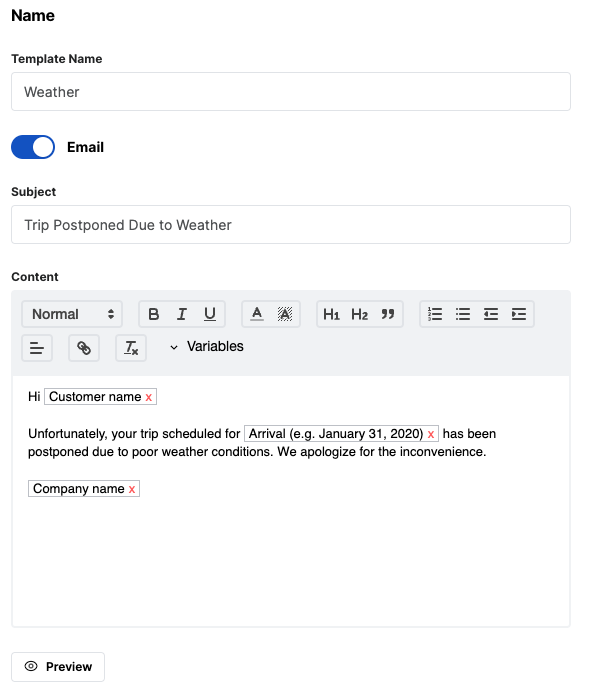
**Email**
- **Template Name:** This will be the name you will recognize when you choose which template to send. Customers will not see this field.
- **Subject:** This is the Subject of the email. Customers will see this before opening the email.
- **Content:** This is the message that will be sent to the Customer.
In addition to your own text, you have several **variables** to choose from when adding custom content to your email. These variables will dynamically populate content in the email based on the Customer it is being sent to.
- **Arrival:** Will auto-populate the arrival date selected by the Customer when making the reservation.
- **Company Name:** Your Company's name, as entered in the [settings tab](https://support.xola.com/xola-settings-?hsLang=en).
- **Company Email:** Your account's primary email address.
- **Company Communication:** Your account's communication email address.
- **Company Phone:** Your Company's phone number, as entered in the [settings tab](https://support.xola.com/xola-settings-?hsLang=en).
- **Company Website:** Your Company's website, as entered in the [settings tab](https://support.xola.com/xola-settings-?hsLang=en).
- **Customer Name:** Will auto-populate what the Customer entered in the name field when making the reservation.
- **Experience Name:** Will show the name of the Experience that was purchased by the Customer.
- **Quantity Count:** Will show only the number of demographics entered by the Customer when making the reservation.
- **Quantity:** Will show the number and name of the demographics entered when making the reservation.
When done, you can generate a preview to see what the message will look like. Remember to click '**Save**' to save the template to send to your Customer.
**Text Message**
- **Name:** This will be the name you will recognize when you choose which template to send. Customers will not see this field.
- **Content:** This is the message that will be sent to the Customer.
In addition to your own text, you have several **variables** to choose from when adding custom content to your SMS. These variables will dynamically populate content in the SMS based on the customer it is being sent to.
- **Arrival:** Will auto-populate the arrival date selected by the Customer when making the reservation.
- **Company Name:** Your Company's name, as entered in the [settings tab](https://support.xola.com/xola-settings-?hsLang=en).
- **Company Email:** Your account's primary email address.
- **Company Communication:** Your account's communication email address.
- **Company Phone:** Your Company's phone number, as entered in the [settings tab](https://support.xola.com/xola-settings-?hsLang=en).
- **Company Website:** Your Company's website, as entered in the [settings tab](https://support.xola.com/xola-settings-?hsLang=en).
- **Customer Name:** Will auto-populate what the Customer entered in the name field when making the reservation.
- **Experience Name:** Will show the name of the Experience that was purchased by the Customer.
- **Quantity Count:** Will show only the number of demographics entered by the Customer when making the reservation.
- **Quantity:** Will show the number and name of the demographics entered when making the reservation.
When done, you can generate a preview to see what the message will look like. Remember to click **Save** to save the template to send to your Customer.
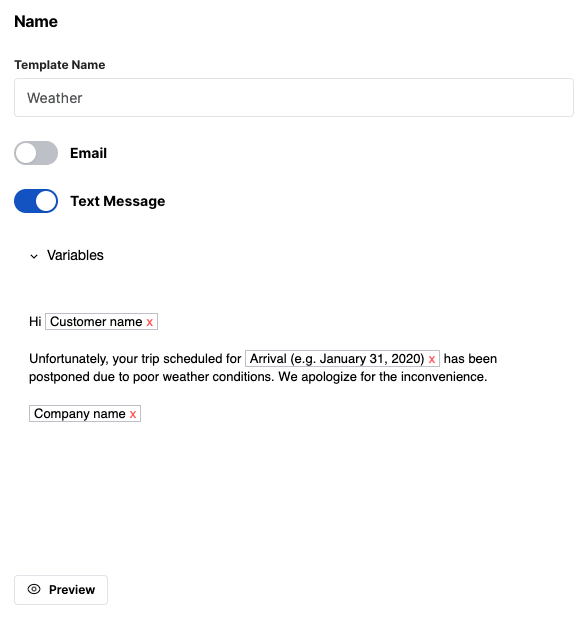
Once you hit **Save**, the template will show in **[Customers \> Message Templates](https://seller.xola.app/customers/messageTemplates)**, where you can edit and delete the template.

### How to send message templates to Customers
#### **Message a day's reservations**
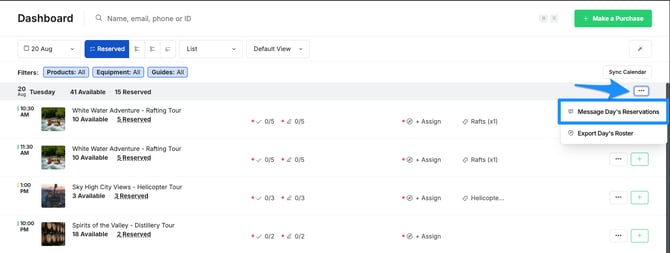
If you want to message all Customers on all tours on a specific day (i.e. all tours going out on Tuesday, August 20), you can go by the following steps:
- Navigate to your **[Dashboard](https://seller.xola.app/dashboard)**, choose the date you want to message, click the icon at the top of the time slot, and select **Message Day's Reservations**.
****
A pop-up will appear:
Here you can choose the dropdown and pick the template you would like to send the day's reservations. After you choose which template, it will auto-populate the subject and body message.

---
#### **Message individual timeslot**
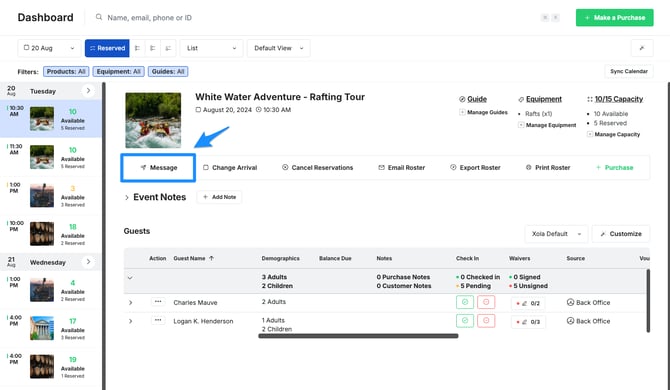
If you would like to send a message to every Customer on a specific event (i.e. a Rafting Tour at 10:30 am on August 20th):
- Navigate to your **[Dashboard](https://seller.xola.app/dashboard)** and click on the time slot.
- Click the **Message** button under the event image.
### 
A pop-up will appear:
Here you can choose the dropdown and pick the template you would like to send the day's reservations. After you choose which template, it will auto-populate the subject and body message.

---
#### **Message multiple time slots on different days**
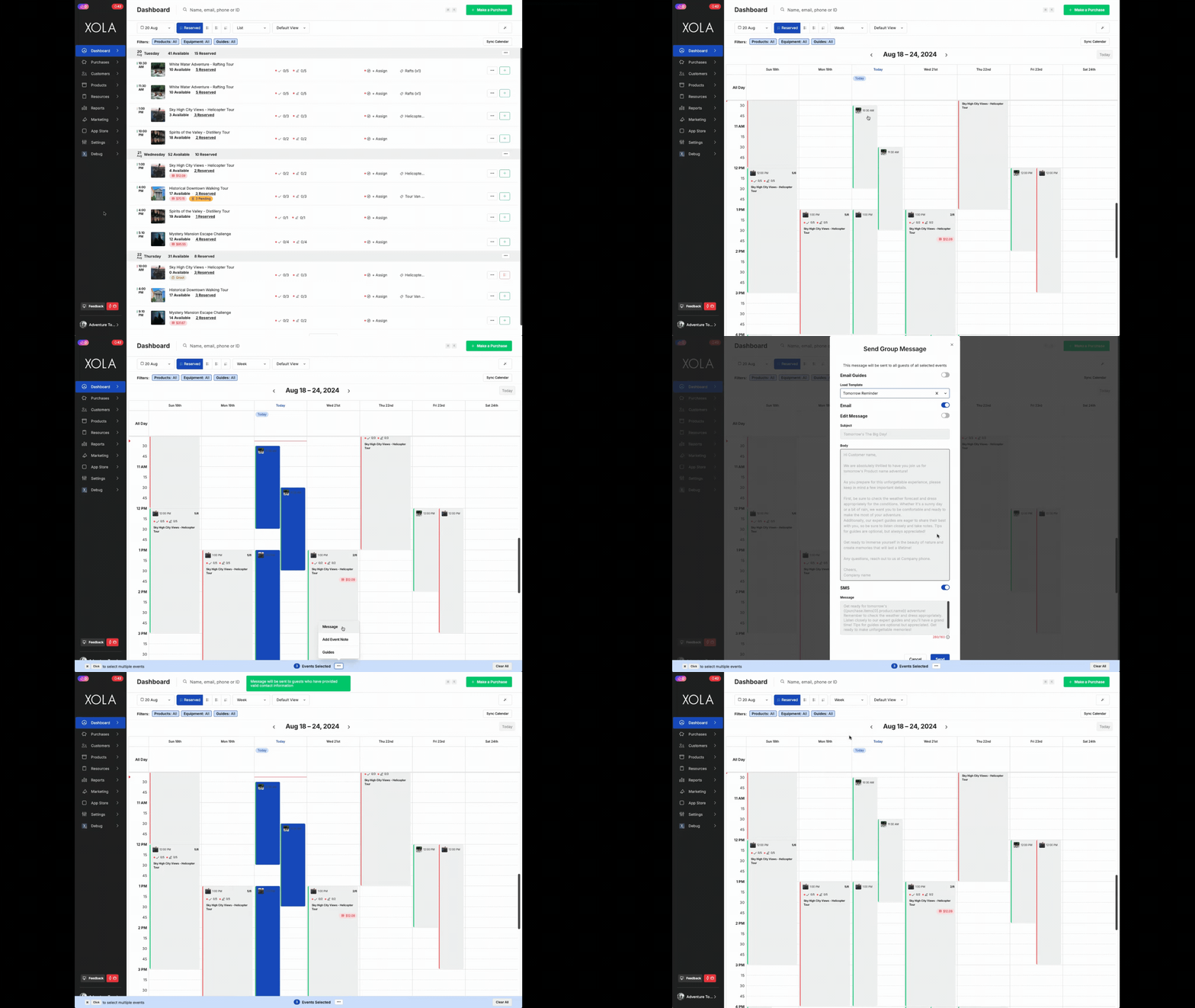
If you want to message multiple time slots across different days within the same week, you can do so using the actions from the **Dashboard Week View**.
- Select multiple time slots using Command + click (Mac) or CTRL + click (Windows).
- Click the icon on the blue bar at the bottom and select **Message**.
- Here you can choose the dropdown and pick the template you would like to send the day's reservations. After you choose which template, it will auto-populate the subject and body message.
---
### Message the organizer or individual customers
If you want to message the organizer or individual guests, you can do this easily from both the Purchases tab and the Dashboard Roster.
#### **From the Purchases Tab**
**Sending a message to the organizer only**
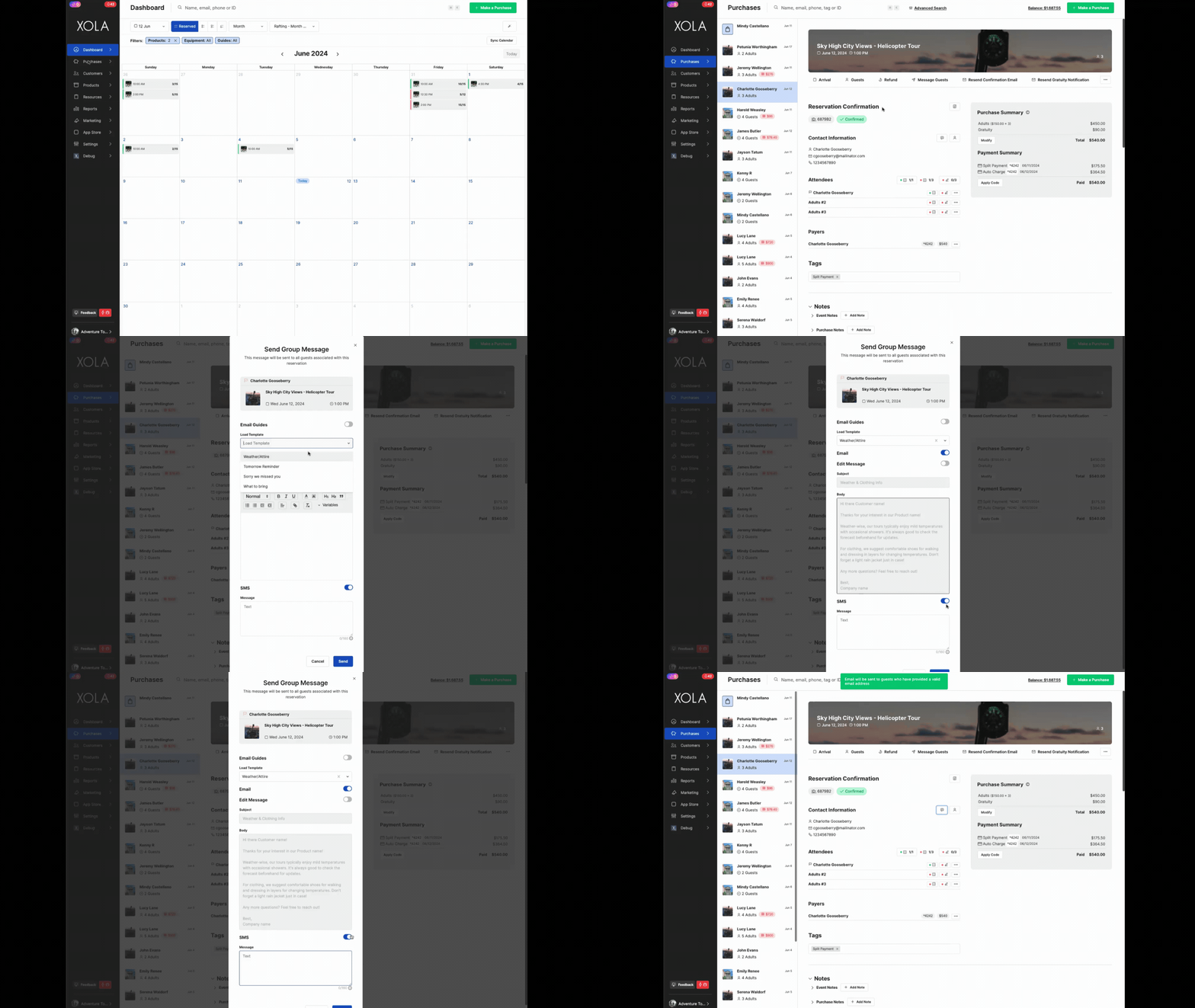
- Navigate to the **[Purchases](https://seller.xola.app/purchases/)** tab and search for the Customer to whom you'd like to send a message.
- In the Customer purchase, click the message icon  next to **Contact Information**
**Sending a message to multiple specific guests**
- Navigate to the [Purchases](https://seller.xola.app/purchases) tab and search for the organizer of the purchase.
- Select the purchase and click the **Message Guests** button.
- In the **Recipients** field, you can select which guest(s) you'd like to send a message to.
**Sending a message to an individual guest.**
- Within the purchase, navigate to the list of attendees
- Click the icon next to the guest's name you would like to message
- Select **Message**.
**Note:** The option to message specific guests other than the organizer is only available if the guest's email address and/or phone number is linked to the purchase either through filling out a questionnaire or waiver.
A pop-up will appear:
- In the **Load Template** field, you can choose the template you would like to send to the guest(s).
- Use the toggles to choose your message type; you can choose Email and/or SMS
- For **Email:**
- The subject and body of the message will be auto-populated according to the template you choose.
- For **SMS:**
- The subject and body of the message will be auto-populated according to the template you choose.
If you do not see the SMS field, you may need to turn this feature on via the **[App Store](https://seller.xola.app/apps)**.
- The Email and/or SMS will appear in the Timeline below.
- Customer responses to emails will pass through Xola and be added to the Timeline.
- Customer responses to text messages will not appear for you in Xola.
**Note for SMS:** Messages that exceed 160 characters will be sent as 2 separate texts. If a Customer calls the contact number from the SMS message, they will reach a recording that instructs them to contact the Company that they booked with (you!). If you're interested in hearing that automated message, you can call 415-800-1140.
**Sending a message in an Invoice**
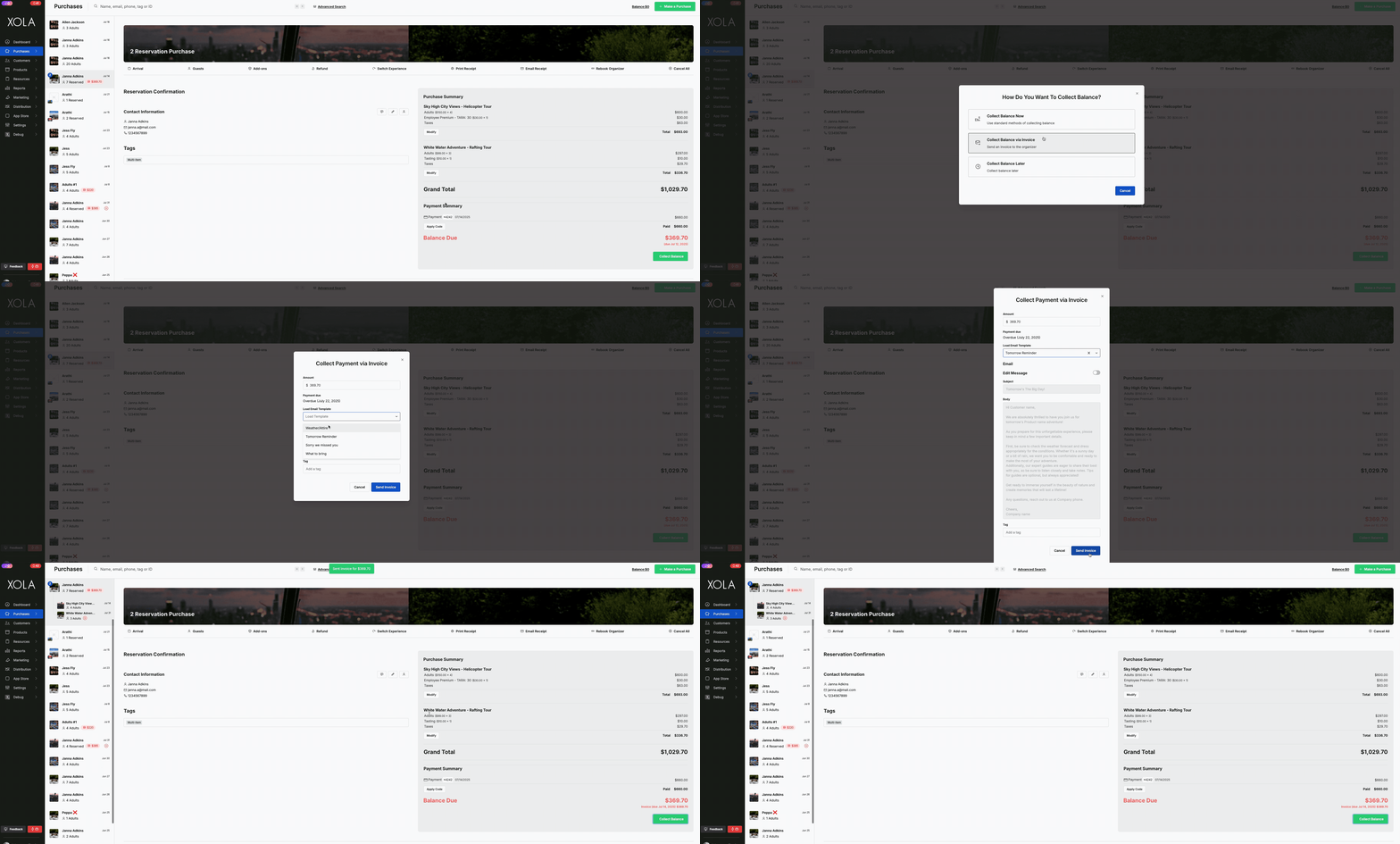
- Click **Collect Balance** in a purchase with an open balance.
- Click **Collect Balance Via Invoice**
- In the window that opens, the Amount field will default to the full amount of the balance.
- In the **Load Template** field, you can choose the template you would like to send to the guest(s).
- Then click **Send Invoice.**
****
#### **From the Roster**
**Send a message to the organizer only**
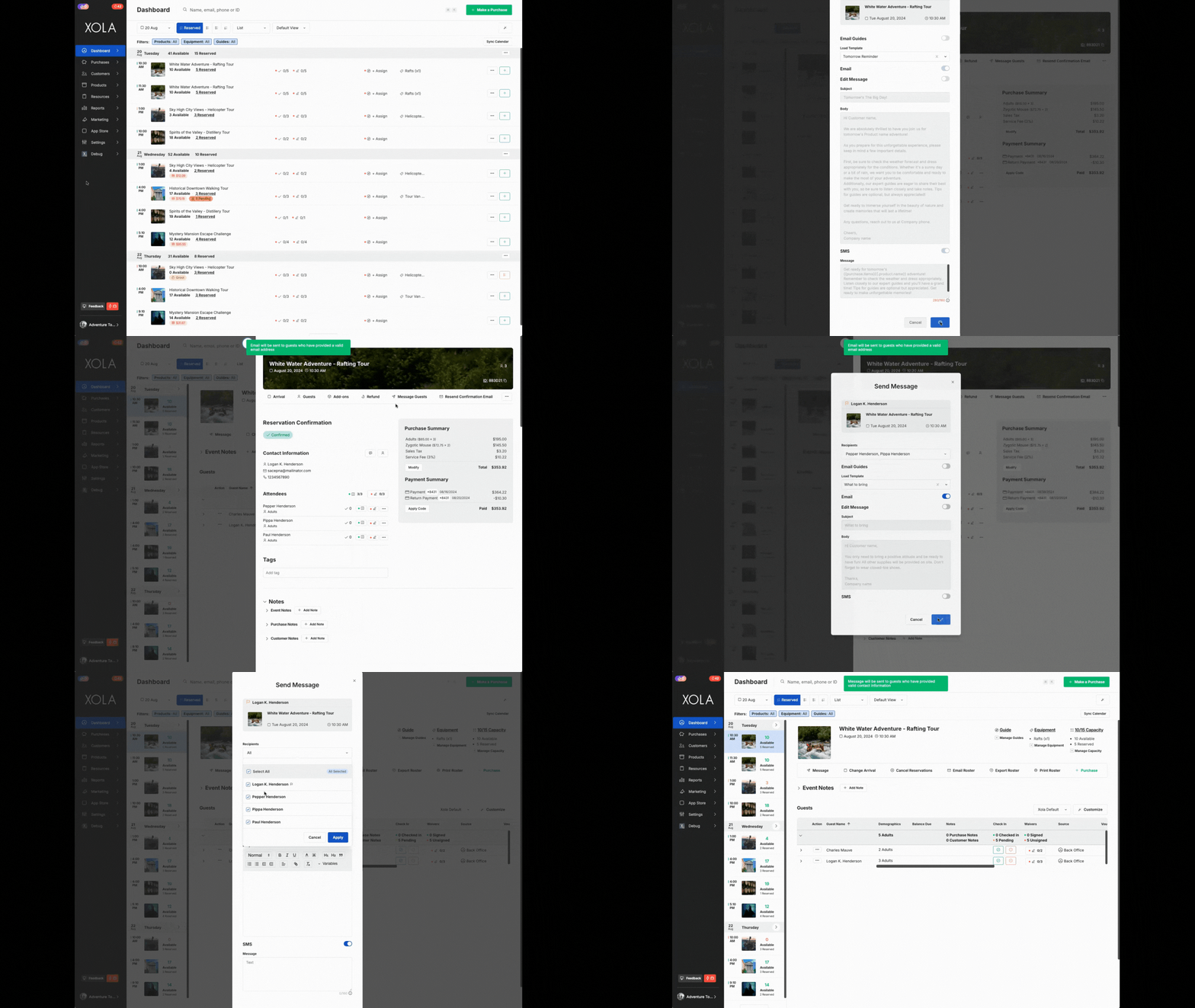
- Navigate to the **[Dashboard](https://seller.xola.app/dashboard)** and select the event that contains the purchase you would like to message.
- From the Roster, click on the purchase to reveal its details
- Click on the message icon  next to **Contact Information** to message the organizer
**Send a message to multiple specific guests**
- Navigate to the **[Dashboard](https://seller.xola.app/dashboard)** and select the event that contains the purchase you would like to message.
- In the Roster, click the icon to the left of the purchase whose guests you would like to message
- Select **Message** \> click into the **Recipients** field and select the guest(s) that you would like to message
**Send a message to an individual guest**
- Navigate to the **[Dashboard](https://seller.xola.app/dashboard)** and select the event that contains the purchase you would like to message.
- In the Roster, click on the purchase to reveal its details
- Click the icon next to the guest's name you would like to message
- Select **Message**.
A pop-up will appear:
- In the **Load Template** field, you can choose the template you would like to send to the guest(s).
- Use the toggles to choose your message type; you can choose Email and/or SMS
- For **Email:**
- The subject and body of the message will be auto-populated according to the template you choose.
- For **SMS:**
- The subject and body of the message will be auto-populated according to the template you choose.
If you do not see the SMS field, you may need to turn this feature on via the **[App Store](https://seller.xola.app/apps)**.
- The Email and/or SMS will appear in the Timeline within the purchase.
- Customer responses to emails will pass through Xola and be added to the Timeline.
- Customer responses to text messages will not appear for you in Xola.
- [Getting Started](https://support.xola.com/getting-started?hsLang=en#main-content)
- [Account Setup & Configuration](https://support.xola.com/getting-started?hsLang=en#account-setup-configuration)
- [Website Integration & Installation](https://support.xola.com/getting-started?hsLang=en#website-integration-installation)
- [Flex Plans](https://support.xola.com/getting-started?hsLang=en#flex-plans)
- [Managing Purchases & Customers](https://support.xola.com/managing-purchases-customers?hsLang=en#main-content)
- [Purchases Management](https://support.xola.com/managing-purchases-customers?hsLang=en#purchases-management)
- [Reservation Management](https://support.xola.com/managing-purchases-customers?hsLang=en#reservation-management)
- [Customer Management](https://support.xola.com/managing-purchases-customers?hsLang=en#customer-management)
- [Customer Data & Engagement](https://support.xola.com/managing-purchases-customers?hsLang=en#customer-data-engagement)
- [Reporting](https://support.xola.com/reporting?hsLang=en)
- [Integrations & Advanced Tools](https://support.xola.com/integrations-advanced-tools?hsLang=en#main-content)
- [Xola App Store Integrations](https://support.xola.com/integrations-advanced-tools?hsLang=en#xola-app-store-integrations)
- [Partner & Agent Management](https://support.xola.com/integrations-advanced-tools?hsLang=en#partner-agent-management)
- [Marketing & Tracking Integrations](https://support.xola.com/integrations-advanced-tools?hsLang=en#marketing-tracking-integrations)
- [Mobile and Hardware](https://support.xola.com/mobile-and-hardware?hsLang=en#main-content)
- [Mobile Tools and Apps](https://support.xola.com/mobile-and-hardware?hsLang=en#mobile-tools-and-apps)
- [Hardware Setup & Devices](https://support.xola.com/mobile-and-hardware?hsLang=en#hardware-setup-devices)
- Company
- [About Us](https://www.xola.com/about)
- [Careers](https://www.xola.com/team)
- [Press](https://www.xola.com/press)
- [Support](https://www.xola.com/support)
- [Security Policy](https://www.xola.com/security-policy/)
- Resources
- [Articles](https://www.xola.com/articles/)
- [Help Center](https://support.xola.com/)
- [Success Stories](https://www.xola.com/success-stories/)
- [App Store](https://www.xola.com/app-store)
- [Demo](https://www.xola.com/demo)
- [Xola Universe](https://www.xola.com/universe/)
- Documentation
- [API Documentation](https://developers.xola.com/)
- [Payment Services Agreement](https://www.xola.com/payment-services-agreement/)
- [Terms](https://www.xola.com/terms/)
[](https://www.xola.com/)
© 2026 Xola Inc. All rights reserved.
[Privacy Policy](https://www.xola.com/privacy-policy) [Terms of Service](https://www.xola.com/terms)