---
title: Invoicing
description: This article guides you through setting up and using Xola's invoicing feature, allowing you to email customers invoices for outstanding balances, which they can pay via credit card. Learn how to create and send invoices, enable self-service payments, and manage customer experiences.
---
[Skip to content](https://support.xola.com/invoicing#main-content)
English
Show submenu for translations
[](https://www.xola.com/)
- [Home](https://support.xola.com/)
- [24/7 Live Support](https://www.xola.com/support/)
Open main navigation
Close main navigation
- [Home](https://support.xola.com/)
- [24/7 Live Support](https://www.xola.com/support/)
- English
Show submenu for translations
- [Login](https://xola.com/_public/login.html)
[Login](https://xola.com/_public/login.html)
How can we help you?
- There are no suggestions because the search field is empty.
1. [Help Center](https://support.xola.com/?hsLang=en)
2. [Managing Purchases & Customers](https://support.xola.com/managing-purchases-customers?hsLang=en)
3. [Purchases Management](https://support.xola.com/managing-purchases-customers?hsLang=en#purchases-management)
# Invoicing
## Simplify Payment Collection with Flexible Invoicing Options
The **Invoice feature** in **Xola** makes it simple to send a **professional invoice** directly to your **customers**, giving them the option to **pay securely via credit card**. This feature is designed for **back-office purchases** both at the time of the **original purchase** and for any **purchases with an outstanding balance**.
With invoicing, your customers gain access to a **self-service payment option**, allowing them to pay the **remaining balance** of a purchase conveniently through the **Pay Invoice button** included in their **confirmation email**. This eliminates the need for manual payment collection and creates a smoother, more efficient payment process.
Whether a **partial payment** or **no payment** was collected during the original purchase, the **outstanding balance** can be paid by the customer at any time, as long as **Invoicing** is enabled. This feature ensures that both you and your customers enjoy greater **flexibility**, **convenience**, and **clarity** when handling payments.
**User Access:** **Administrator** or **Curator** roles have access to set up invoicing in Xola.
**Administrator, Reservationist Lite** or **Reservationist** roles can send and create invoices.
To **grant access** to users, [click here](https://seller.xola.app/settings/users).
---
**What's covered in this article:**
- **[Setting up the Invoice feature](https://support.xola.com/invoicing#setting-up)**
- **[Creating an Invoice](https://support.xola.com/invoicing#creating-an-invoice)**
- **[Other ways to send an Invoice](https://support.xola.com/invoicing#other-ways)**
- **[The Customer Experience](https://support.xola.com/invoicing#the-customer-experience)**
---
### Setting up the Invoice Feature
To set up Invoicing, you will first enable it through the App Store by navigating to **[App Store \> Invoicing \> Install \> Agree to the Terms of Service](https://seller.xola.app/apps)**.
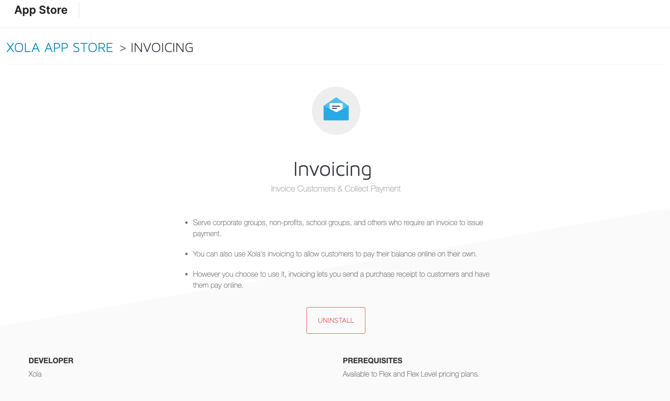
Once **Invoicing** is on for your account, follow these steps to allow your customers to pay the **remaining balance** of a purchase from their confirmation and reminder emails:
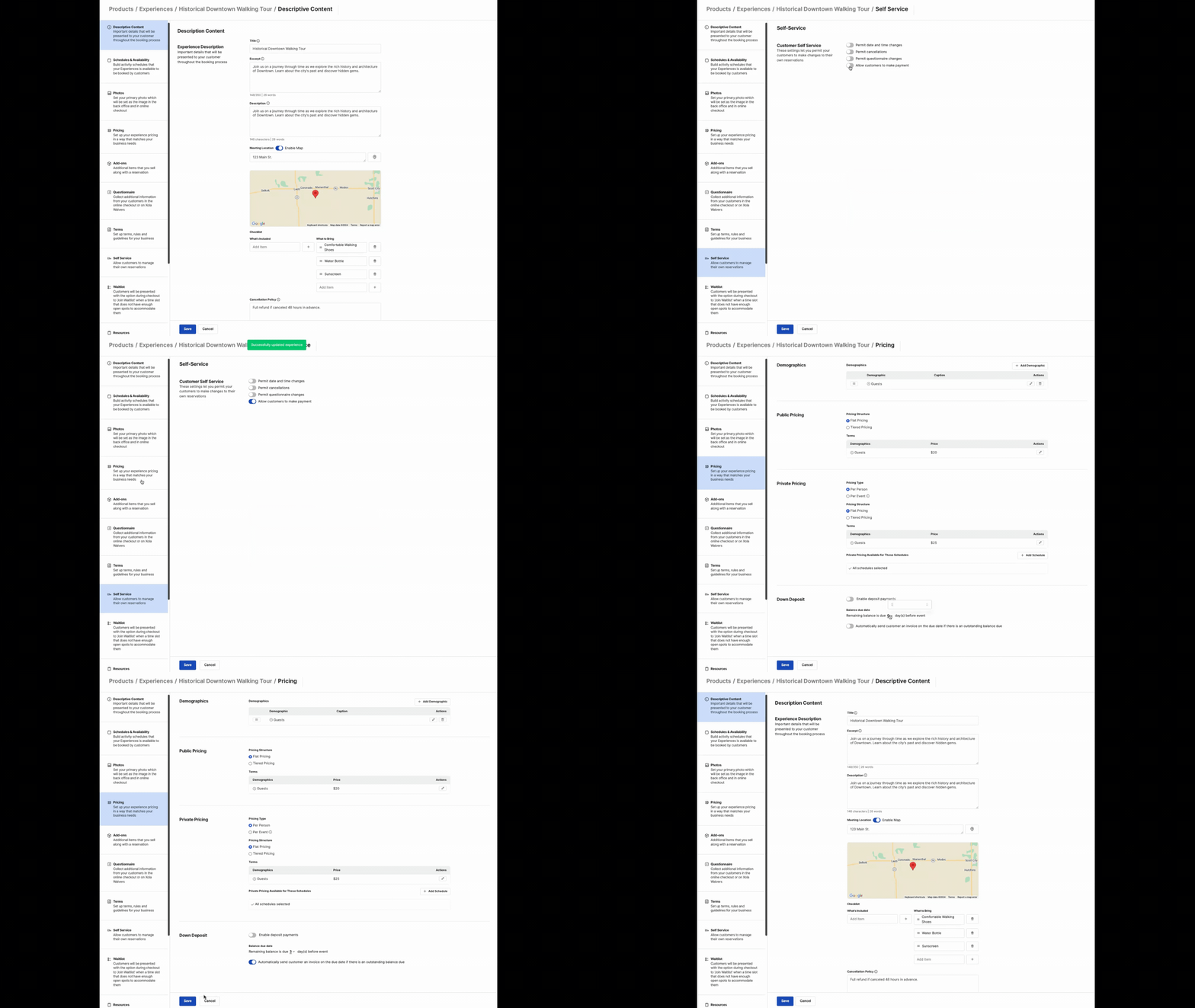
- Navigate to **[Products \> Experiences](https://seller.xola.app/products/experiences)**. Click **Edit** on the experiences you wish to enable invoice payments.
- Select the **Self-Service** sub-tab on the left.
- Toggle on **Allow customers to make payment**.
- You can also configure a **balance due** **reminder email** under **[Products \> Experiences](https://seller.xola.app/products/experiences)** **\>** **Click Edit \>** **Pricing** sub-tab.
- On this page, you can set the number of days prior to the arrival date that the **remaining balance is due**, and whether or not you would like an automatic **balance reminder email** to send on the due date.
---
### Creating an Invoice
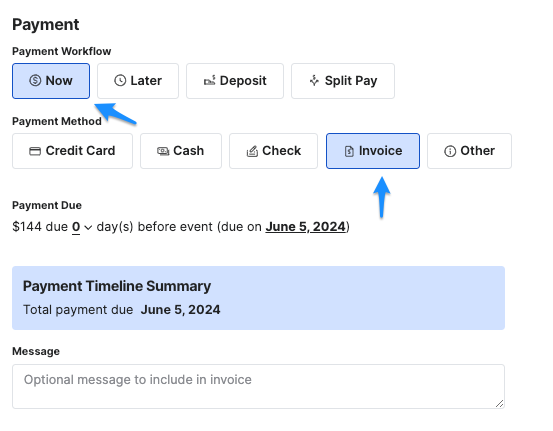
- Make a **[back office purchase](https://support.xola.com/make-purchases-through-back-office?hsLang=en)** as normal through the **Make a** **Purchase** button.
- In the Payment section, choose **Now or Deposit** under Payment Workflow and select **Invoice** under Payment Method.
- Enter the number of days before this experience that the invoice must be paid.
- Enter an optional message to the customer.
- Click **Send Invoice**.
The customer can pay the invoice through email (detailed below in the [Customer Experience](https://support.xola.com/invoicing#the-customer-experience) section), or you can click **Collect Balance** on the Purchase tab to settle through the back office.
Until the customer pays the invoice, they'll remain in the **[Pending Action Queue](https://support.xola.com/pending-action-queue?hsLang=en)** and a balance will remain open on their purchase. **Xola will not automatically collect the balance.**
**Tip:** Need to resend the invoice? Inside the customer purchase, just hit **Collect Balance \> Collect Balance via Invoice** to send an updated copy of the invoice that includes any changes to the pricing, payment, or reservation.
---
### Other ways to send Invoice
#### **Additional Charges**
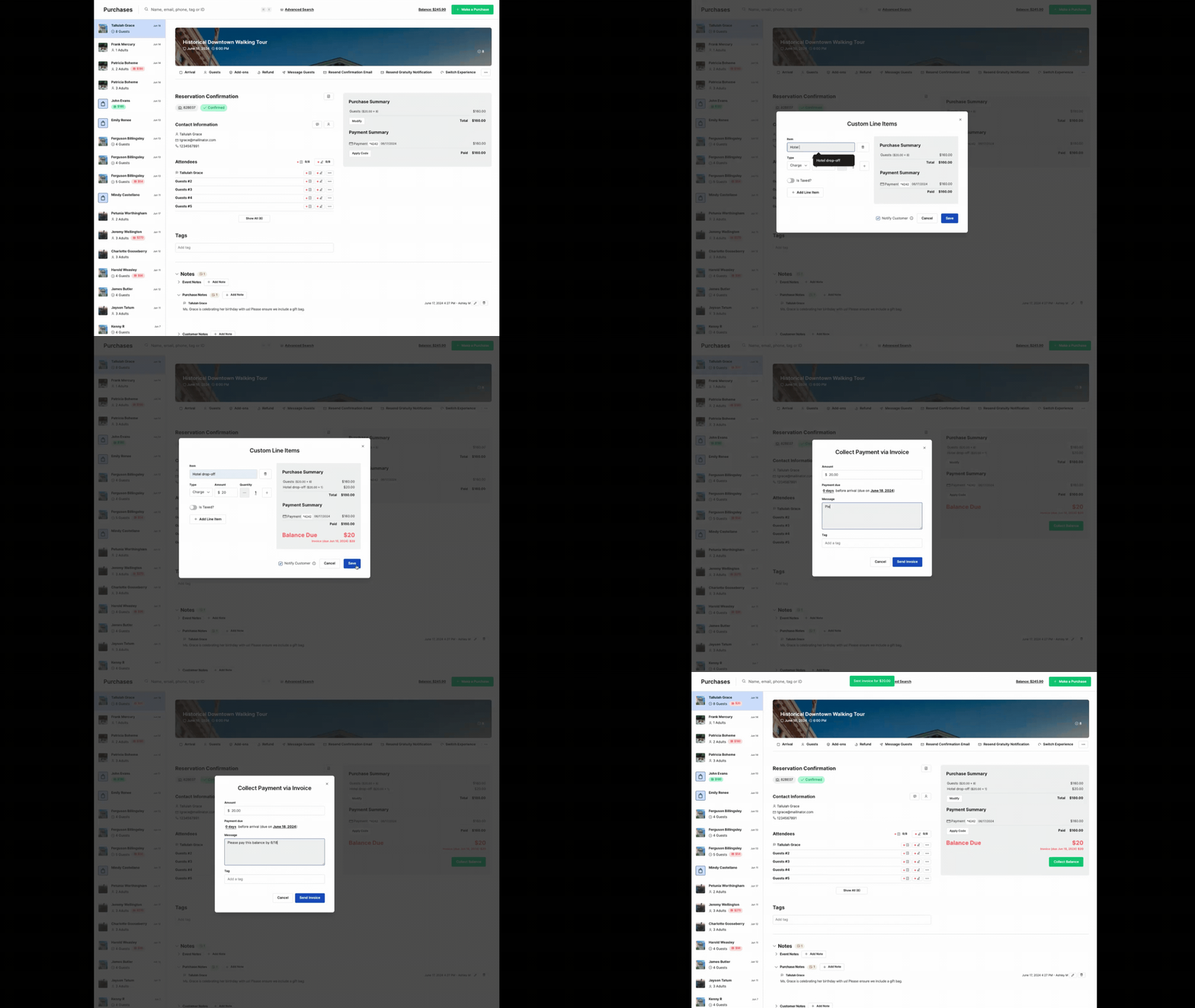
Once a purchase has been paid for, you may find yourself in a situation where you need to **add a charge to the reservation.** You now can **send an invoice** for the additional charge by following these steps:
- Go to the purchase record in the **[Purchases](https://seller.xola.app/purchases)** tab.
- Add a charge using the **Modify** button shown under the Purchase Summary on the right and select the option for **Custom Line Items** from the dropdown.
- Add the charge amount and type in the reason for the additional charge.
- Select the **Collect Balance Via Invoice option.**
- Select the **number of days** prior to the arrival date that the new balance is due, and type in an optional message to include in the emailed invoice if you'd like.
- Choose a [message template](https://support.xola.com/message-templates?hsLang=en) or write your own message to the guest (optional).
- Click **Send Invoice**
This will trigger an email to be sent to the customer informing them of the new balance, with a **Pay Now** button that will allow them to self-service the payment.
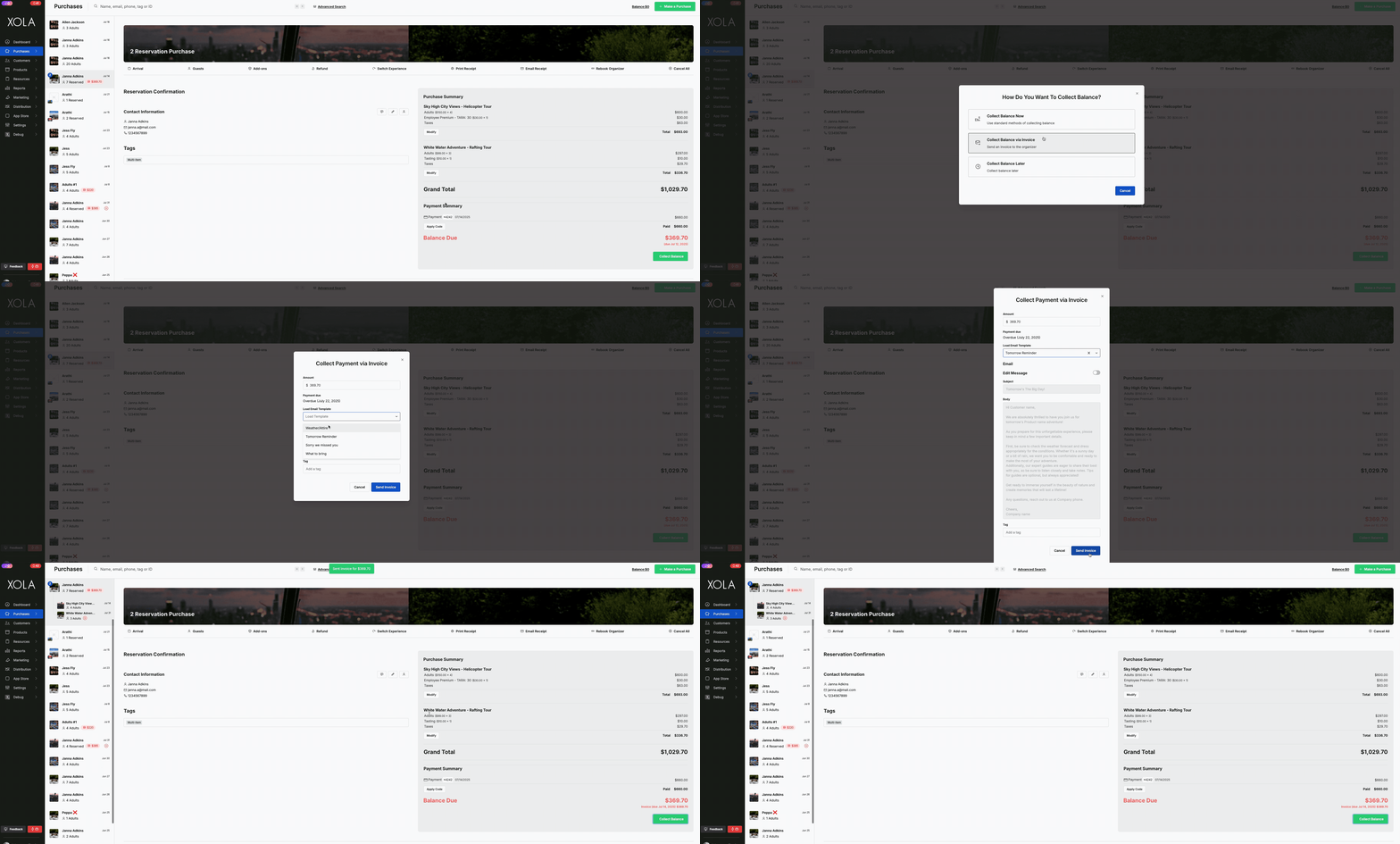
#### **Manually Send Invoices for Balance Due or Partial Amount**
Another situation you may encounter if you use deposits for online checkout is wanting to collect the balance due via invoice in case the card on file cannot be charged or you want to provide customers the option to pay on a different card.
- Go to the purchase record in the **[Purchases](https://seller.xola.app/purchases)** tab.
- Click on the **Collect Balance** button.
- This will bring up a pop-up window to ask if you want to collect the balance now, by invoice, or later.
- Select the invoice as the collection method.
- Select the **number of days** prior to the arrival date that the new balance is due, and type in an optional message to include in the emailed invoice if you'd like.
- Choose a [message template](https://support.xola.com/message-templates?hsLang=en) or write your own message to the guest (optional).
- Click **Send Invoice**
### 
---
### The Customer Experience
- After you send the invoice, the customer will receive an email containing the invoice, the **Pay Invoice** button, and details regarding the experience.
- The customer will see when **payments are due** in the **Payment Summary** in red.
- The customer will click the green **Pay Invoice** button.
- A secure checkout window will open up where the customer can pay by credit card.
- Once the customer pays through the checkout window, Xola will automatically update the purchase.

**FYI:** If the customer has not paid the invoice 24 hours prior to the designated due date, Xola will automatically send the customer a reminder email containing a link to pay.
- [Getting Started](https://support.xola.com/getting-started?hsLang=en#main-content)
- [Account Setup & Configuration](https://support.xola.com/getting-started?hsLang=en#account-setup-configuration)
- [Website Integration & Installation](https://support.xola.com/getting-started?hsLang=en#website-integration-installation)
- [Flex Plans](https://support.xola.com/getting-started?hsLang=en#flex-plans)
- [Managing Purchases & Customers](https://support.xola.com/managing-purchases-customers?hsLang=en#main-content)
- [Purchases Management](https://support.xola.com/managing-purchases-customers?hsLang=en#purchases-management)
- [Reservation Management](https://support.xola.com/managing-purchases-customers?hsLang=en#reservation-management)
- [Customer Management](https://support.xola.com/managing-purchases-customers?hsLang=en#customer-management)
- [Customer Data & Engagement](https://support.xola.com/managing-purchases-customers?hsLang=en#customer-data-engagement)
- [Reporting](https://support.xola.com/reporting?hsLang=en)
- [Integrations & Advanced Tools](https://support.xola.com/integrations-advanced-tools?hsLang=en#main-content)
- [Xola App Store Integrations](https://support.xola.com/integrations-advanced-tools?hsLang=en#xola-app-store-integrations)
- [Partner & Agent Management](https://support.xola.com/integrations-advanced-tools?hsLang=en#partner-agent-management)
- [Marketing & Tracking Integrations](https://support.xola.com/integrations-advanced-tools?hsLang=en#marketing-tracking-integrations)
- [Mobile and Hardware](https://support.xola.com/mobile-and-hardware?hsLang=en#main-content)
- [Mobile Tools and Apps](https://support.xola.com/mobile-and-hardware?hsLang=en#mobile-tools-and-apps)
- [Hardware Setup & Devices](https://support.xola.com/mobile-and-hardware?hsLang=en#hardware-setup-devices)
- Company
- [About Us](https://www.xola.com/about)
- [Careers](https://www.xola.com/team)
- [Press](https://www.xola.com/press)
- [Support](https://www.xola.com/support)
- [Security Policy](https://www.xola.com/security-policy/)
- Resources
- [Articles](https://www.xola.com/articles/)
- [Help Center](https://support.xola.com/)
- [Success Stories](https://www.xola.com/success-stories/)
- [App Store](https://www.xola.com/app-store)
- [Demo](https://www.xola.com/demo)
- [Xola Universe](https://www.xola.com/universe/)
- Documentation
- [API Documentation](https://developers.xola.com/)
- [Payment Services Agreement](https://www.xola.com/payment-services-agreement/)
- [Terms](https://www.xola.com/terms/)
[](https://www.xola.com/)
© 2026 Xola Inc. All rights reserved.
[Privacy Policy](https://www.xola.com/privacy-policy) [Terms of Service](https://www.xola.com/terms)