---
title: Gratuity
description: This article explains how to enable and configure Xola's Gratuity feature to collect electronic tips from customers via preset amounts through email or SMS. It also covers tracking gratuities using the reporting module and customizing messages for customers.
---
[Skip to content](https://support.xola.com/gratuity#main-content)
English
Show submenu for translations
[](https://www.xola.com/)
- [Home](https://support.xola.com/)
- [24/7 Live Support](https://www.xola.com/support/)
Open main navigation
Close main navigation
- [Home](https://support.xola.com/)
- [24/7 Live Support](https://www.xola.com/support/)
- English
Show submenu for translations
- [Login](https://xola.com/_public/login.html)
[Login](https://xola.com/_public/login.html)
How can we help you?
- There are no suggestions because the search field is empty.
1. [Help Center](https://support.xola.com/?hsLang=en)
2. [Managing Purchases & Customers](https://support.xola.com/managing-purchases-customers?hsLang=en)
3. [Reservation Management](https://support.xola.com/managing-purchases-customers?hsLang=en#reservation-management)
# Gratuity
## Digital Gratuity Collection: Convenient, Trackable Tipping and Staff Recognition with Xola Gratuity Tools
With the **Gratuity feature** in Xola, you can seamlessly **accept** and **track digital gratuities** from your **customers**, ensuring your **staff** is recognized and rewarded for outstanding service. This tool enables you to **create preset gratuity options**—like suggested **dollar amounts** or **percentages**—making it easy for guests to select a tip amount that fits their preference. **Gratuity requests** are sent automatically to customers via **email** or **SMS link** after their experience, allowing guests to leave a tip conveniently by **credit card**.
Each **gratuity payment** is recorded in your system and can be attributed to individual **staff members** or **guides**, enabling detailed **reporting** and transparent accounting for payroll or bonus purposes. You can also **customize the instructions** and messaging that guests see, maintaining control over how you prompt for gratuity and providing clear directions for completion. Used with or without [Guide Management](https://support.xola.com/guide-management?hsLang=en), the Gratuity feature helps foster a culture of appreciation, **streamlines the collection process**, and empowers your business to offer **cashless tip solutions** that boost **staff morale** and enhance your guests’ **checkout experience**.
**User Access:** **Administrator** roles have access to this set up in Xola.
**Administrator, Accountant or Guide Manager** roles can view the Gratuity report under Reports.
**Guide** roles can only view Gratuities assigned to them under Reports.
To **grant access** to users, [click here](https://seller.xola.app/settings/users).
---
**What's covered in this article:**
- [How to enable Gratuity](https://support.xola.com/gratuity#enable)
- [How to set up Gratuity](https://support.xola.com/gratuity#setup)
- [How Gratuity works](https://support.xola.com/gratuity#works)
- [Gratuity report](https://support.xola.com/gratuity#report)
---
### How to enable Gratuity
- Navigate to the Xola App Store by clicking the [App Store](https://seller.xola.app/apps) tab on the left-hand column.
- Search **Gratuity** and select the App Store tile.
- Click the Install button.
---
### How to set up Gratuity
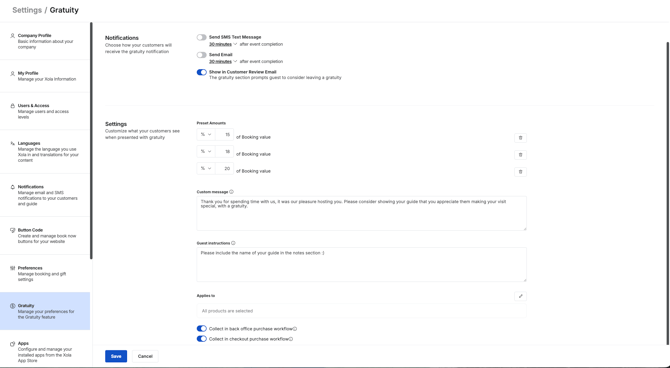
- Once the app is installed, navigate to **[Settings \> Gratuity](https://seller.xola.app/settings/gratuity)**.
- Choose your preferred method of sending Gratuity options to your customers. We currently offer the following methods:
- Show in Customer Review Email (this will add a Gratuity section to the Customer Review Email)
- Send SMS Text Message
- Send Email
- **Preset amounts**
- Makes it easy for your customers to make a quick decision. Presets are limited to 3. In addition to presets, customers will have the option to pay a custom amount. Your preset amounts can be set as a $ or % of the reservation value.
- **Custom message**
- This message is displayed in the separate email sent to your customers requesting gratuity and on the payment page.
- **Guest instructions**
- This message is displayed on your customers' payment page. If you do not use our Guide Management feature, you can leave instructions for your customers to tell you how the experience was or even which Guide they had.
- **Applies to**
- Choose which products you want the Gratuity set up to go to; all products will be selected as the default.
- Toggle on or off **Collect in back office purchase workflow**: This will allows you to collect the gratuity directly in the Back Office when [making a purchase.](https://support.xola.com/make-purchases-through-back-office?hsLang=en)
- toggle on or off **Collect in checkout purchase workflow:** This will allows you to collect the gratuity directly in the checkout workflow while the customer is making a reservation.
- The timing in which your customer gets the email can be changed with our **[Custom Notification Timing](https://support.xola.com/xola-settings-?hsLang=en)** Feature.
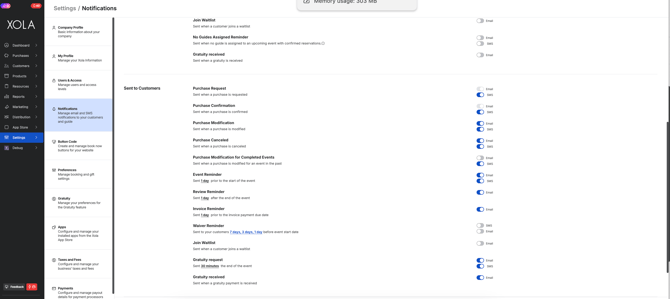
- Email notifications for you and your guides are disabled by default; be sure to turn them on if you or your staff want to receive them. You can enable this on the [Settings \> Notifications](https://seller.xola.app/settings/notifications) screen.
- **Gratuity request**: Sent 30 minutes after the end of the event (by default)
- **Gratuity received**: Sent when a gratuity payment is received
---
### How Gratuity works
#### After an Event
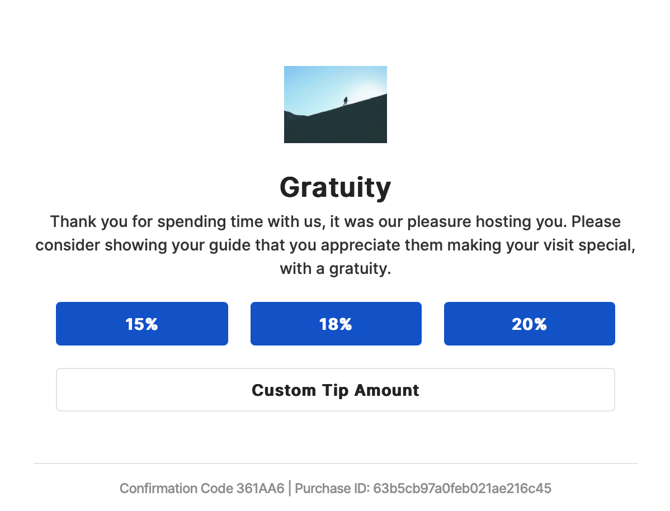
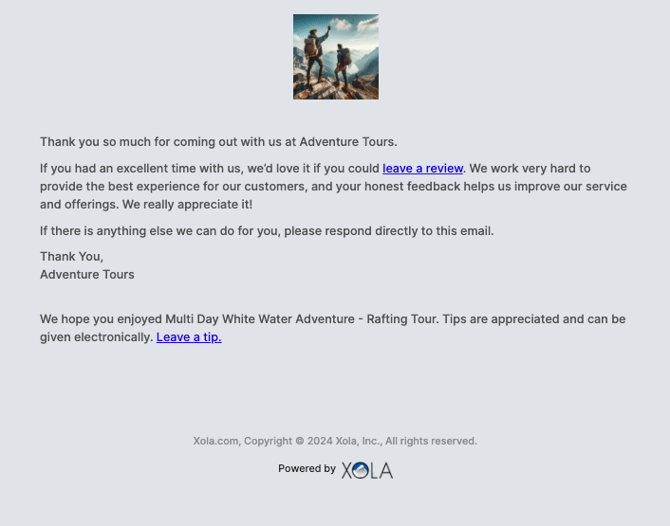
After an event is over, Xola will send an email to your guests to prompt a gratuity payment. There are a few ways a guest can receive this notification:
Separate Email:
**Review Email (if toggled on):**
**SMS Notification with link:**
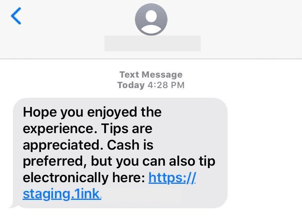
SMS notifications can be set up by navigating to [Settings \> Notifications](https://seller.xola.app/settings/notifications) and using the toggle to enable SMS. You can also set this up within the [Settings \> Gratuity](https://seller.xola.app/settings/gratuity) screen directly.
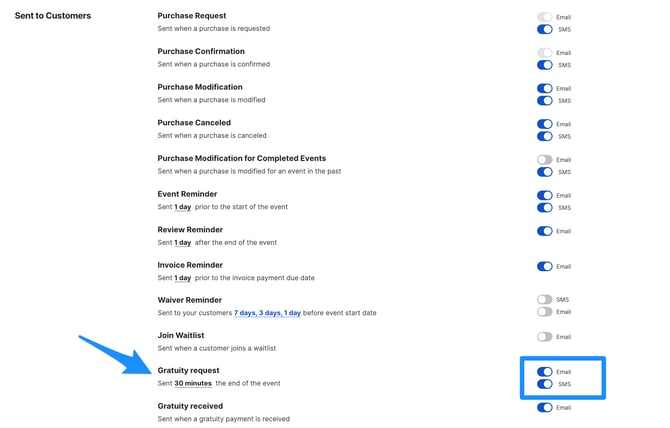
If you do not see a toggle option, you may need to turn on the SMS feature in your App Store. Contact our Support Team at [support@xola.com](mailto:support@xola.com) to learn more.
**Note:** Emails and/or SMS will be sent to all guests. If **[Split Pay](https://support.xola.com/split-payment-purchases?hsLang=en)** or **[Waiver](https://support.xola.com/xola-waivers?hsLang=en)** features are being used, it will send an email to all guests that used Split Pay and signed a Digital Waiver.
Also, if you use the '**Require Check-In**' feature, only those travelers who were 'Checked-In' will receive the Gratuity email.
**Checkout link for Gratuity:**
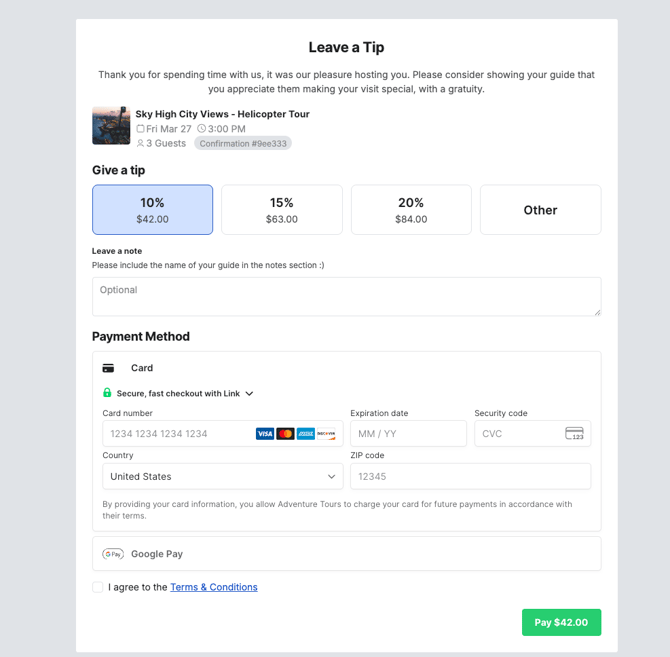
Email sent to the guide(s) and/or the communication email:
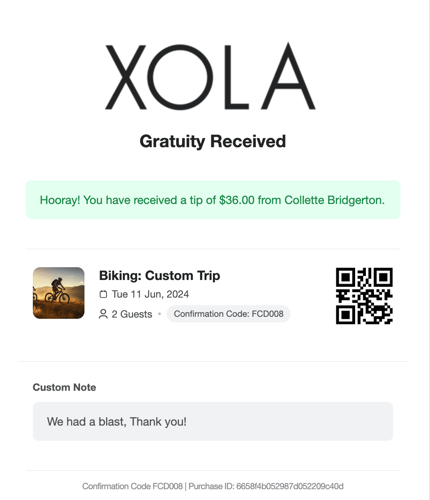
Notifications for you and/or guide(s) can be set up by going to [Settings \> Notifications](https://seller.xola.app/settings/notifications) and checking the box for Gratuity under the Sent to Me or Sent to Guides section.

---
#### Back Office for Gratuity:
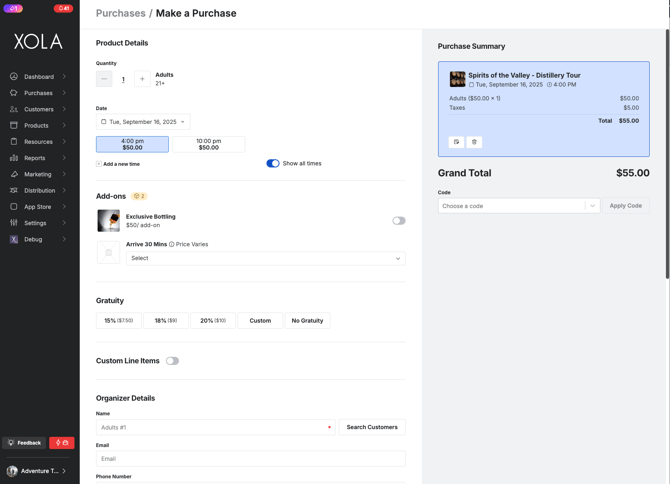
When you go through the normal [Make a Purchase](https://support.xola.com/make-purchases-through-back-office?hsLang=en) workflow, under Add-ons you will see a section called gratuity. Your preset gratuity will show, as well as the option to choose a custom amount ($ or %) and even choose no gratuity.
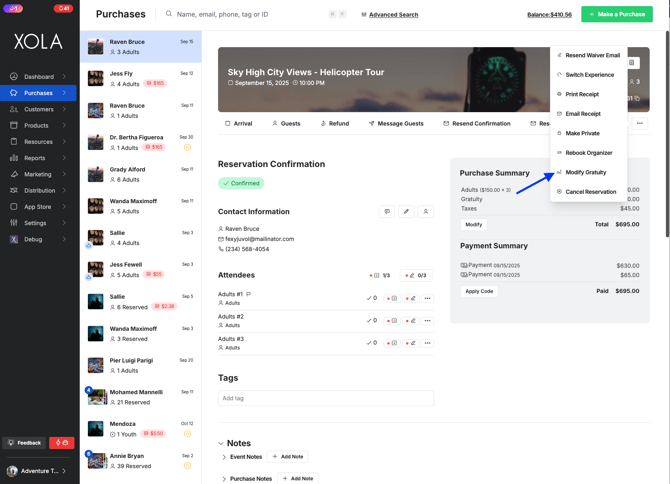
To update a gratuity after a purchase has been made, navigate to the [Purchases tab](https://support.xola.com/purchases-tab?hsLang=en), locate the relevant purchase, and click the icon. Then select **Modify Gratuity**. From here, you can adjust the gratuity that was previously collected or add a new gratuity amount to the reservation as needed.
#### Checkout for Gratuity:
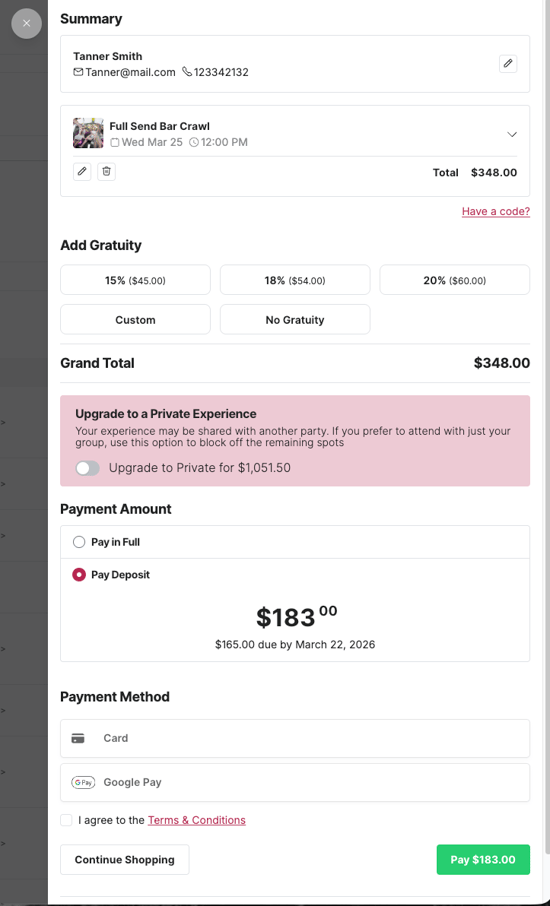
If you toggle on the **Collect in checkout purchase workflow** option in your Gratuity settings, customers will see your preset tip options, the ability to enter a custom amount, or choose no gratuity during checkout. This section appears on the payment page before they enter their card details.
### Gratuity report
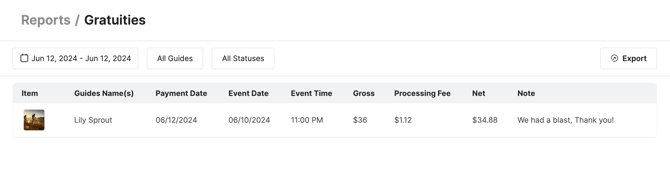
The Gratuity report will give you a report of all the gratuities given during your selected time range. To access the report, go to [Reports \> Gratuities](https://seller.xola.app/reports/gratuities).
**Filters**
- **Date range**: Filter by date range you want to see gratuity received
- **Guides**: All guides or specific guides
- **Status:** Outstanding or reconciled
**On the Report**
- **Item**: The experience the guest received
- **Guide Name**: If no guide was assigned to the event, no name will show
- **Payment Date**: The date on which a gratuity was received
- **Event Date**: The date the experience was on
- **Event Time**: The time the experience was
- **Gross**: Gratuity amount
- **Processing Fee:** Credit card processing fee
- **Net:** Gross amount minus the Processing Fee
- **Note**: Any note the guest left on the gratuity when using the payment page
- **Source:** Indicates where the gratuity originated — such as Checkout or Back Office.
- **Method:**
- If Gratuity was collected before the event with the original booking, it will show as **internal.**
- If gratuity was collected after the event, it will show as the form of payment used.
Xola **does not** charge a service fee for gratuities. However, standard Stripe processing fees still apply to gratuity transactions.
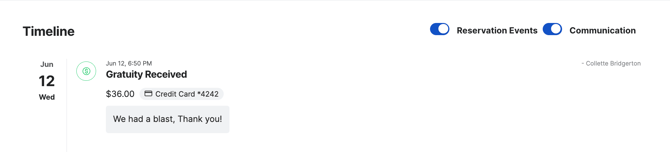
If you click on the item icon in an individual gratuity on the report, you will be taken to the purchase detail page within the Purchases tab. Here, you can scroll down to the timeline and see the gratuity processed.
---
#### Reconciling Gratuities
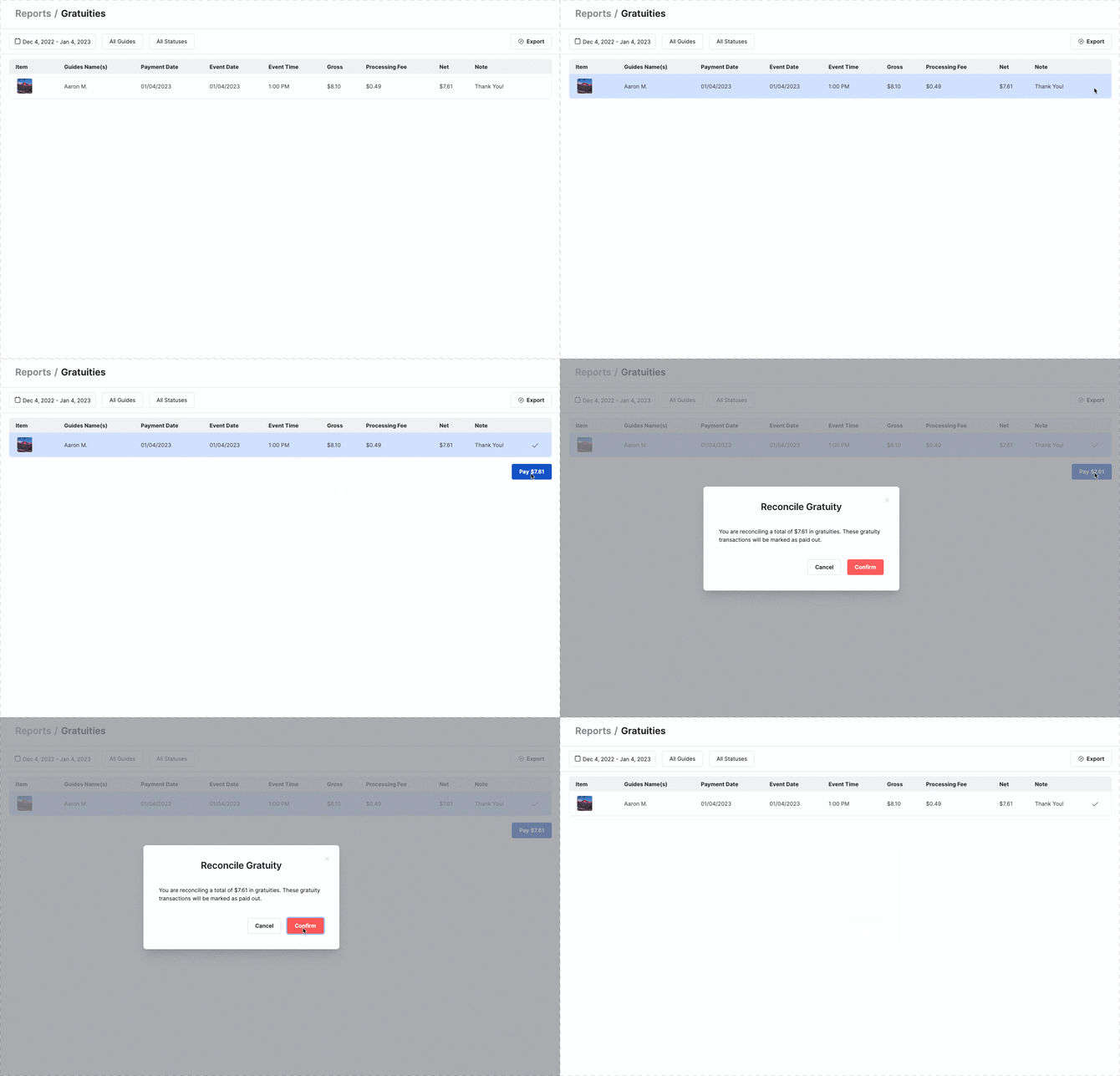
If you click on the individual gratuity on the report, it will be highlighted in blue, and a green pay button will appear at the bottom. Here you can easily reconcile which gratuities you paid to your guides. Click on as many gratuities as you want, and click Pay. Once you click the Pay button, a green checkmark will represent the payout. If you hover over the green check, it will tell you who reconciled the gratuity and when.
Xola will not pay out the gratuities to your guides directly; you will need to cut a check or give cash for these reconciled gratuities.
Other Reports that Gratuity will be displayed in:
- [Payout report](https://seller.xola.app/reports/payouts)
- [Custom reports \> Transaction report](https://seller.xola.app/reports/customReports/new/?object=TransactionsReport)
Guides can only see their gratuity when logged in, but not others. Guide managers and other admin roles can view gratuity received by all guides.
Gratuity cannot be refunded back to the guest.
- [Getting Started](https://support.xola.com/getting-started?hsLang=en#main-content)
- [Account Setup & Configuration](https://support.xola.com/getting-started?hsLang=en#account-setup-configuration)
- [Website Integration & Installation](https://support.xola.com/getting-started?hsLang=en#website-integration-installation)
- [Flex Plans](https://support.xola.com/getting-started?hsLang=en#flex-plans)
- [Managing Purchases & Customers](https://support.xola.com/managing-purchases-customers?hsLang=en#main-content)
- [Purchases Management](https://support.xola.com/managing-purchases-customers?hsLang=en#purchases-management)
- [Reservation Management](https://support.xola.com/managing-purchases-customers?hsLang=en#reservation-management)
- [Customer Management](https://support.xola.com/managing-purchases-customers?hsLang=en#customer-management)
- [Customer Data & Engagement](https://support.xola.com/managing-purchases-customers?hsLang=en#customer-data-engagement)
- [Reporting](https://support.xola.com/reporting?hsLang=en)
- [Integrations & Advanced Tools](https://support.xola.com/integrations-advanced-tools?hsLang=en#main-content)
- [Xola App Store Integrations](https://support.xola.com/integrations-advanced-tools?hsLang=en#xola-app-store-integrations)
- [Partner & Agent Management](https://support.xola.com/integrations-advanced-tools?hsLang=en#partner-agent-management)
- [Marketing & Tracking Integrations](https://support.xola.com/integrations-advanced-tools?hsLang=en#marketing-tracking-integrations)
- [Mobile and Hardware](https://support.xola.com/mobile-and-hardware?hsLang=en#main-content)
- [Mobile Tools and Apps](https://support.xola.com/mobile-and-hardware?hsLang=en#mobile-tools-and-apps)
- [Hardware Setup & Devices](https://support.xola.com/mobile-and-hardware?hsLang=en#hardware-setup-devices)
- Company
- [About Us](https://www.xola.com/about)
- [Careers](https://www.xola.com/team)
- [Press](https://www.xola.com/press)
- [Support](https://www.xola.com/support)
- [Security Policy](https://www.xola.com/security-policy/)
- Resources
- [Articles](https://www.xola.com/articles/)
- [Help Center](https://support.xola.com/)
- [Success Stories](https://www.xola.com/success-stories/)
- [App Store](https://www.xola.com/app-store)
- [Demo](https://www.xola.com/demo)
- [Xola Universe](https://www.xola.com/universe/)
- Documentation
- [API Documentation](https://developers.xola.com/)
- [Payment Services Agreement](https://www.xola.com/payment-services-agreement/)
- [Terms](https://www.xola.com/terms/)
[](https://www.xola.com/)
© 2026 Xola Inc. All rights reserved.
[Privacy Policy](https://www.xola.com/privacy-policy) [Terms of Service](https://www.xola.com/terms)