
Selling gifts is a powerful way to boost your revenue, especially during peak seasons like winter holidays, Black Friday, Cyber Monday, and Christmas. However, the advantages of gift certificates and offers go far beyond seasonal spikes. They are effective year-round tools to drive new customer acquisition, encourage repeat visits, and enhance brand awareness. Gifting creates a hassle-free promotion channel where current customers share your business with friends and family, while also tapping into special occasions like birthdays, anniversaries, graduations, and more.
With Xola, you can design flexible and attractive gift campaigns tailored to different guest segments and occasions. Whether offering full-value certificates, special discounts, or seasonal promotions, you have control to set purchase restrictions, redemption dates, and customize messaging. Adding custom images makes your gifts stand out prominently in your checkout and on your website.
Xola’s robust reporting and management features allow you to easily track redemptions, outstanding balances, and evaluate the effectiveness of your gift campaigns. These insights help you refine your strategy, create urgency with limited-time offers, and foster repeat guest engagement.
Because gifts hold such strong revenue potential, we’ve compiled a comprehensive list of top tips to sell more gifts - feel free to give it a read here.
User Access: Administrator or Curator roles have access to set up gift offers in Xola.
Administrator or Marketer roles have access to set up gift buttons.
Administrator, Reservationist Lite or Reservationist roles can make gift purchases, view and modify gifts in Xola.
Administrator roles have access to modify gift preferences under Settings.
To grant access to users, click here.
What's covered in this article:
- Creating a Gift Offer
- Create or Edit a Gift Button
- Gift Global Settings
- The Customer Experience
- Purchase a Gift in the Xola Back Office
- Managing Gift Purchases
- Frequently Asked Questions
Creating a Gift Offer
By default, Xola allows you to sell your experiences as full-price gift certificates. You can also sell gift certificates at a fixed or variable price that can be applied across some or all of your experiences.
- Hover over the Products tab, and select Gift Offers.
- Click +Create a Gift Offer.
Description and Terms
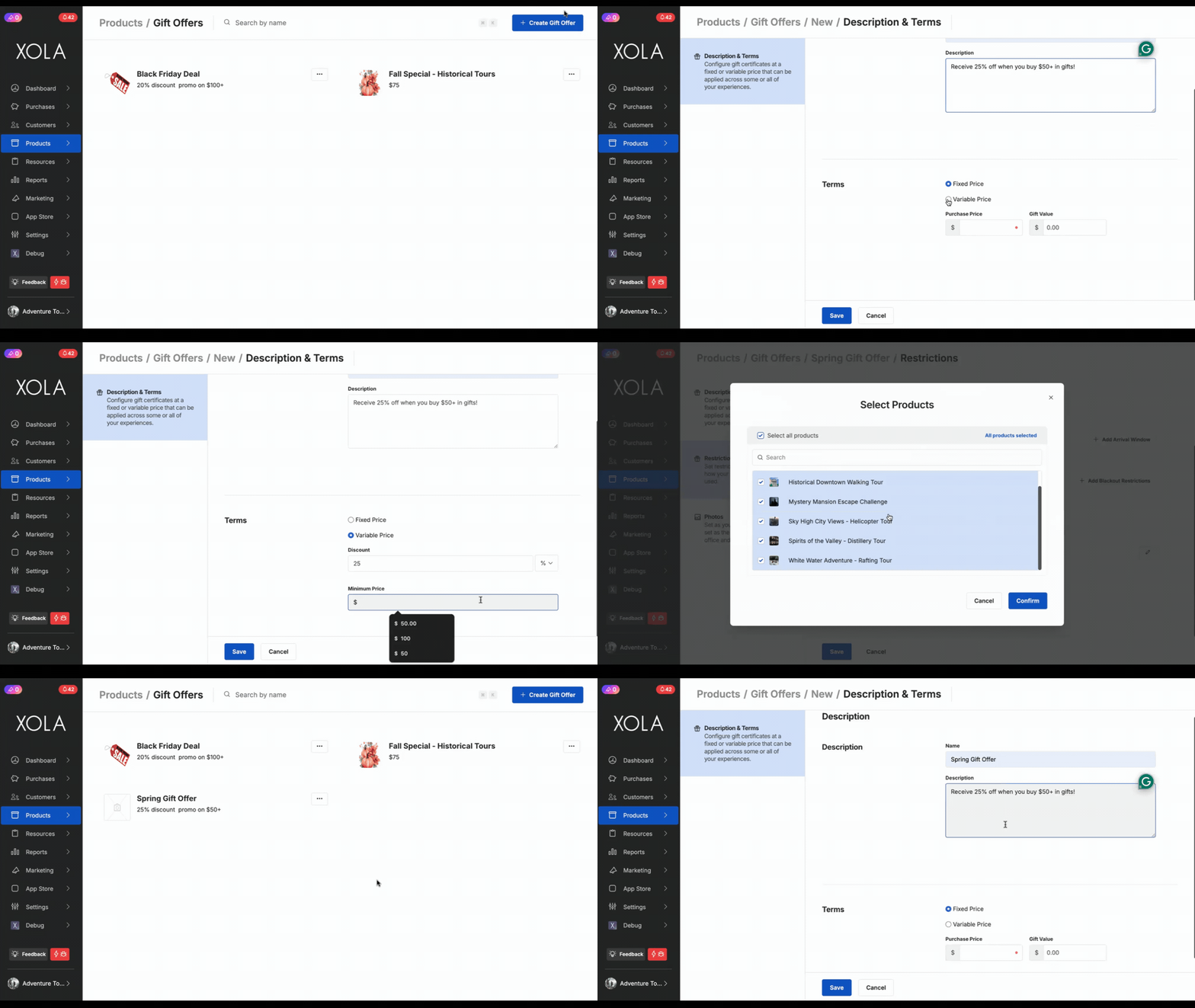
- Name: Give the gift a name, which will show to your customers.
- Description: Customers will see this description at checkout.
- Choose between a Fixed price (i.e. $100 gift costs $80) or a Variable price (i.e. 20% off all gifts of $50 or more).
- Fixed price: specify the Purchase Price and Gift Value.
- Purchase price: The price that your customer will pay at the time of gift purchase.
- Gift value: The amount that the gift can be redeemed for.
- Variable price: Specify the Discount and, optionally, the Minimum price.
- Discount: The % or $ amount you want the gift amount put in by the customer to be discounted.
- Minimum price: The minimum price the customer has to buy to receive the discount you set.
- Fixed price: specify the Purchase Price and Gift Value.
Restrictions
Now that you've set up the basics, you can choose whether or not to have various restrictions on your gift offer.
- Purchase Window
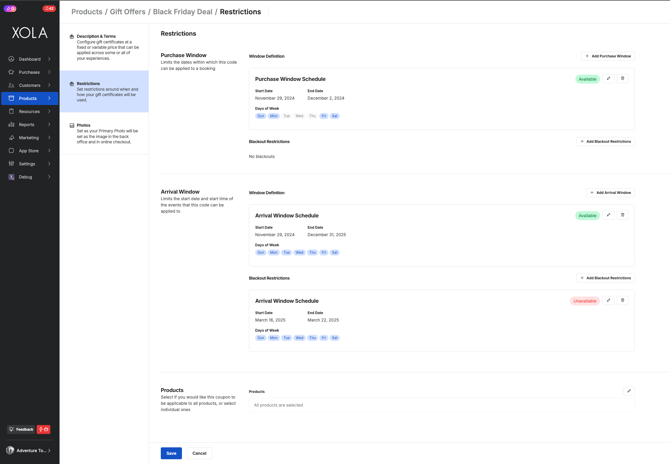
- Click + Add Purchase Window: Restricts the time period in which the gift offer can be purchased.
Example: It could be a special for the month of May with a Purchase Window of 5/1 - 5/31 or a Black Friday/Cyber Monday special with a Purchase Window of 11/23 - 11/26.
-
- Click + Add Blackout. By adding a blackout date, you can specify dates and times when the gift cannot be purchased.
- Arrival Window
- Click + Add Arrival Window: Designates when the promotional value can be redeemed. The amount paid can never be restricted from redemption, but you can set up an Arrival Window for the promotional value. This is a great way to set an "Expiration Date" for the promotional value.
Example: If I want my special to run from Black Friday to Cyber Monday, the Purchase window spans those dates. To have the promotional value expire at the end of 2025, I have an Arrival Window that ends on 12/31/2025. To block the redemption of promotional value over Spring Break, simply add blackout dates for that week.
-
- Click + Add Blackout: by adding a blackout date, you can specify event start dates and start times that the gift cannot be redeemed.
- Select Products: Select whether you would like this gift to apply to all products or individual ones. By default, all products are selected. Click the
 icon to select which experiences you want this gift applied to.
Note: Products includes Memberships and Packages. So if you do not want those products to impacted, you will need to unselect all Products, and select only experiences.
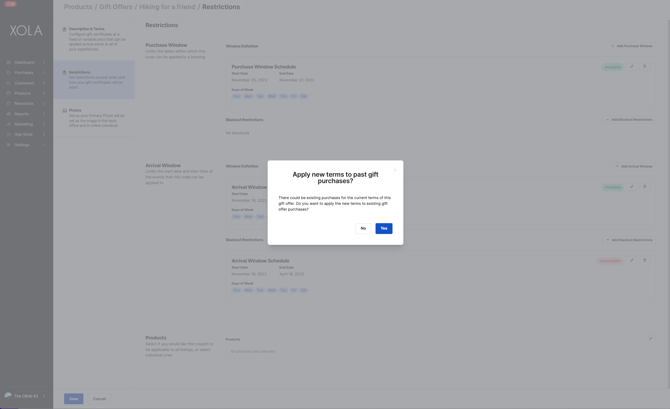
Note: If you edit a gift offer's restrictions after creating it, you will be asked whether you would like to update all existing gifts that have been purchased. If you choose to update them, the new restrictions you changed will now apply to all gift offers that have not been used.
Photos
- Add Photos
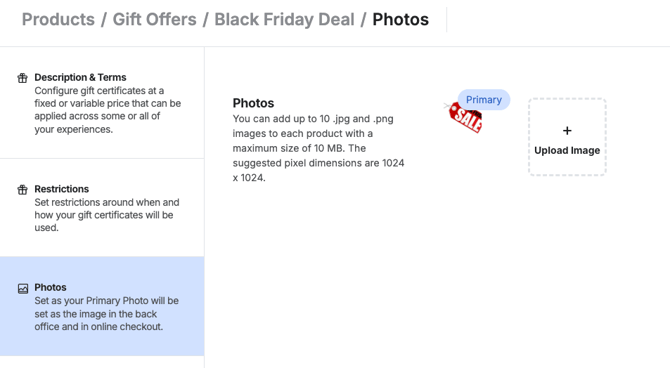
- Navigate to the gift for which you'd like to add or update the photo.
- Click on Photos from the left-hand menu.
- Click the Upload Image button to add photos to your gift. Each listing can have a maximum of 10 .jpg and .png images, each with a maximum size of 5 MB.
Recommended size for the image is 1024x768.
- Set Primary Photo (and Delete)
- As soon as you upload a second photo, you'll be asked if you want to set this photo as the primary.
- If you want to delete the photo from Xola, click the Edit button and then the red Delete button.
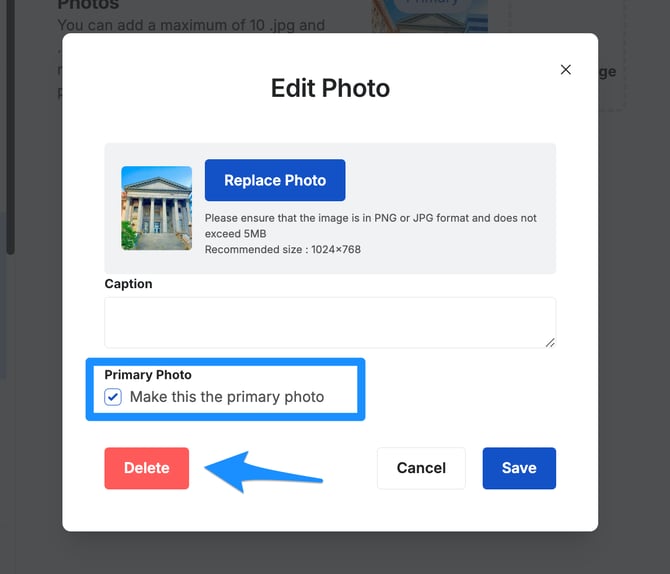
Tip: Xola can only display one of your photos on back office and checkout even though you can upload multiple. However, you can switch Primary Photos as much as you like!
How to Manage Existing Gift Offers
Once you’ve created a Gift Offers, you can manage it by navigating to Products > Gift Offers. Here, you’ll find tools to edit, preview or delete the Gift Offers. Below are the available actions:
-
Edit: Hover over the Gift Offers, and click the Edit button to make changes.
- Click on the
 icons for the following:
-
Preview Email: Preview of the confirmation email, based on the content you've entered in the Gift Offers.
-
Manage Photos: Edit or add new photos for the Gift Offer.
-
Delete: This permanently removes the Gift Offer from your Xola account. However, if the Gift Offer has existing purchases, it will remain visible on your and in reports.
-
Create or Edit a Gift Button
Gift buttons must be created manually. for more information on how to create buttons and the different button types click here.
- Navigate to Settings > Button Code
-
To create a new custom button, click on +Create New Button.
Fill Out Button Details
-
Button Name: Enter a memorable name for your button (e.g., “Gift Cards”). This helps you identify it later in the button list.
-
Checkout Type: Choose how the checkout will appear to your customers:
-
Gifts – Specialized view for gift cards and gift offers
-
-
-
-
Select Gifts:
The product selector is split into two columns:
-
Products Not Displayed: All available products that can be added to this button
-
Products Displayed: Products that will appear in this button’s checkout
How to Add Products:
-
Drag products from the Not Displayed column to the Displayed column
-
Use the Search boxes above each column to quickly find products
-
Reorder products in the Displayed column by dragging them up or down pressing and holding the
 icon next to the product you want to move.
-
- Click Save to create the button.
-
Follow the steps here to add it to your website.
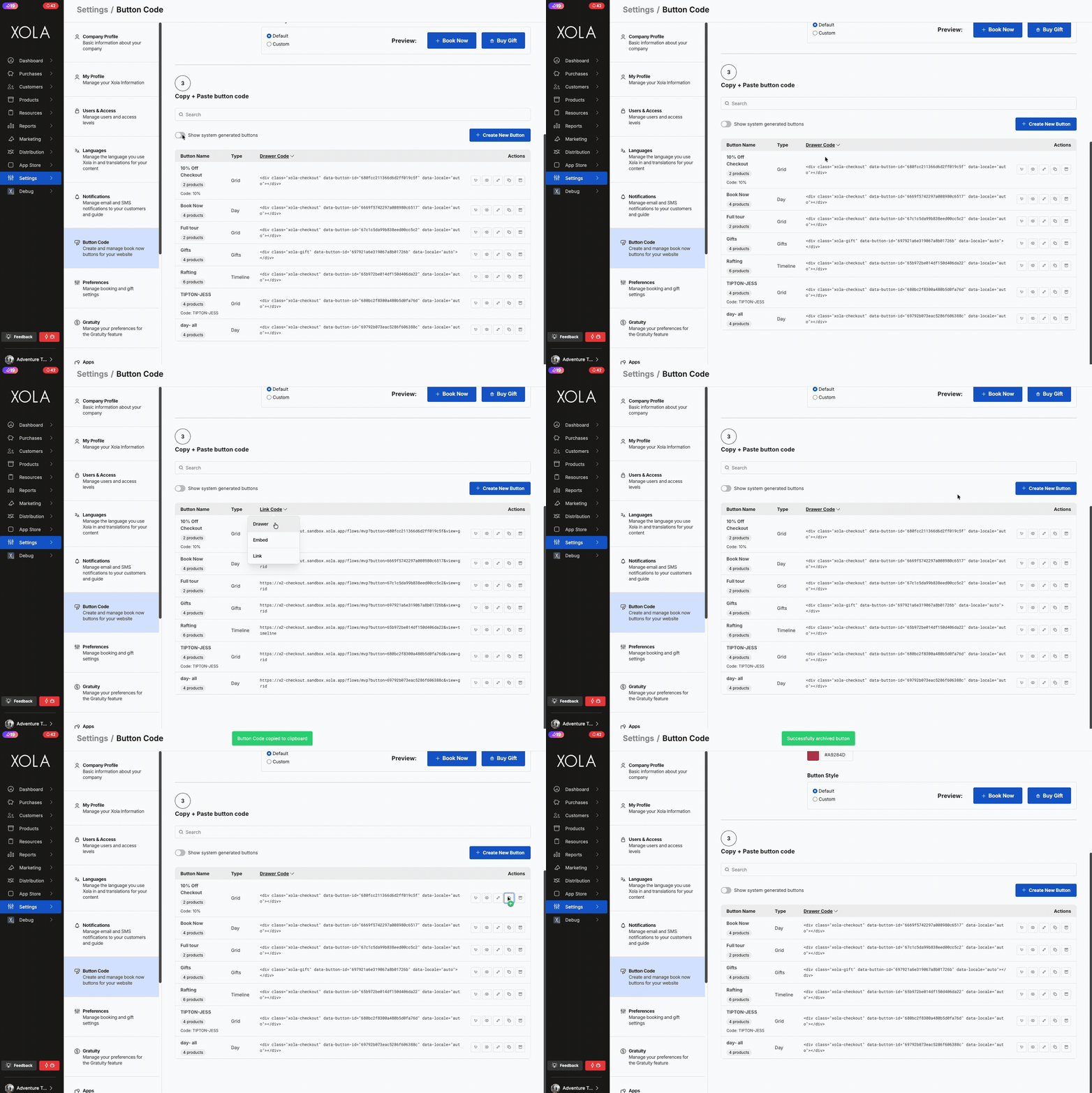
Button Grid Overview
The Button Grid is your central dashboard for viewing, managing, and embedding all your checkout buttons. Each row represents a button and displays key details, code, and actions.
-
Button Name: The name you gave the button (e.g., “Book Now”, “Rafting”) to help identify it quickly.
-
Type: The checkout layout for this button: Grid, Timeline, Day, or Gifts.
-
Code Type: The HTML snippet or link generated for your button. Copy this to embed the button on your website. Each button includes a <div> tag with a unique data-button-id. Choose your code type by clicking the dropdown in the "Code" column header.
- Drawer Code: Opens checkout in a sliding panel overlay.
- Embedded: Embeds the checkout directly on your page.
- Link: Provides a URL that opens checkout in a new tab.
Note: URL checkout will not track Google Analytics for your account if you do not install the Xola Javascript.
-
Actions: Quick actions you can take for each button:
-
Preview: Click the
 icon to see how the checkout will appear to customers.
 -
Edit: Click the
 icon to modify button name, products, or settings.
 - Copy: Click the
 icon to copy the code to paste in the text editor of your webpage, save, and publish. The Book Now button should now appear and pull up the appropriate checkout when clicked.
 -
Archive: Click the
 icon to remove the button from active use.
-
Gift Global Setting
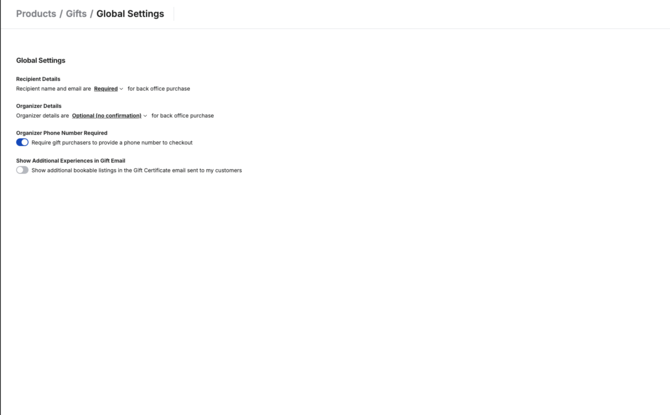
You can choose from several settings for Gifts. Navigate to Products> Gifts> Global Settings. Here you can set up the following settings:
-
Recipient Details: Choose whether or not to collect the Recipients name and email when your reservationist is making a back office gift purchase.
-
Click the drop-down menu, and select from the following options:
- Required
- Optional (with confirmation)
- Optional (no confirmation)
- Not Collected
-
-
Organizer Details: Choose whether or not to collect the Organizers name and email when your reservationist is making a back office gift purchase.
-
Click the drop-down menu, and select from the following options:
-
- Required
- Optional (with confirmation)
- Optional (no confirmation)
- Not Collected
-
-
- Organizers Phone Number Required
- If you toggle this on, gift purchasers must provide a phone number when buying a gift.
- Show Additional Experiences in Gift Email
- If you toggle this on, the gift recipient will receive an email with their gift code and tiles for other experiences you offer. If you are selling gift offers with experience restrictions, we recommend you uncheck this box.
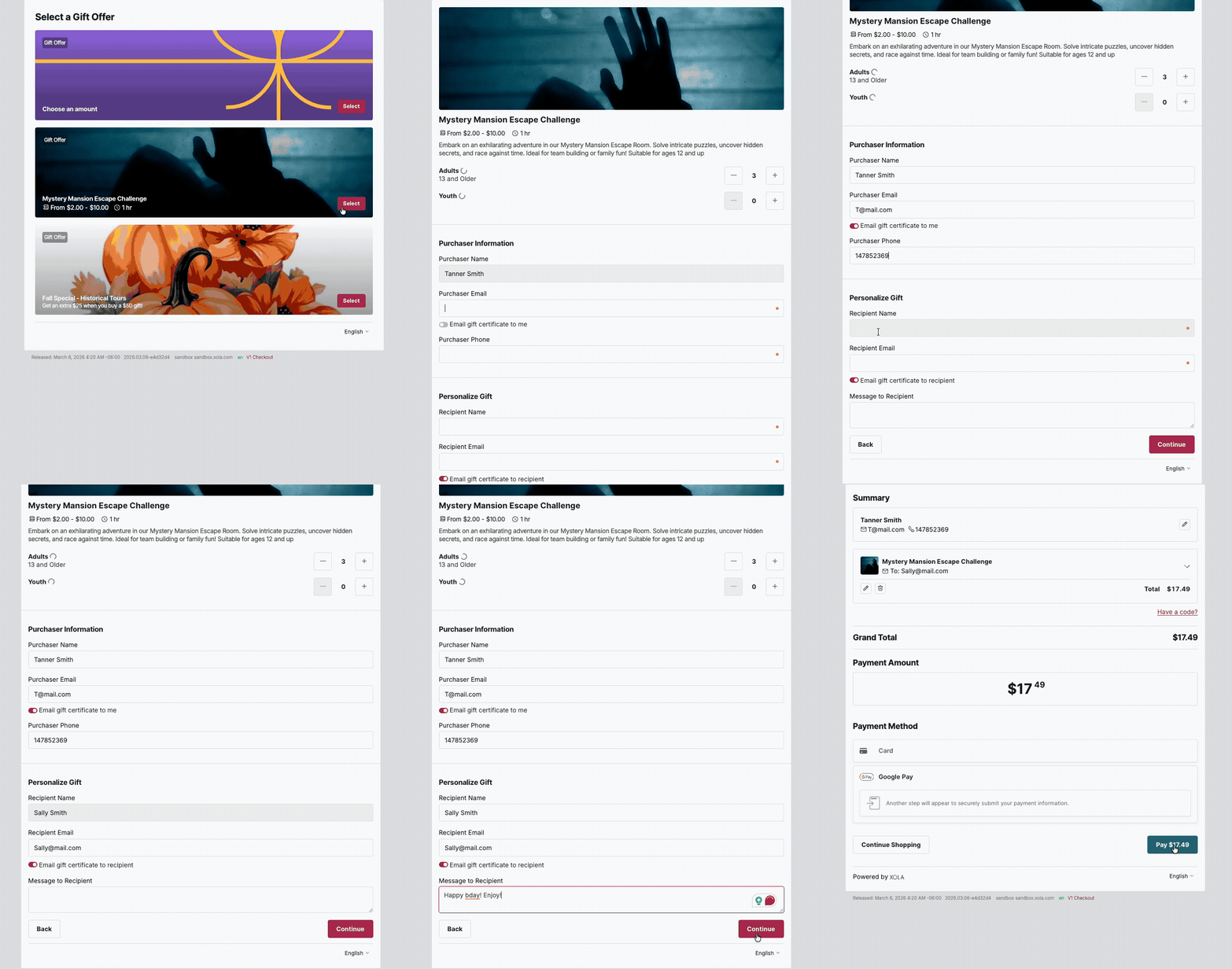
The Customer Experience
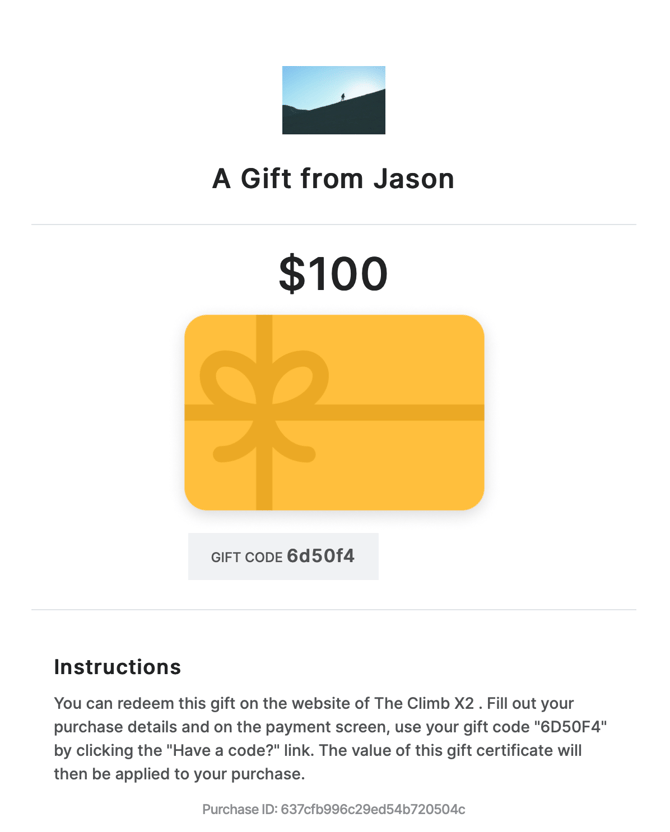
The Gift purchaser can choose to send the gift certificate directly to the recipient or have it sent to themself to print out or forward to the recipient later.
Here is an example of the email sent to the Gift Recipient.
Purchase a Gift in the Xola Back Office
Any Xola user with access to the Dashboard can make a back-office gift purchase for a customer.
- Navigate to the Dashboard, and click the Purchase button.
- Select a Gift.
- In the window that opens, choose the gift. If prompted, enter the amount or quantity.
- Enter the recipient's contact information and an optional personal message.
- Choose whether you want the gift certificate email sent to the purchaser or the recipient's email address.
- Optionally, Enter gift code lets you select the gift code rather than a randomly generated alphanumeric code.
- Enter the name and contact information of the gift organizer.
- If the recipient's information is the same as the organizer's, use the toggle "Same as recipient" next to Organizer Details.
- Select the method of payment for the gift purchaser. If it's a credit card, enter the details.
- Optionally add another gift for which you can select a separate recipient.
- Click Pay.
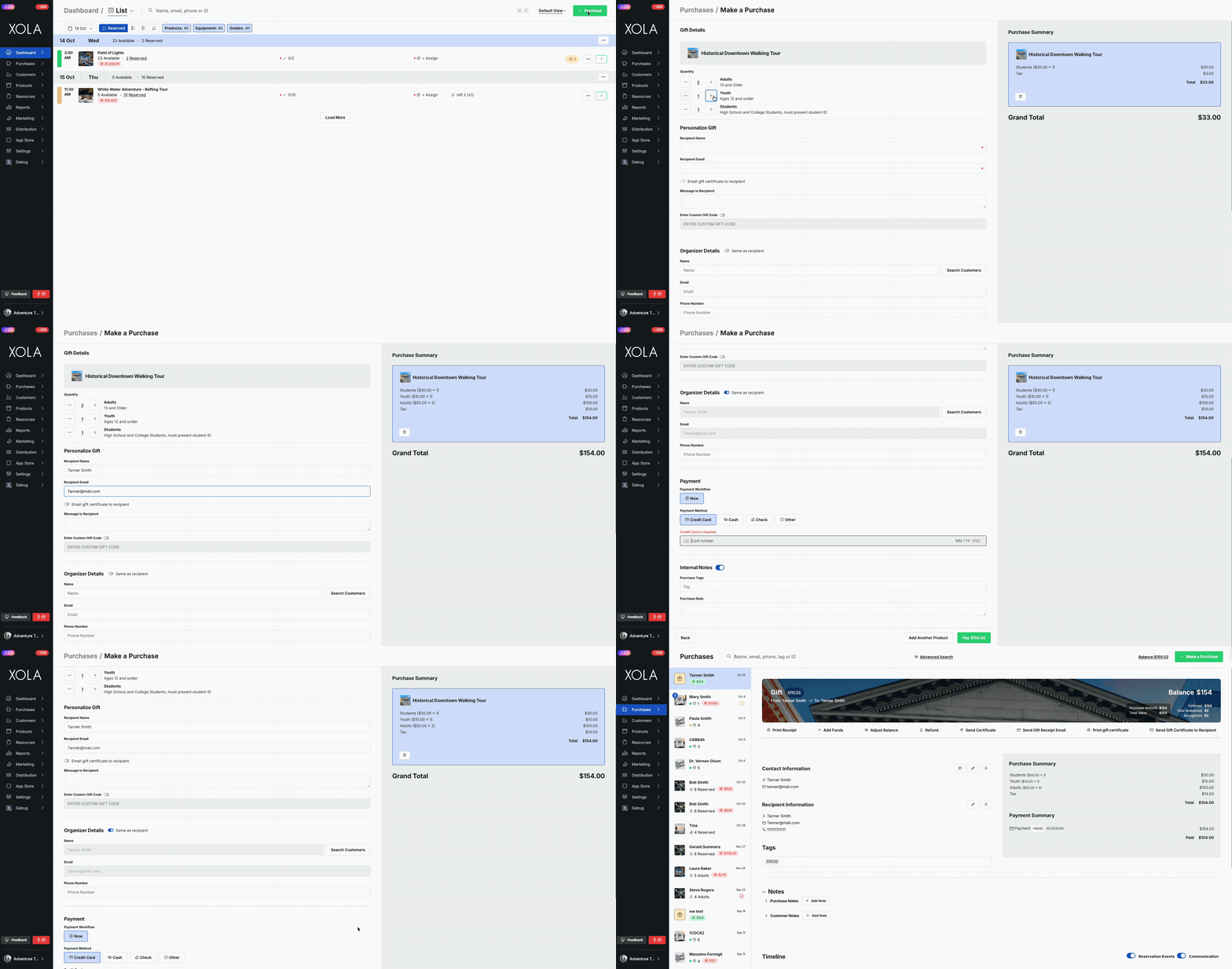
The purchaser or recipient will receive the gift receipt and the gift confirmation, as indicated. The gift will appear in the Purchases and Gift / Store Credits tab in your Xola account.
Managing Gift Purchases
The Gifts/Store Credit tab under the main Reports tab contains records of gift certificates and store credit codes issued. When you click on the row of a gift or store credit, you'll see its timeline and record of modifications. From inside the credit, you can take the following actions that are detailed below:
- Resend gift emails
- Allows you to re-send the gift certificate confirmation email to the recipient or purchaser.
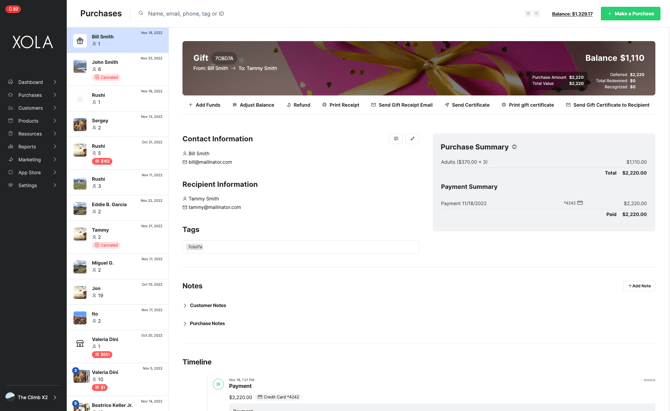
- Add funds
- When you Add Funds to a gift or store credit, you increase the redeemable value of the credit by charging the purchaser additional funds. You can charge the existing card on file or add a new one to complete the transaction, and the gift or credit will automatically update to reflect the new balance.
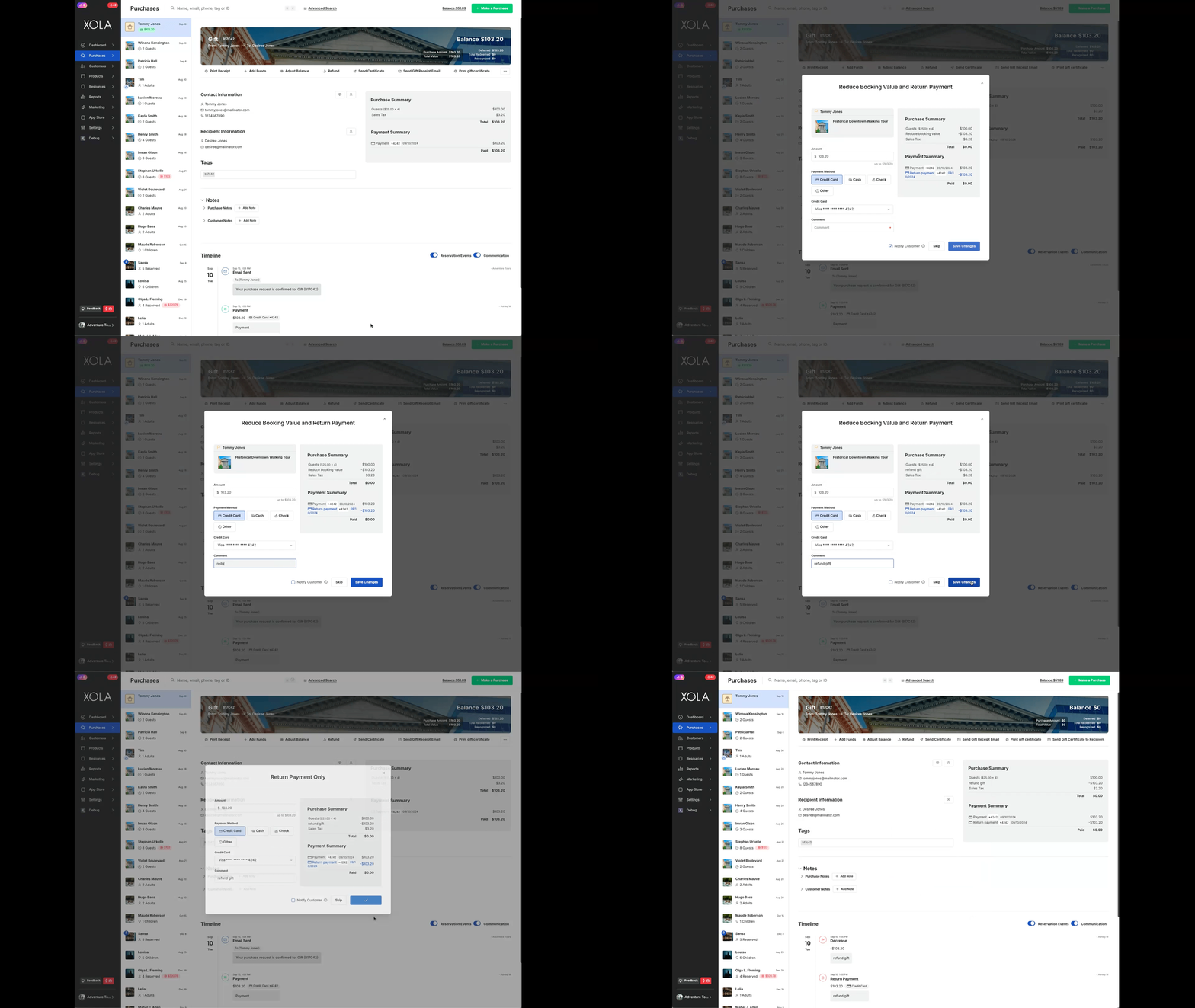
- Refund
- When you refund a gift, you can decrease the redeemable value of the gift certificate. If you are refunding via credit card, you can only refund the card used to purchase the gift or experience. After you complete the refund, the gift or credit will automatically update to reflect the new balance.
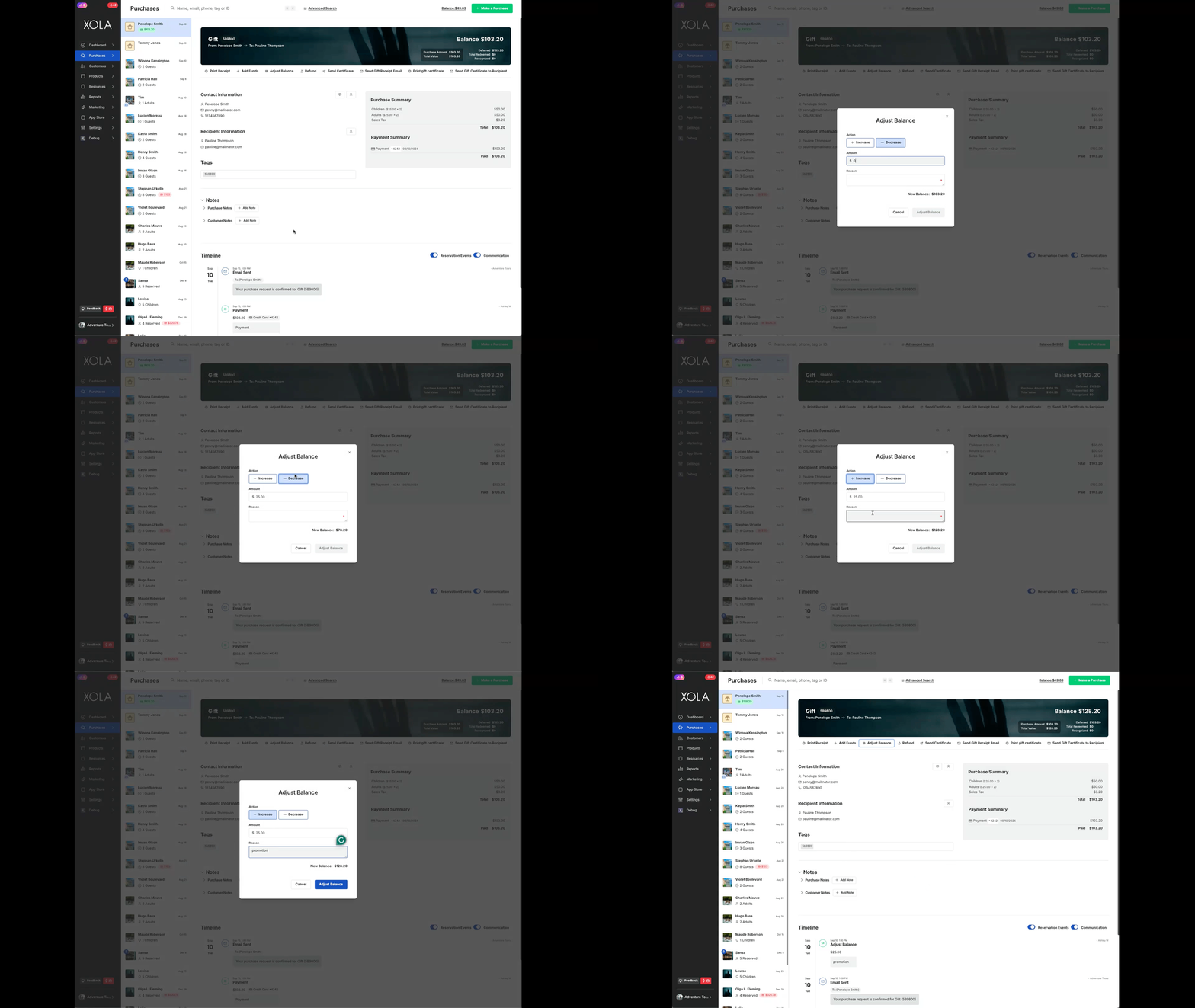
- Adjust Balance
- When you Adjust Balance for a gift or store credit, you increase or decrease the value of the credit without affecting the total amount paid by the purchaser. Any increase or decrease made to the gift or credit will only affect its redeemable value.
Frequently Asked Questions
How does gift reporting work?
Xola has a dedicated gift and store credit report. You can read the full help center article here.
How do I get a link to my gift checkout?
Simply preview the button and then copy the URL to link people directly to your gifts. You'll go to Settings > Button Code. Then, +Create New Button or choose an existing one. First change the checkout type to link and then click the
How do I see how much is left on a gift certificate?
You can search for the purchase record from the gift & credit report and see the amount redeemed and the outstanding balance. You can read the full help center article here.
What happens if someone attempts to redeem a gift offer outside the restrictions set up?
If your customer attempts to purchase an experience that is not part of the gift offer then only the purchase price will be applied. If a $100 credit was bought for $75 only $75 will be applied. They will also get a warning telling them what the restrictions are so that they can opt to change their purchase to redeem the promotional value.
How do I manage gifts after I've sold them?
Xola lets you cancel, refund, or adjust the balance on a gift or credit. You can also resend gift confirmation emails. You can learn more about doing this here.
How does a customer redeem their gift?
They simply add their code at checkout in the section that says "Have a code?". If they are using the gift in person or over the phone you can add the code during the checkout process. Learn more here. Multiple gift codes can be applied to a single purchase and up to one coupon can be used alongside gifts.
Does Xola have a way for me to sell physical gift cards?
Xola does not integrate with physical gift card sales. You can however enter a custom code when purchasing a gift in the back office. So if you get cards printed with codes on them you can type that code in and have the physical card tied to an e-gift as well.