
The Xola Dispute Manager is your centralized hub for viewing, managing, and responding to chargebacks. This powerful tool gives you full visibility into all dispute activity—including reason codes, amounts, and timelines—so you can stay informed and proactive.
Within the Dispute Manager, you can submit evidence, monitor status updates, and track a detailed timeline of each case from initiation to resolution. To help you effectively advocate for your business, the platform includes helpful guides, recommended documentation, and even automated tools to streamline your response and improve your chances of winning a dispute.
With real-time access to dispute insights and organized case data, Xola empowers you to protect your revenue, reduce risk, and respond to payment challenges quickly and confidently.
To learn more about the types of disputes and how they work, click here.
User Access: Administrator or Accountant roles have access to manage Disputes in Xola.
Reservationist Lite or Reservationist roles can view disputed reservations in the Purchases Tab in Xola.
To grant access to users, click here.
What's covered in this article:
- What You'll Learn From This Report
- How to Access the Report
- What You’ll See in the Table
- How to Submit Evidence
What You’ll Learn From This Report
The Dispute Manager Report in Xola helps you stay on top of any chargebacks or payment disputes related to your transactions. With this report, you can:
-
See when a dispute occurred and which booking it’s tied to.
-
Identify the customer, amount in question, and reason for the dispute.
-
Track the card type used for the transaction.
-
Monitor the status of the dispute - such as “Needs Response,” “Under Review,” “Won,” “Lost,” or “Refunded”.
-
Know exactly when a response is due, so you can act before the deadline.
-
View a complete activity timeline for each dispute, including who opened it, who responded, and any submitted evidence.
This report ensures you have all the information you need to respond effectively and resolve disputes in a timely manner.
How to Access the Report
To view your Dispute Manager Report in Xola:
-
Navigate to Reports > Disputes.
- The dashboard displayed in this view is embedded directly from Stripe. All dispute management—including reviewing, responding, and resolving cases—takes place in Stripe.
- In this dashboard, you’ll find a complete list of all current and historical disputes. Click any row to open the dispute details, including customer information, transaction data, submitted evidence, and the full response history.
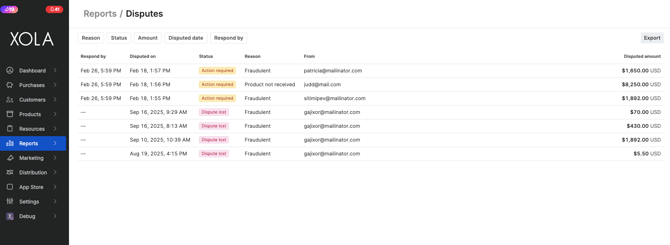
What You’ll See in the Table
The Dispute Manager serves as a central hub where you can view all open and resolved disputes, submit evidence, and track case progress. The table provides an organized overview of your dispute activity, allowing you to quickly assess statuses and take action when needed. It includes:
- Respond By: This provides a deadline of when you need to respond back to the dispute.
- Dispute Date: The date in which the charge was disputed.
- Status: The status of the dispute.
- Needs Response: You can still submit evidence.
- Under Review: Evidence has been submitted and is under review by the card issuer's bank.
- Charge Refunded: You refunded the customer and they withdrew the dispute.
- Won: The dispute was decided in your favor.
- Lost: The dispute was decided in the customers' favor.
- Reason: The type of dispute it is. Click here to learn more about Dispute reasons/types.
- From: The email of the customer who is disputing the reservation.
- Disputed Amount: The dollar amount of the reservation.
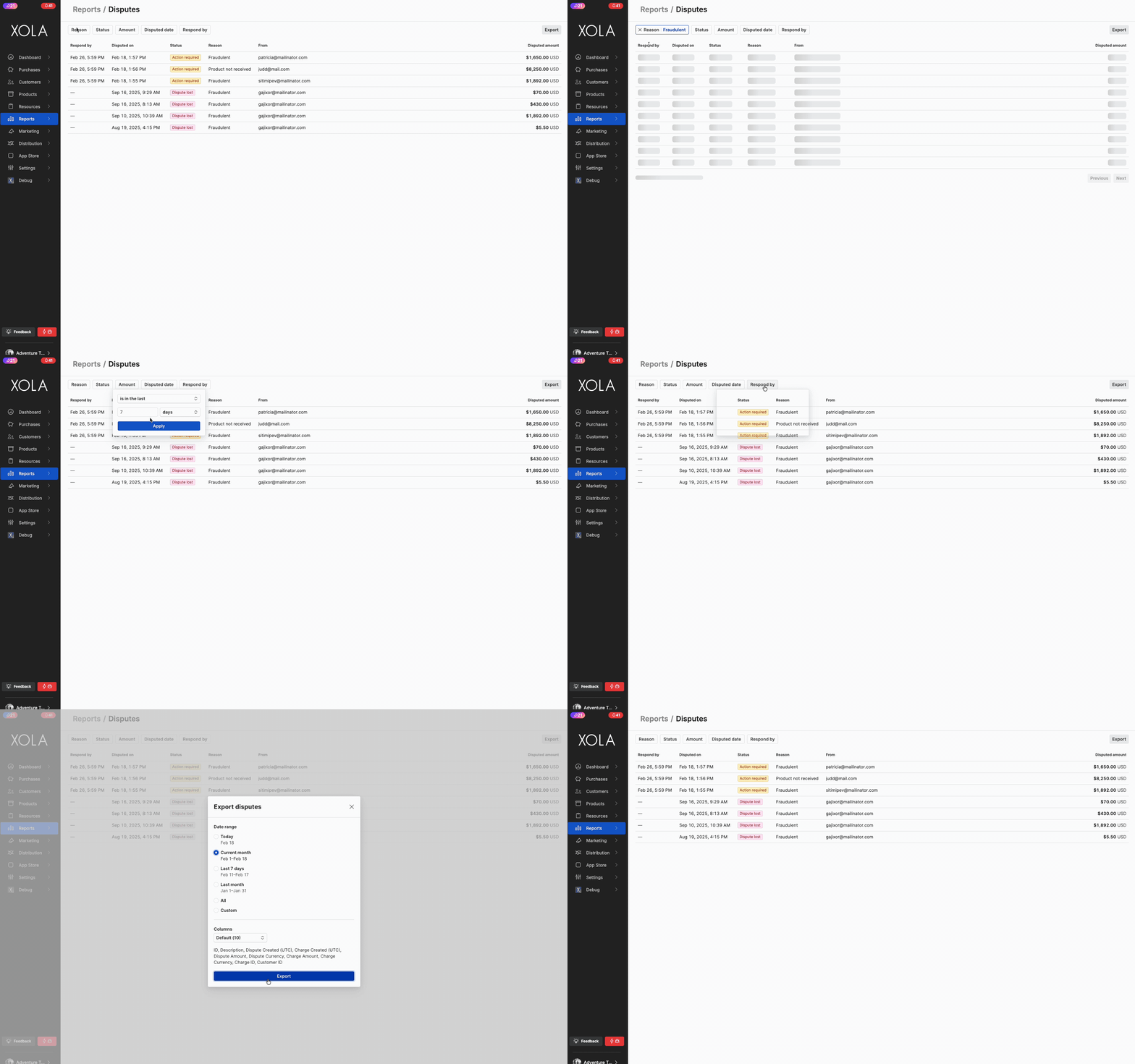
You will be able to filter your report by the following:
-
Reason
-
Status
-
Amount
-
Disputed date
-
Respond by
How to Submit Evidence
Stripe applies a $15 Submission Fee each time evidence is submitted for a dispute. If the dispute is resolved in your favor, this fee will be refunded to you.
To respond to a dispute and submit supporting documentation:
-
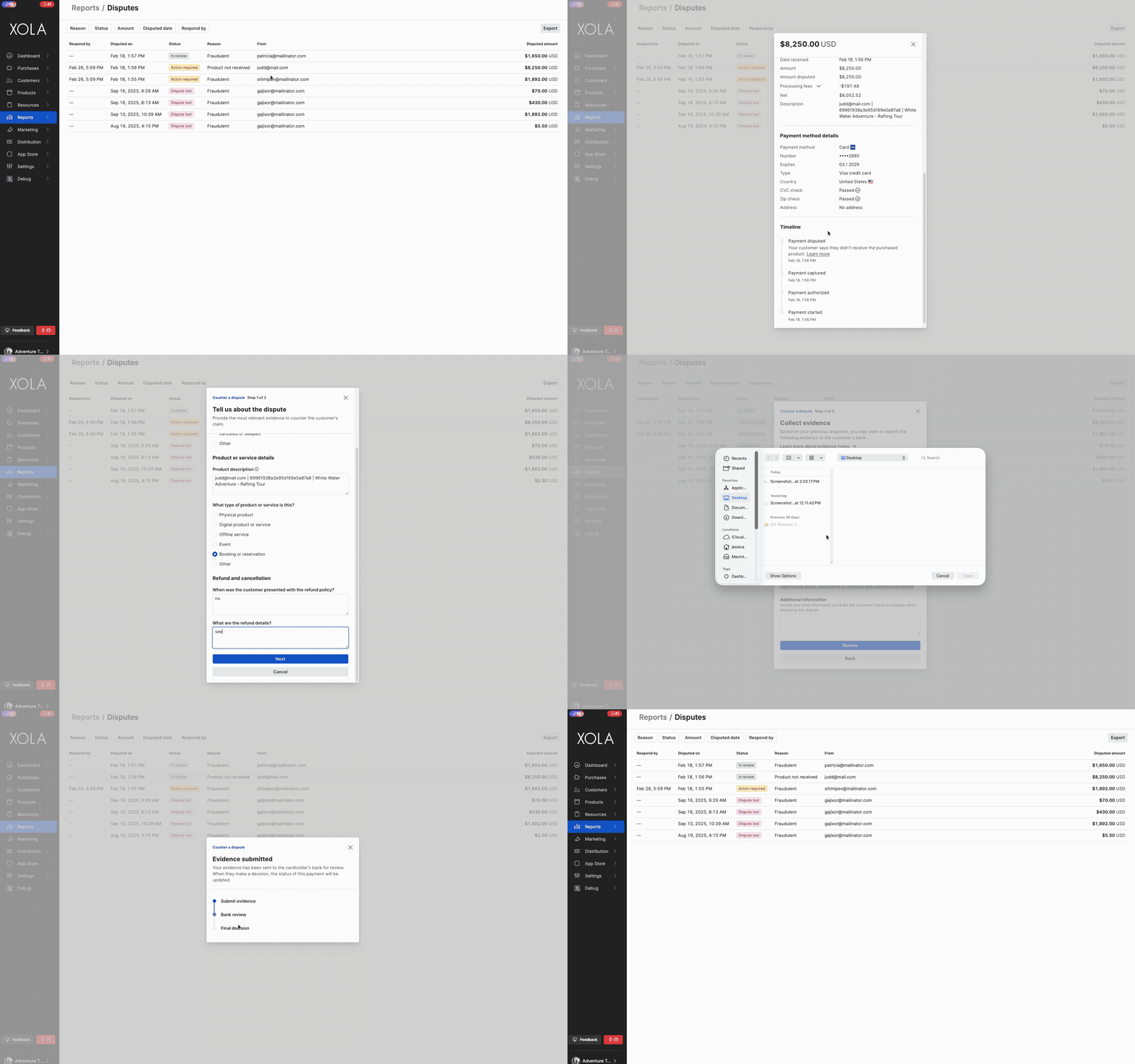
From the Reports > Disputes page, click on the dispute in the dashboard.
-
You’ll be taken to the Dispute Details screen. Next you can view the Dispute details, Payment Details, Payment Method Details, and a Timeline of the Dispute.
- If you want to accept the dispute, simply click on the Accept Dispute button.
- What this means: You believe that the customer is correct in disputing this payment, you can accept their claim. This will close the dispute.
- If you choose to respond to the dispute, you will hit the blue Counter Dispute button.
- What this means: You believe the customer is not correct in disputing this payment, and you will need to provide the most relevant evidence to counter the customer's claim.
- Next, follow the steps on the screen to submit evidence to the dispute.
-
- Stripe will walk through all the information that is needed. They also provide link to useful information and links to help you.
Once evidence is submitted, it cannot be changed. The bank’s decision will be final.
On the Purchases Tab:
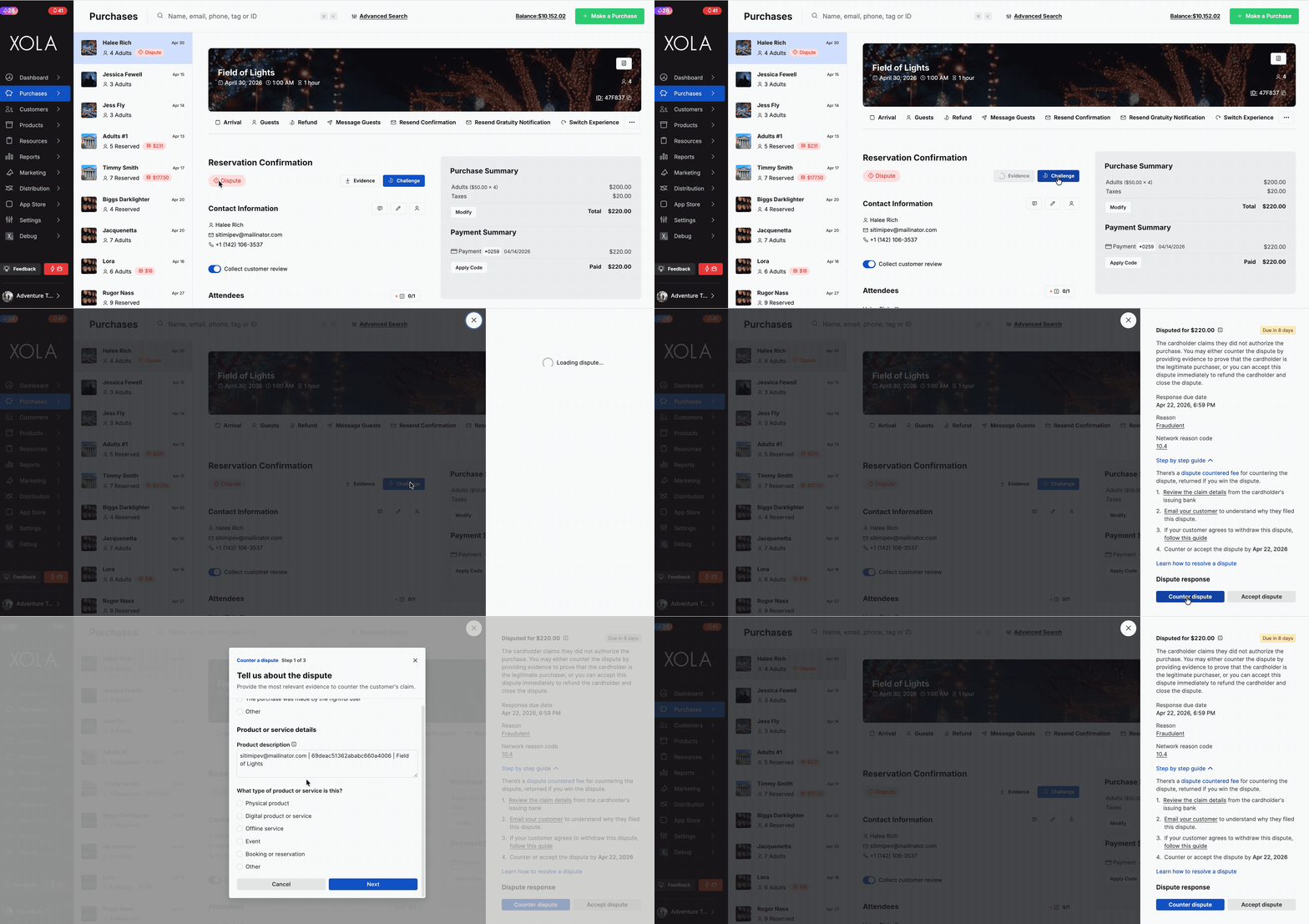
On the purchases Tab you will see a  icon. This means the purchase has been disputed. You will see under the Reservation Confirmation the status says Dispute. Next to this you have two options:
-
Evidence Download: Click this button and two PDFs will download for you to attach to the dispute.
- Customer's Confirmation Email
-
Customer Communications Log: This will give you a date and time stamp of every communication you and the Customer had.
-
Challenge: Click this button to open a side drawer that is connected to Stripe.
- If you want to accept the dispute, simply click on the Accept Dispute button.
- What this means: You believe that the customer is correct in disputing this payment, you can accept their claim. This will close the dispute.
- If you choose to respond to the dispute, you will hit the blue Counter Dispute button.
- What this means: You believe the customer is not correct in disputing this payment, and you will need to provide the most relevant evidence to counter the customer's claim.
- If you want to accept the dispute, simply click on the Accept Dispute button.
What Happens Next?
-
After submission, the dispute status will change to Under Review.
-
No further evidence can be added once the submission is complete.
-
If you don’t take action by the “Respond By” date, the dispute will automatically be decided against you.
Best Practices for Evidence Submission
Credit card issuers typically spend less than three minutes reviewing dispute evidence. Keep it clear, fact-based, and professional. Avoid emotional or lengthy explanations.
-
Focus on the facts of the transaction.
-
Provide proof of customer engagement, fulfillment, and your stated policies.
-
Stay neutral in tone.
- To learn more about how to respond, click here.
Still have questions? Please email us at chargebacks@xola.com.