---
title: Collecting a Balance
description: This article outlines the procedures for collecting open balances in Xola, whether from deposits, pay-later options, or additional charges. Learn how to identify purchases with outstanding balances via the Dashboard or Purchases tab, and follow step-by-step instructions to collect full or partial payments using various methods.
---
[Skip to content](https://support.xola.com/collecting-a-balance#main-content)
English
Show submenu for translations
[](https://www.xola.com/)
- [Home](https://support.xola.com/)
- [24/7 Live Support](https://www.xola.com/support/)
Open main navigation
Close main navigation
- [Home](https://support.xola.com/)
- [24/7 Live Support](https://www.xola.com/support/)
- English
Show submenu for translations
- [Login](https://xola.com/_public/login.html)
[Login](https://xola.com/_public/login.html)
How can we help you?
- There are no suggestions because the search field is empty.
1. [Help Center](https://support.xola.com/?hsLang=en)
2. [Managing Purchases & Customers](https://support.xola.com/managing-purchases-customers?hsLang=en)
3. [Purchases Management](https://support.xola.com/managing-purchases-customers?hsLang=en#purchases-management)
# Collecting a Balance
## Managing Outstanding Reservation Balances: Full and Partial Payment Collection
You may encounter **purchases with open balances** that require **payment collection** for a variety of reasons. Understanding these scenarios can help you manage outstanding payments efficiently and maintain healthy cash flow.
Some common situations where a purchase may have an **open balance** include:
- A purchase made using **deposit workflows** either through your **website** or **back office**, where only a partial payment was collected upfront.
- A purchase created via the **back office** using the **Pay Later** payment method, which defers payment collection to a later time.
- A purchase processed in the **back office** with a **credit card** provided but the **Do Not Charge Card Now** option toggled on, delaying the charge.
- An **online purchase** that was manually accepted with the **Do Not Charge Card Now** option selected, meaning payment has not yet been taken.
- A purchase where **additional charges** or **modifications** have been made—such as **adjusting guest count**, **adding extra fees**, or **switching experiences**—but payment for those changes has not yet been collected.
It’s important to note that **all collection of open balances is manual** and can be initiated at your **discretion**. This gives you full control over when and how outstanding payments are collected, helping you manage your business’s financial operations effectively.
**User Access:** **Administrator**, **Reservationist** or **Reservationist Lite** roles have access to collect balances in Xola.
**Equipment Manager, Guide Manager** or **Guide** roles can only view a balance due on the Roster, but cannot collect.
**Accountant** roles can only view balance dues in reporting and in the purchase tab through reporting, but cannot collect.
To **grant access** to users, [click here](https://seller.xola.app/settings/users).
---
**What's covered in this article:**
- [Collect a Balance from the Dashboard/Roster](https://support.xola.com/collecting-a-balance#dashboard)
- [Collect a Balance from Purchases](https://support.xola.com/collecting-a-balance#purchases)
- [Collect Balance from Pending Action Queue](https://support.xola.com/collecting-a-balance#pending)
---
### Collect a Balance from the Dashboard/Roster
- As soon as a balance opens, a red balance icon will appear on the **[Dashboard](https://seller.xola.app/dashboard)**.
- Click on the red balance icon. This will bring you to the Roster where you can scroll down and find the guest(s) with the balance due.
- Click on the red balance icon in the Roster.
- In the window that opens, select how you want to collect the balance, **Now** or by [Invoice](https://support.xola.com/invoicing?hsLang=en).
- Next, enter the **amount** you wish to collect in the **Amount field**. By default, **Xola** automatically sets this field to reflect the **full balance due**. If you are collecting the **entire balance**, simply select the **payment method** and click **Collect**.
- If you only need to collect a **partial payment**, simply type in the **specific amount** you want to collect, choose the **payment method**, and then click **Collect** to process the transaction.
- If you are collecting the balance via [Invoice](https://support.xola.com/invoicing?hsLang=en), you can enter the amount, choose a [message template](https://support.xola.com/message-templates?hsLang=en)(optional), and click **Send Invoice.**
- You’ll immediately see the balance adjust in the purchase to reflect full or partial settling.
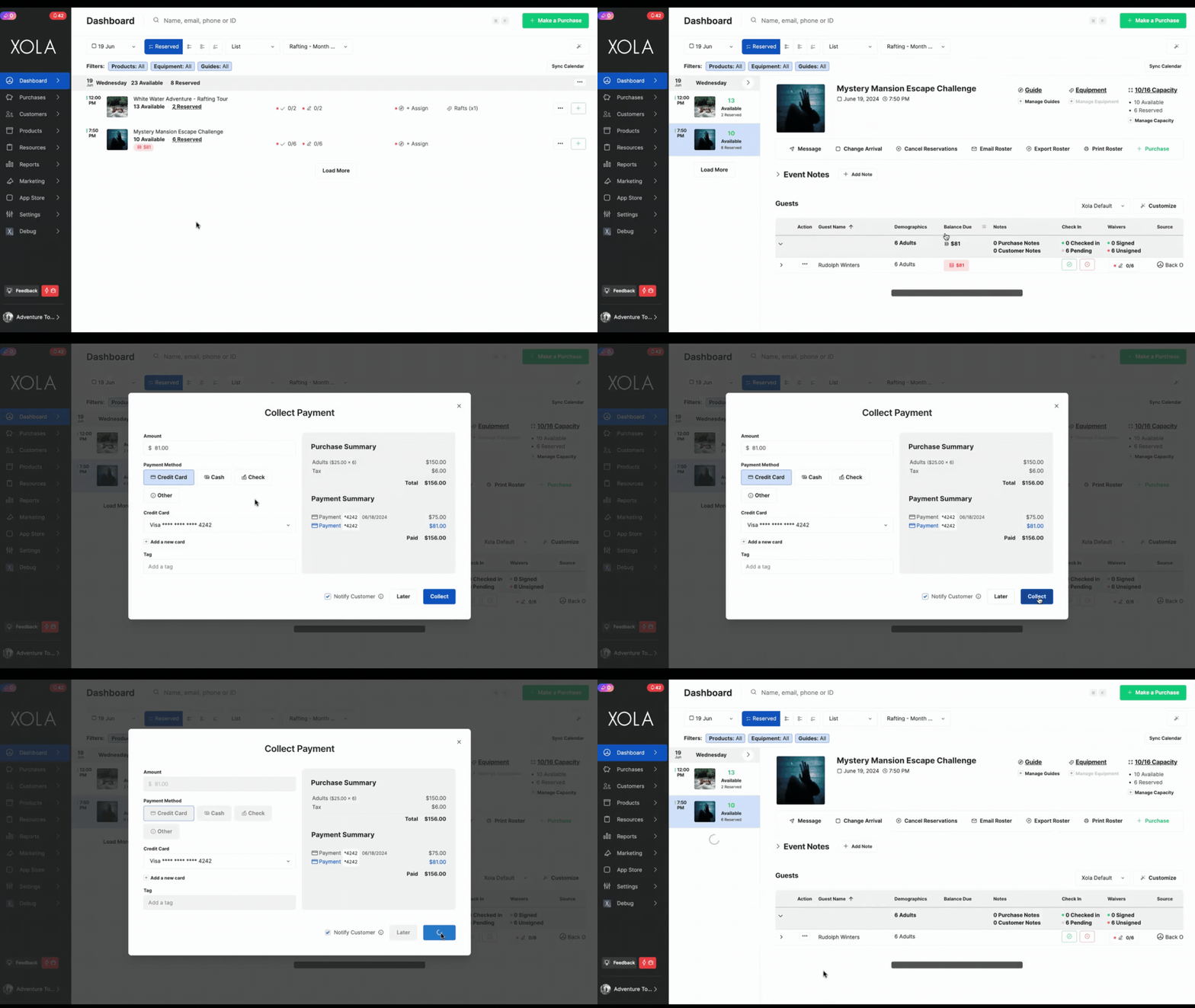
**Pro Tip:** You can collect a balance with multiple cards! Just add a new card when collecting the balance, by clicking on the **Add New Card** button, on the collecting balance window.
---
### Collect a Balance from Purchases
- Go to the [Purchases Tab](https://seller.xola.app/purchases/) and find your customer.
- Click **Collect Balance** in a purchase with an open balance.
- In the window that opens, select how you want to collect the balance, **Now** or by [Invoice](https://support.xola.com/invoicing?hsLang=en).
- Next, enter the **amount** you wish to collect in the **Amount field**. By default, **Xola** automatically sets this field to reflect the **full balance due**. If you are collecting the **entire balance**, simply select the **payment method** and click **Collect**.
- If you only need to collect a **partial payment**, simply type in the **specific amount** you want to collect, choose the **payment method**, and then click **Collect** to process the transaction.
- If you are collecting the balance via [Invoice](https://support.xola.com/invoicing?hsLang=en), you can enter the amount, choose a [message template](https://support.xola.com/message-templates?hsLang=en) (optional), and click **Send Invoice.**
- You’ll immediately see the balance adjust in the purchase to reflect full or partial settling.
- Once you've collected the full balance you'll see the Payment Summary changed to "Paid".
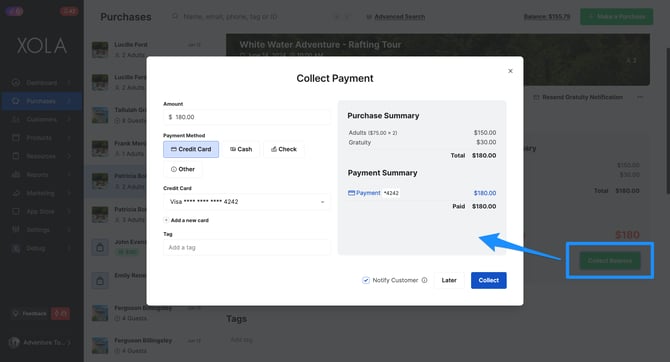
**Pro Tip:** You can collect a balance with multiple cards! Just add a new card when collecting the balance, by clicking on the **Add New Card** button, on the collecting balance window.
### Collect Balance from Pending Action Queue
The **Pending Action Queue** is conveniently located at the **top left corner** of your **Xola account**, represented by  **icon**.
- A purchase with an open balance will remain in the Pending Action Queue until the balance has been fully collected.
- Click on the  icon and find the purchase with the balance due.
- Click on the green **Collect Balance**
- In the window that opens, select how you want to collect the balance, **Now** or by [Invoice](https://support.xola.com/invoicing?hsLang=en).
- Next, enter the **amount** you wish to collect in the **Amount field**. By default, **Xola** automatically sets this field to reflect the **full balance due**. If you are collecting the **entire balance**, simply select the **payment method** and click **Collect**.
- If you only need to collect a **partial payment**, simply type in the **specific amount** you want to collect, choose the **payment method**, and then click **Collect** to process the transaction.
- If you are collecting the balance via [Invoice](https://support.xola.com/invoicing?hsLang=en), you can enter the amount, choose a [message template](https://support.xola.com/message-templates?hsLang=en) (optional), and click **Send Invoice.**
- You’ll immediately see the balance adjust in the purchase to reflect full or partial settling.
- Once you've collected the full balance you'll see the Payment Summary changed to "Paid".
**User Access: Reservationist Lite** users **do not have access** to the **Pending Actions Queue** and therefore cannot **collect open balances** from this section.
- [Getting Started](https://support.xola.com/getting-started?hsLang=en#main-content)
- [Account Setup & Configuration](https://support.xola.com/getting-started?hsLang=en#account-setup-configuration)
- [Website Integration & Installation](https://support.xola.com/getting-started?hsLang=en#website-integration-installation)
- [Flex Plans](https://support.xola.com/getting-started?hsLang=en#flex-plans)
- [Managing Purchases & Customers](https://support.xola.com/managing-purchases-customers?hsLang=en#main-content)
- [Purchases Management](https://support.xola.com/managing-purchases-customers?hsLang=en#purchases-management)
- [Reservation Management](https://support.xola.com/managing-purchases-customers?hsLang=en#reservation-management)
- [Customer Management](https://support.xola.com/managing-purchases-customers?hsLang=en#customer-management)
- [Customer Data & Engagement](https://support.xola.com/managing-purchases-customers?hsLang=en#customer-data-engagement)
- [Reporting](https://support.xola.com/reporting?hsLang=en)
- [Integrations & Advanced Tools](https://support.xola.com/integrations-advanced-tools?hsLang=en#main-content)
- [Xola App Store Integrations](https://support.xola.com/integrations-advanced-tools?hsLang=en#xola-app-store-integrations)
- [Partner & Agent Management](https://support.xola.com/integrations-advanced-tools?hsLang=en#partner-agent-management)
- [Marketing & Tracking Integrations](https://support.xola.com/integrations-advanced-tools?hsLang=en#marketing-tracking-integrations)
- [Mobile and Hardware](https://support.xola.com/mobile-and-hardware?hsLang=en#main-content)
- [Mobile Tools and Apps](https://support.xola.com/mobile-and-hardware?hsLang=en#mobile-tools-and-apps)
- [Hardware Setup & Devices](https://support.xola.com/mobile-and-hardware?hsLang=en#hardware-setup-devices)
- Company
- [About Us](https://www.xola.com/about)
- [Careers](https://www.xola.com/team)
- [Press](https://www.xola.com/press)
- [Support](https://www.xola.com/support)
- [Security Policy](https://www.xola.com/security-policy/)
- Resources
- [Articles](https://www.xola.com/articles/)
- [Help Center](https://support.xola.com/)
- [Success Stories](https://www.xola.com/success-stories/)
- [App Store](https://www.xola.com/app-store)
- [Demo](https://www.xola.com/demo)
- [Xola Universe](https://www.xola.com/universe/)
- Documentation
- [API Documentation](https://developers.xola.com/)
- [Payment Services Agreement](https://www.xola.com/payment-services-agreement/)
- [Terms](https://www.xola.com/terms/)
[](https://www.xola.com/)
© 2026 Xola Inc. All rights reserved.
[Privacy Policy](https://www.xola.com/privacy-policy) [Terms of Service](https://www.xola.com/terms)