---
title: Capacity Utilization Report
description: Learn how to use Xola's Capacity Utilization Report to assess booking efficiency, identify peak times, and optimize resource allocation. Discover how to adjust capacity and interpret detailed heat maps for informed decision-making.
---
[Skip to content](https://support.xola.com/capacity-utilization-report#main-content)
English
Show submenu for translations
[](https://www.xola.com/)
- [Home](https://support.xola.com/)
- [24/7 Live Support](https://www.xola.com/support/)
Open main navigation
Close main navigation
- [Home](https://support.xola.com/)
- [24/7 Live Support](https://www.xola.com/support/)
- English
Show submenu for translations
- [Login](https://xola.com/_public/login.html)
[Login](https://xola.com/_public/login.html)
How can we help you?
- There are no suggestions because the search field is empty.
1. [Help Center](https://support.xola.com/?hsLang=en)
2. [Reporting](https://support.xola.com/reporting?hsLang=en)
# Capacity Utilization Report
## Maximize Revenue by Understanding and Optimizing How Your Availability is Reserved
The **Capacity Utilization Report** in Xola provides valuable **insights** into how effectively your **time slots** are being **reserved** over any selected **date range**. It gives you a clear picture of how much of your available **inventory**—whether that’s tours, activities, events, or rentals—is actually being filled by paying customers. This allows you to measure **operational efficiency** at both the **individual experience level** and across your entire **business**.
By analyzing this data, you can make **informed decisions** to improve **resource allocation**, such as adjusting **scheduling**, aligning **staffing levels** with demand, or making real-time changes to your **availability**. You can also spot **trends** in demand, identify **underperforming time slots**, and uncover **opportunities** to boost **revenue** through smarter **pricing strategies** like **dynamic pricing**, **discounting slow periods**, or bundling experiences.
The report can be filtered by **product**, **day of the week**, or **time of day** helping you dial into specific patterns and take action accordingly. Whether you’re aiming to increase your overall **utilization rate**, cut down on **idle capacity**, or simply get more out of your team’s time and effort, the **Capacity Utilization Report** gives you the **visibility** and **data-driven clarity** needed to operate more **efficiently** and **profitably**.
**User Access:** **Administrator** roles have access to the Capacity Utilization Report in Xola.
To **grant access** to users, [click here](https://seller.xola.app/settings/users).
---
**What's covered in this article:**
- [What You'll Learn From This Report](https://support.xola.com/capacity-utilization-report#what-youll-learn)
- [How to Access the Report](https://support.xola.com/capacity-utilization-report#how-to-access)
- [What You’ll See in the Graphs](https://support.xola.com/capacity-utilization-report#what-youll-see)
---
### What You'll Learn From This Report
- **Booking Efficiency**: Assess the percentage of your time slots that are reserved, helping you identify peak and off-peak periods.
- **Capacity Trends**: Understand how your capacity utilization changes over time, allowing for better forecasting and planning.
- **Operational Adjustments**: Identify underutilized slots that may benefit from promotional efforts or schedule adjustments.
---
### How to Access the Report
- Navigate to **Reports \> Capacity Utilization** in your Xola dashboard.
- You can enable the report through the [App Store](https://seller.xola.app/apps) if it is not visible.
- **Use the filters at the top of the report to narrow down your view:**
- **Products:** You can filter the report by products, with a specific focus on each experience. You can only view one experience at a time.
- **Date Range:** Choose a date range by which to filter.
---
### What You’ll See in the Graphs
#### **Detailed Report**
By default, you are viewing the **Detailed Report tab**. This report shows you a **Heat Map,** a visual representation of time slots color-coded based on reserved percentages. In the heat map you can see a **Data Table** that lists each time slot with corresponding guest count, capacity, and yield percentage.

At the bottom of the heat map you can use the adjustable sliders to display data for specific booking percentages.
As you move the slider, the table below the report will update to reflect the selected percentage range, and you can export this adjusted data set as needed.
You also have a guide to show what each color or symbol means on the heat map.
- **Overbooked:** The number of guests exceeded the set capacity for the event.
- **Zeroed Out:** The event was manually capped or blacked out, making it unavailable for reservations.
- **Schedule Removed:** The schedule for this event was deleted in your experience settings.
- **Inventory Restriction:** Equipment availability or scheduling limits prevented full use of the event's capacity.
- **Private Event:** The event was private, and capacity was limited accordingly.
- **Manually Adjusted:** The event’s capacity was increased or decreased manually in the roster.
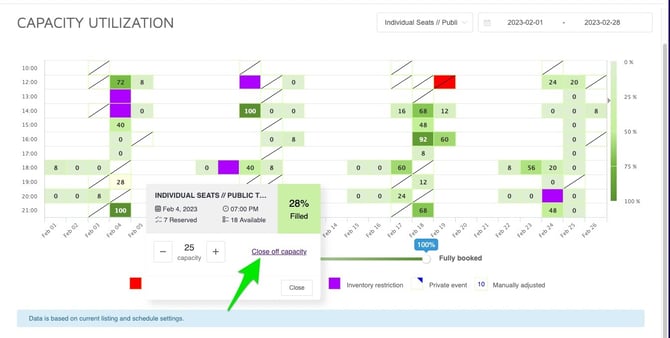
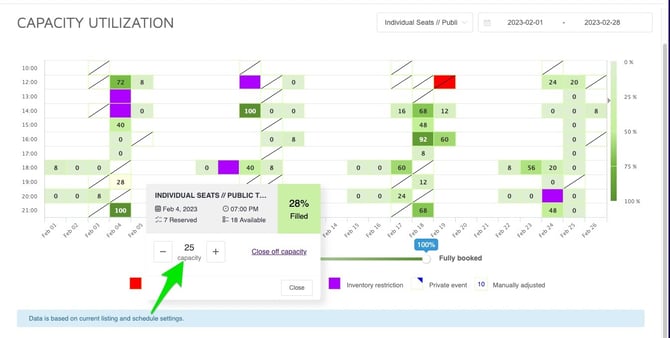
The Capacity Heat Map lets you easily adjust or close off availability for any time slot directly within the report.
- **Close Off Capacity:** Click on a time slot, select **Close off capacity** and confirm. This will block new reservations for that specific slot.
- **Adjust Capacity:** Click on a time slot, then use the **plus (+)** or **minus (–)** buttons to increase or decrease the event’s capacity. Changes will automatically update in your Dashboard.
****
#### **Summarized Report**
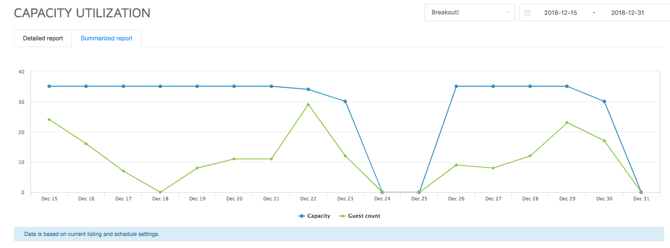
If you select the **Summarized Report tab** in the upper left corner of the page, you will see a line graph that compares your total capacity with your guest count over the same date range.
- **The blue line:** The capacity the event was set at.
- **The green line:** The count of guests that reserved the event.
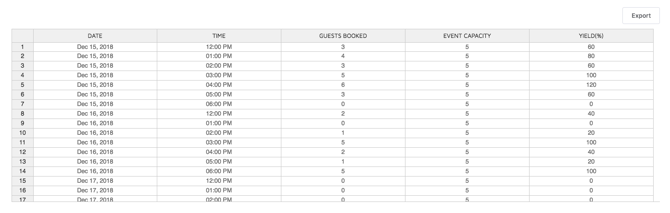
At the bottom of the **Detailed or Summarized Report**, you will see a **table** that shows how many guests are booked for each particular time slot, capacity, and yield or percentage. By clicking the export button above, you can **export this table** into a CSV or Excel file.
- **Date:** The calendar day of the event or scheduled time slot.
- **Time:** The specific start time of the scheduled event or time slot.
- **Guests Booked:** The number of customers booked for that event or time slot.
- **Event Capacity:** The total number of spots available for the event or time slot.
- **Yield (%):** The percentage of capacity that was filled (Guests Booked ÷ Event Capacity × 100).
- [Getting Started](https://support.xola.com/getting-started?hsLang=en#main-content)
- [Account Setup & Configuration](https://support.xola.com/getting-started?hsLang=en#account-setup-configuration)
- [Website Integration & Installation](https://support.xola.com/getting-started?hsLang=en#website-integration-installation)
- [Flex Plans](https://support.xola.com/getting-started?hsLang=en#flex-plans)
- [Managing Purchases & Customers](https://support.xola.com/managing-purchases-customers?hsLang=en#main-content)
- [Purchases Management](https://support.xola.com/managing-purchases-customers?hsLang=en#purchases-management)
- [Reservation Management](https://support.xola.com/managing-purchases-customers?hsLang=en#reservation-management)
- [Customer Management](https://support.xola.com/managing-purchases-customers?hsLang=en#customer-management)
- [Customer Data & Engagement](https://support.xola.com/managing-purchases-customers?hsLang=en#customer-data-engagement)
- [Reporting](https://support.xola.com/reporting?hsLang=en)
- [Integrations & Advanced Tools](https://support.xola.com/integrations-advanced-tools?hsLang=en#main-content)
- [Xola App Store Integrations](https://support.xola.com/integrations-advanced-tools?hsLang=en#xola-app-store-integrations)
- [Partner & Agent Management](https://support.xola.com/integrations-advanced-tools?hsLang=en#partner-agent-management)
- [Marketing & Tracking Integrations](https://support.xola.com/integrations-advanced-tools?hsLang=en#marketing-tracking-integrations)
- [Mobile and Hardware](https://support.xola.com/mobile-and-hardware?hsLang=en#main-content)
- [Mobile Tools and Apps](https://support.xola.com/mobile-and-hardware?hsLang=en#mobile-tools-and-apps)
- [Hardware Setup & Devices](https://support.xola.com/mobile-and-hardware?hsLang=en#hardware-setup-devices)
- Company
- [About Us](https://www.xola.com/about)
- [Careers](https://www.xola.com/team)
- [Press](https://www.xola.com/press)
- [Support](https://www.xola.com/support)
- [Security Policy](https://www.xola.com/security-policy/)
- Resources
- [Articles](https://www.xola.com/articles/)
- [Help Center](https://support.xola.com/)
- [Success Stories](https://www.xola.com/success-stories/)
- [App Store](https://www.xola.com/app-store)
- [Demo](https://www.xola.com/demo)
- [Xola Universe](https://www.xola.com/universe/)
- Documentation
- [API Documentation](https://developers.xola.com/)
- [Payment Services Agreement](https://www.xola.com/payment-services-agreement/)
- [Terms](https://www.xola.com/terms/)
[](https://www.xola.com/)
© 2026 Xola Inc. All rights reserved.
[Privacy Policy](https://www.xola.com/privacy-policy) [Terms of Service](https://www.xola.com/terms)