
To give your customers a seamless way to reserve your experiences online, you'll want to add the Xola Book Now button to your website. This button is much more than a simple call-to-action—it's a robust engine that delivers a smooth, branded booking experience right on your site and can be tailored to match your brand look, checkout style, and unique booking needs. Whether your guests are reserving a single tour, building a multi-experience itinerary, choosing from a timeline of departure options, or purchasing a gift certificate, the Xola Book Now button makes it simple for them to take the next step the moment they’re ready.
You can find everything you need by heading to Settings > Button Code and following the simple steps. Installation is flexible: after a one-time setup of the Xola JavaScript in your site's header or footer, you can create and customize unlimited buttons from your Xola admin, then just copy and paste the HTML into your website’s pages wherever you want the Book Now button to appear. Need to update an existing button or add a new checkout flow? No problem—simply copy, paste, or reposition the code as needed without ever touching your JavaScript again.
With your Xola buttons in place, you put convenient booking front-and-center for your customers while ensuring every transaction routes directly through your Xola-powered checkout. No friction, no redirects—just faster reservations and a better guest experience every time.
User Access: Administrator or Marketer roles have access to set up and manage Buttons in Xola.
To grant access to users, click here.
What's covered in this article:
Button Set Up
- Navigate to Settings > Button Code.
- Paste Step 1 code into your site's header or footer.
- Use the
 icon to copy the JavaScript code in Step 1.
- Use the
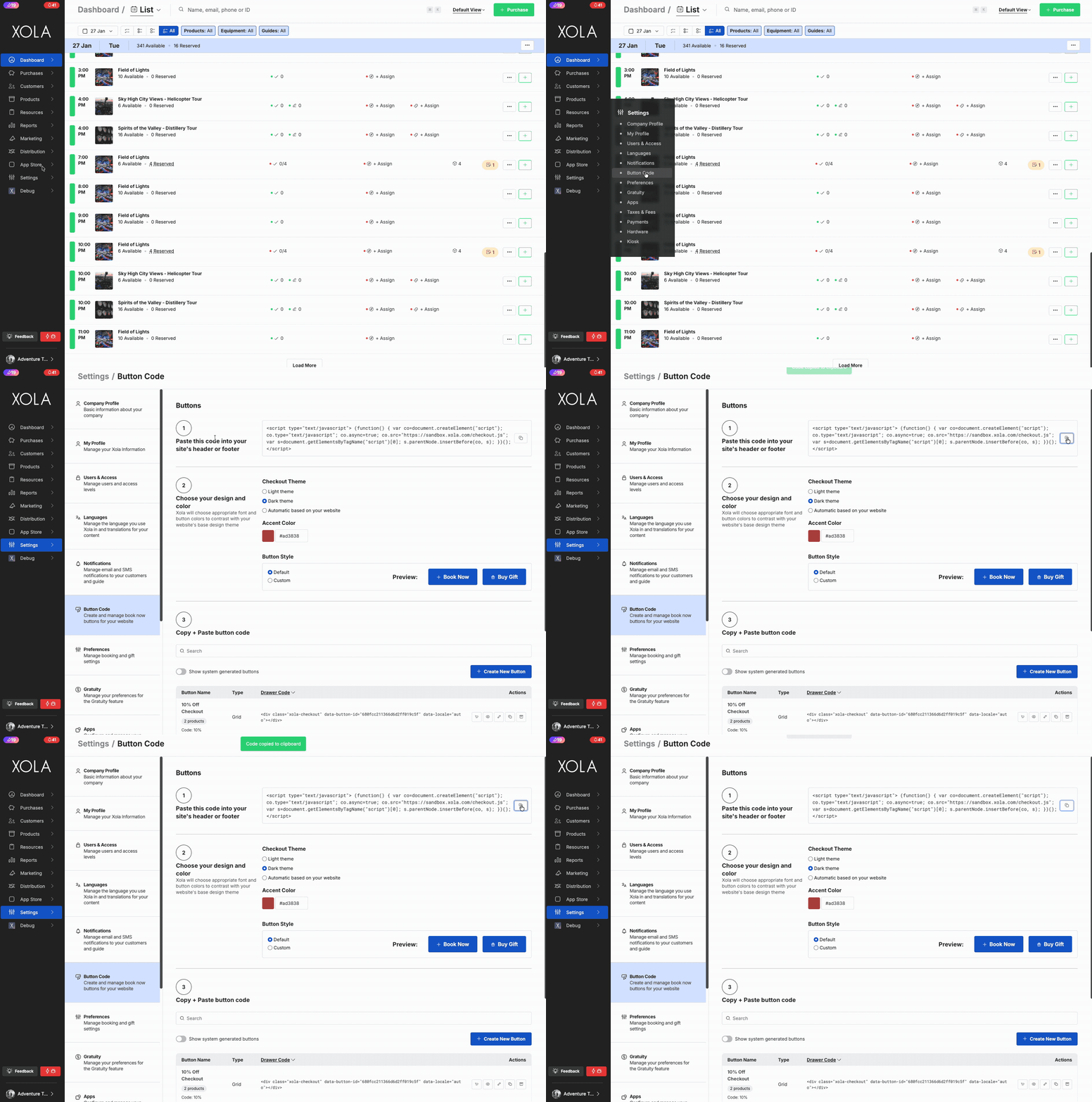
-
- Paste this code into your website's universal header or footer. It should be the last piece of code in your
<head> </head>tag.
- Paste this code into your website's universal header or footer. It should be the last piece of code in your
Note: Once you install the Javascript you do not need to ever repeat this step!
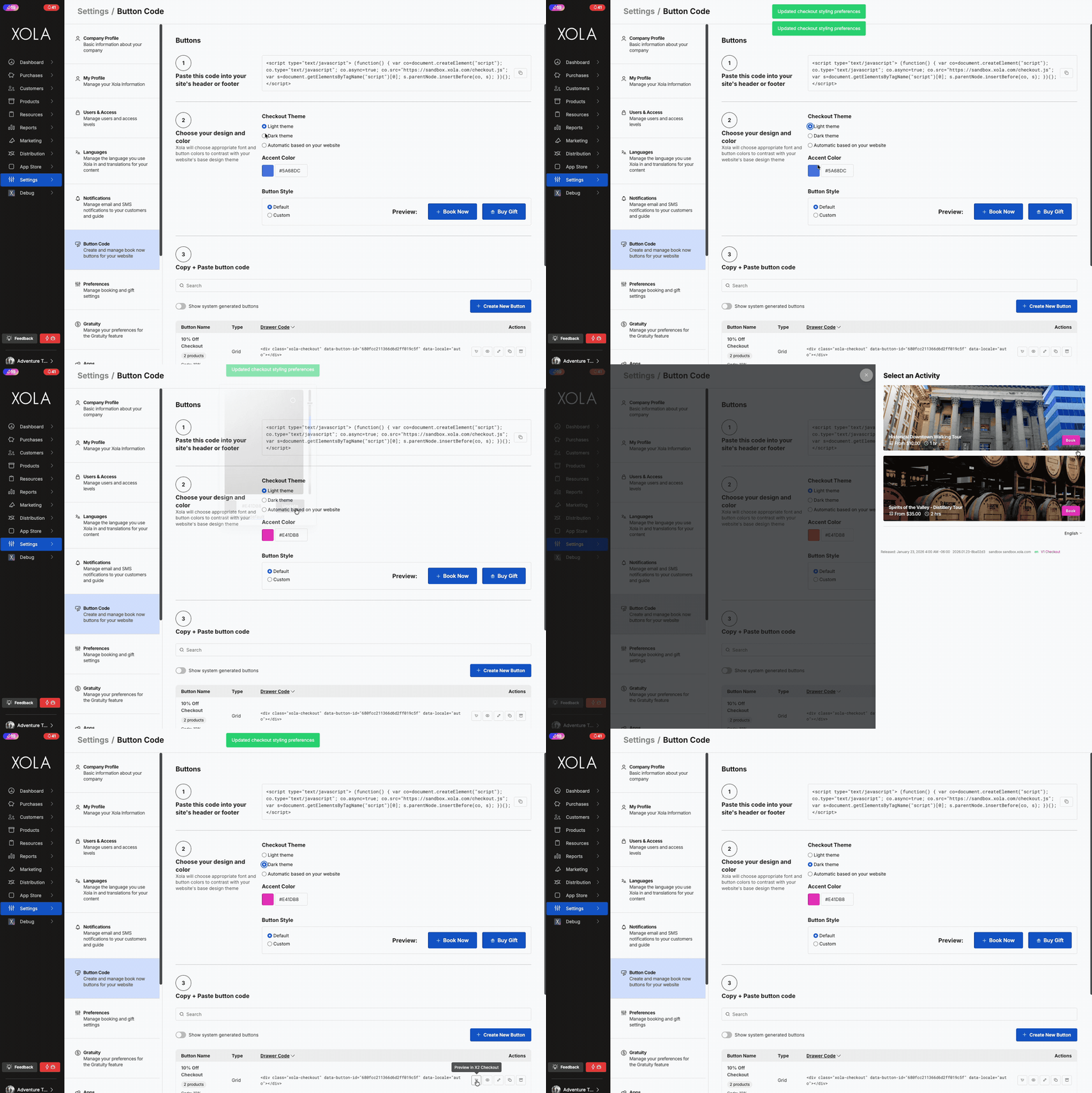
Choose Your Checkout Theme & Button Style
When creating a button, you can customize the look and feel of the checkout to match your website and brand. Xola automatically chooses fonts and colors that contrast well with your base design, but you can override these options as needed.- Checkout Theme
-
- Light Theme: Best for websites with a light background
- Dark Theme: Best for websites with a dark background
- Automatic: Xola will select the theme based on your website’s base design
- Accent Color
- Set an accent color for your checkout and button highlights.
- Button Style
- Default: Uses Xola’s standard button design
- Custom: Apply your own CSS classes for a fully branded button
Create a Button
You can choose between creating your own custom button, or choosing one of Xola's system generated buttons. System generated buttons, are your products that you already created in a single item button. To see there, toggle on Show system generated buttons and then proceed with choosing the button code type step.
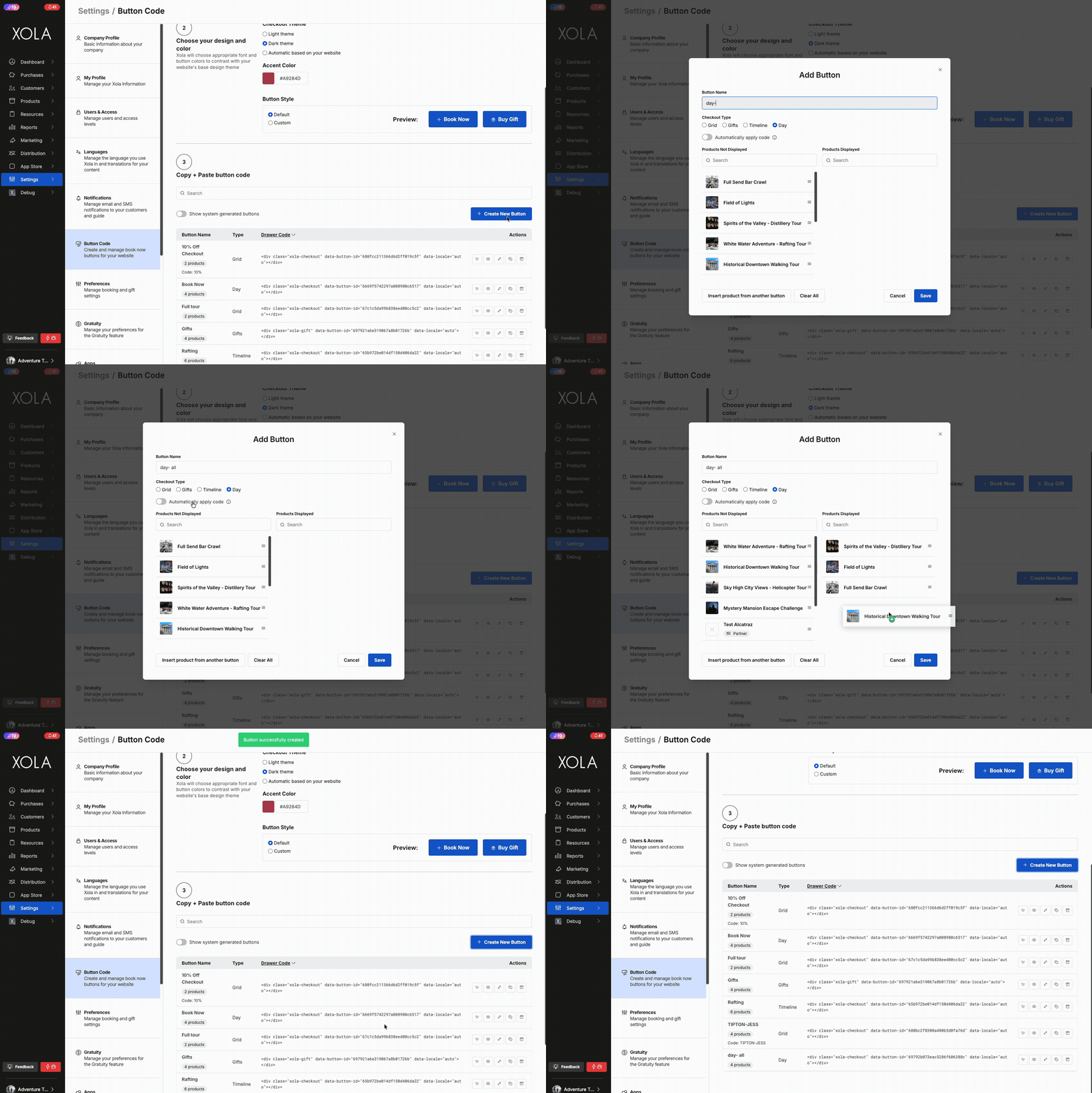
To create a new custom button, click on +Create New Button.
Fill Out Button Details
-
Button Name: Enter a memorable name for your button (e.g., “Summer Kayak Tours” or “Gift Cards”). This helps you identify it later in the button list.
-
Checkout Type: Choose how the checkout will appear to your customers:
-
Grid – Displays products in a visual grid layout (best for browsing multiple experiences), that the customer then chooses which experience they want to purchase.
-
Gifts – Specialized view for gift cards and gift offers
-
Timeline – Shows available time slots in chronological order for one or more experiences
-
Day – Shows daily availability for all products in a grid format for one day at a time.
-
- Automatically Apply Code (optional): Enter a promo or partner code to be automatically applied at checkout
-
Select Products:
The product selector is split into two columns:
-
Products Not Displayed: All available products that can be added to this button
-
Products Displayed: Products that will appear in this button’s checkout
How to Add Products:
-
Drag products from the Not Displayed column to the Displayed column
-
Use the Search boxes above each column to quickly find products
-
Reorder products in the Displayed column by dragging them up or down pressing and holding the
 icon next to the product you want to move.
-
Tip: You can copy products from an existing button using the “Insert product from another button” feature to save time.
-
Click Save to create the button.
Once saved, Xola will automatically generate the HTML or link code for you to put on your website in the button gird.
Button Grid Overview
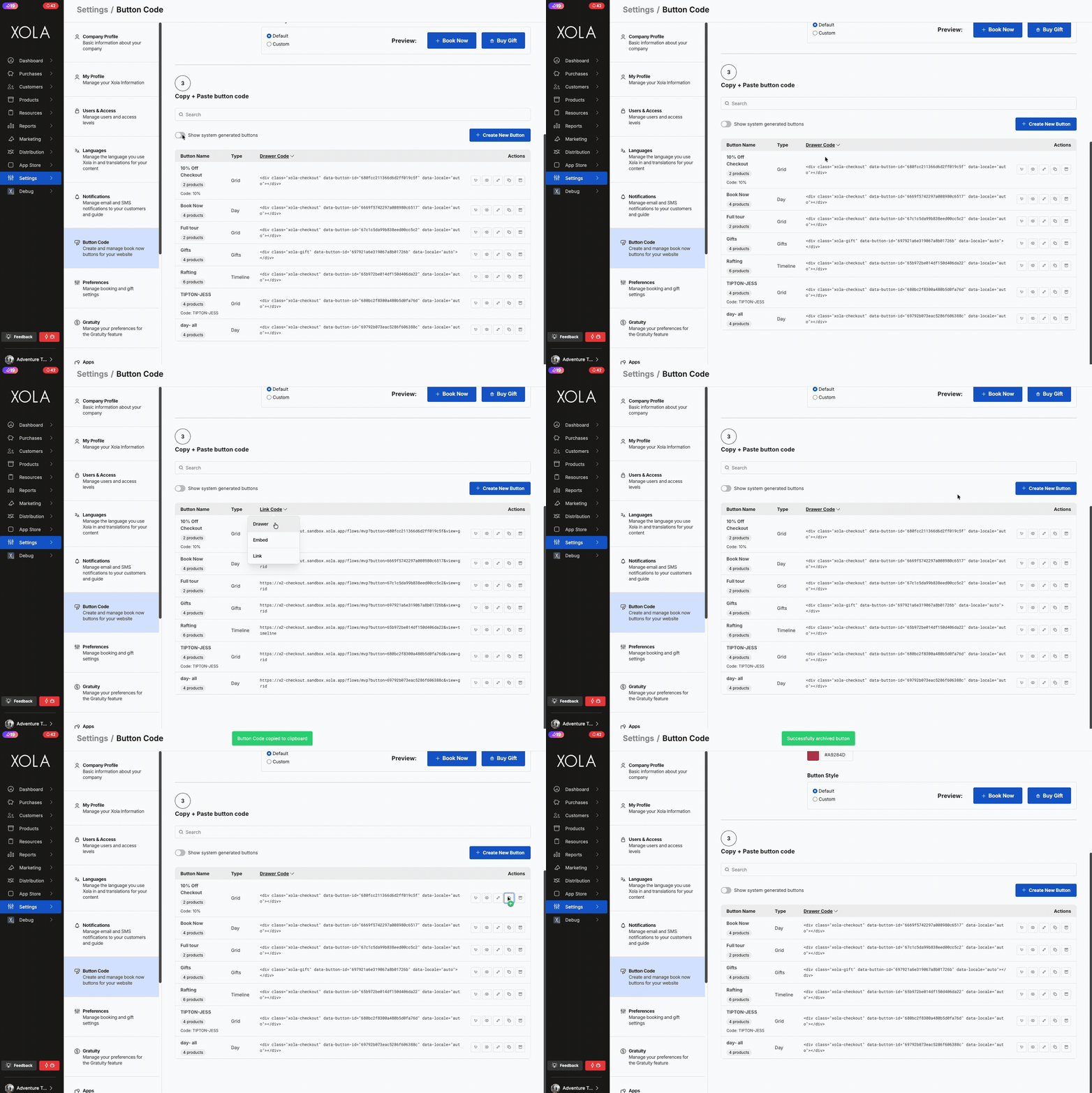
The Button Grid is your central dashboard for viewing, managing, and embedding all your checkout buttons. Each row represents a button and displays key details, code, and actions.
-
Button Name: The name you gave the button (e.g., “Book Now”, “Rafting”) to help identify it quickly.
-
Type: The checkout layout for this button: Grid, Timeline, Day, or Gifts.
-
Code Type: The HTML snippet or link generated for your button. Copy this to embed the button on your website. Each button includes a <div> tag with a unique data-button-id. Choose your code type by clicking the dropdown in the "Code" column header.
- Drawer Code: Opens checkout in a sliding panel overlay.
- Embedded: Embeds the checkout directly on your page.
- Link: Provides a URL that opens checkout in a new tab.
Note: URL checkout will not track Google Analytics for your account if you do not install the Xola Javascript.
-
Actions: Quick actions you can take for each button:
-
Preview: Click the
 icon to see how the checkout will appear to customers.
 -
Edit: Click the
 icon to modify button name, products, or settings.
 - Copy: Click the
 icon to copy the code to paste in the text editor of your webpage, save, and publish. The Book Now button should now appear and pull up the appropriate checkout when clicked.
 -
Archive: Click the
 icon to remove the button from active use.
-
Checkout Types
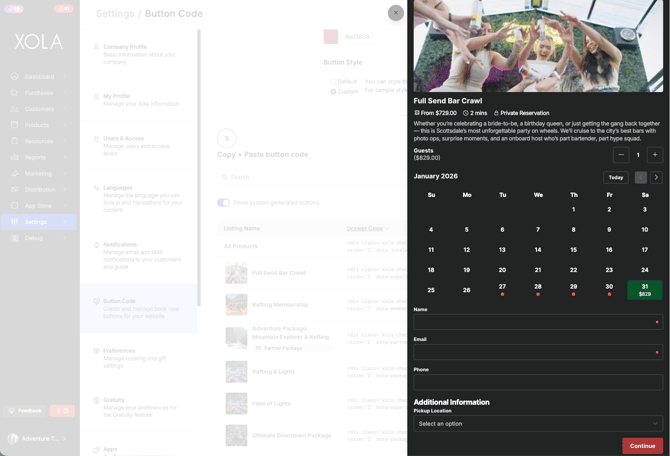
Single Item Checkout
When an experience is created, HTML code for its Single-Item Checkout will automatically be generated in Settings > Button Code.-
Just toggle the Show system generated buttons under step 3 to see all single item buttons.
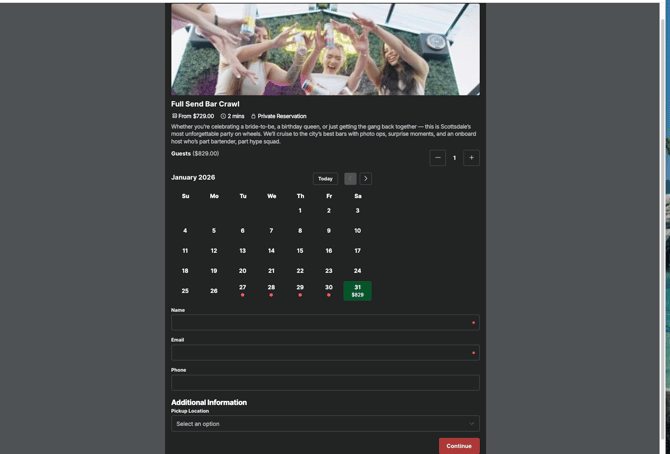
When a Single-Item Checkout button is clicked on your checkout, it pulls up the checkout solely for that experience.
Great idea if: You want to give customers the option to book one specific experience.
Drawer Single Item Button:
Embedded Single Item Button:
Link Single Item Button:
Grid Checkout
Gird Checkout buttons must be created manually. See above on how to create a button.
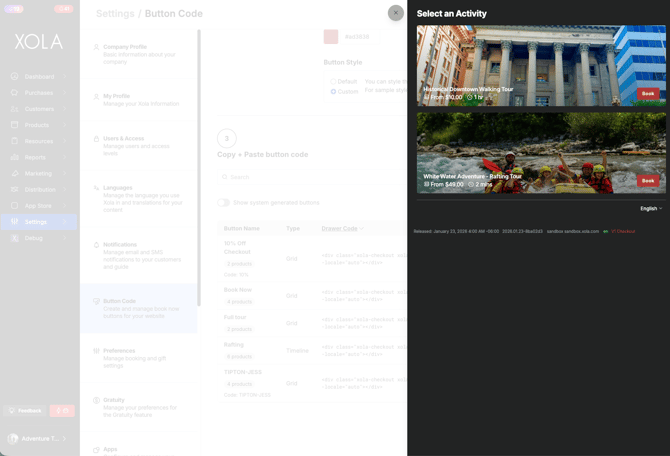
When a Grid Checkout button is clicked, the customer selects an experience from a selection of experiences and proceeds to book.
- On the payment page of checkout, the customer can select Add another experience and continue purchasing additional experiences using a shopping cart style workflow, and then checkout for all experiences in one go.
Great idea if: You have experiences that are commonly paired and booked at the same time, or if you would like to promote and present certain experiences together. For example, the 'Hiking Button' below only shows tours that have to do with Hiking.
Drawer Grid Button:
Embedded Grid Button: 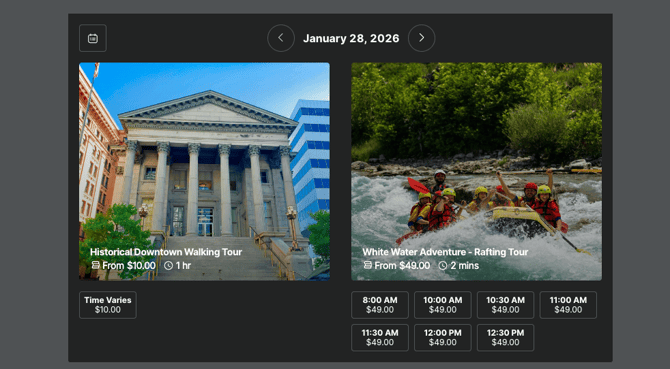
Link Grid Button: 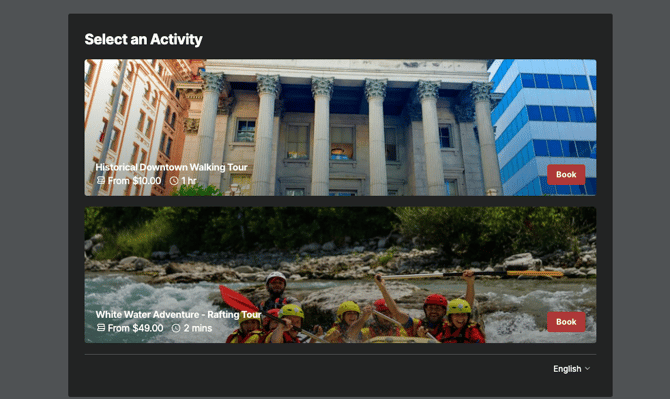
Timeline Checkout
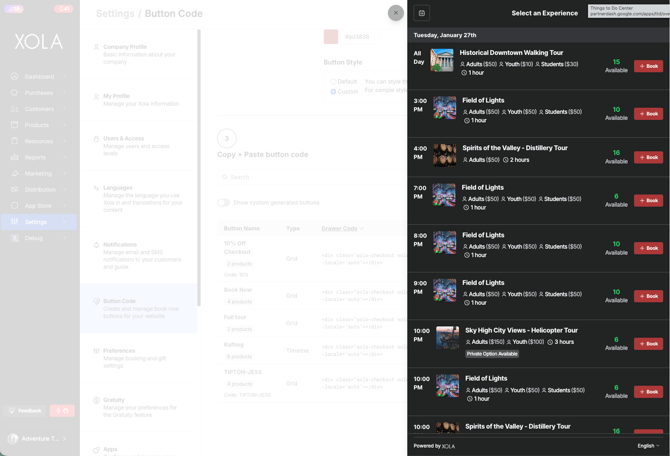
Timeline Checkout buttons must be created manually. See above on how to create a button.When a Timeline button is clicked on your checkout, it will pull up a scrollable timeline that shows upcoming trip times across all of your experiences in that button.
- On the payment page of checkout, the customer can select Add another experience, and continue to purchase additional experiences using a shopping cart style workflow, and then checkout for all experiences in one go.
Great idea if: You have a few different experiences, and would like to show available time slots to your customers for all of those experiences in chronological order.
Drawer Timeline Button:
Embedded Timeline Button: 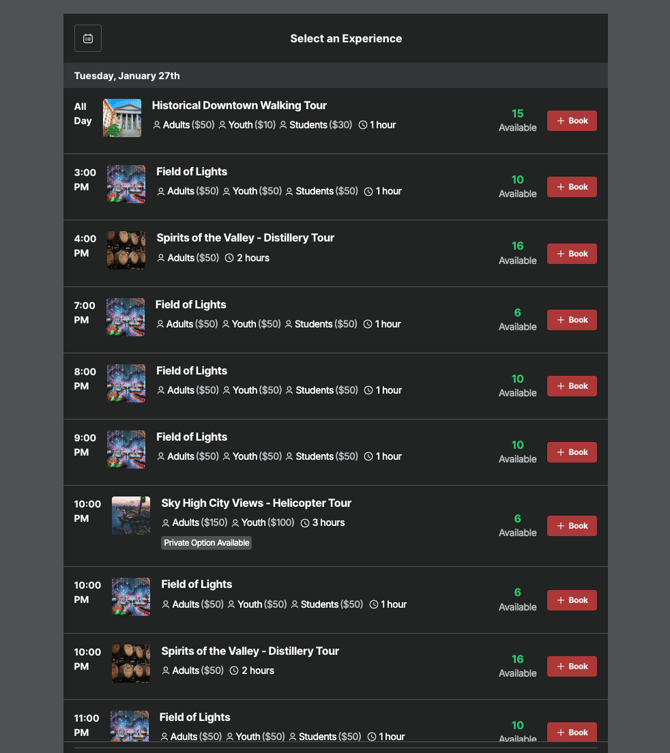
Link Timeline Button:
Gift Checkout
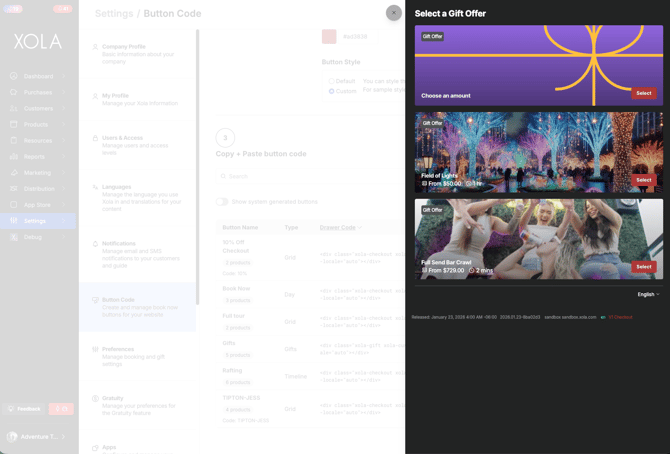
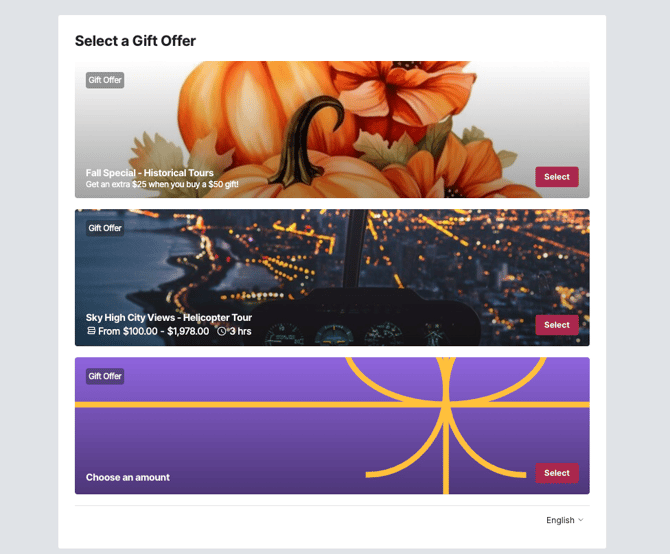
Gift buttons must be created manually. See above on how to create a button.When a Gift Checkout button is clicked, the customer selects an experience gift, a gift offer or a choose an amount, from a selection of offers and proceed with the purchase.
- On page two of checkout, the customer can select Add another gift and continue purchasing additional gifts using a shopping cart style workflow, and then checkout for all gifts in one go.
Great idea if: You want a specialized view for gift card and gift offer you want your customer to purchase.
Drawer Gift Button:
Embedded Gift Button: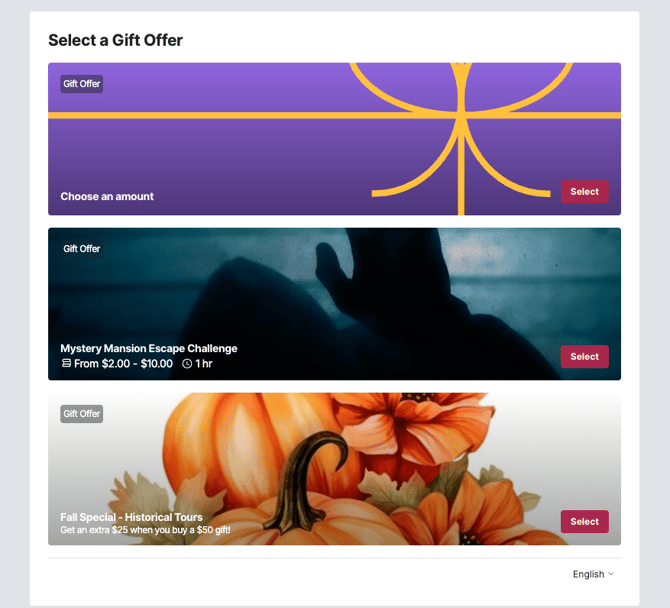
Link Gift Button:
Day Checkout
Day Checkout buttons must be created manually. See above on how to create a button.
When a Day Checkout button is clicked, the customer selects a day and then will see all experiences and time in a grid format. They can select the timeslot the would like for the experience and proceed to book.
- On the payment page of checkout, the customer can select Add another experience and continue purchasing additional experiences using a shopping cart style workflow, and then checkout for all experiences in one go.
Great idea if: You offer multiple experiences and want guests to see all available options in one place so they can quickly choose what works best. For example, if some of your most popular experiences sell out, you can still showcase alternative times and experiences in a single view—without forcing customers to click through multiple pages or buttons just to compare your availability.
Drawer Day Button:
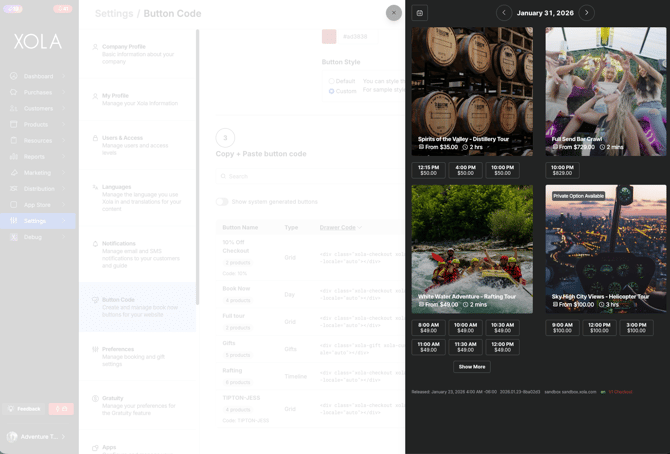
Embedded Day Button:
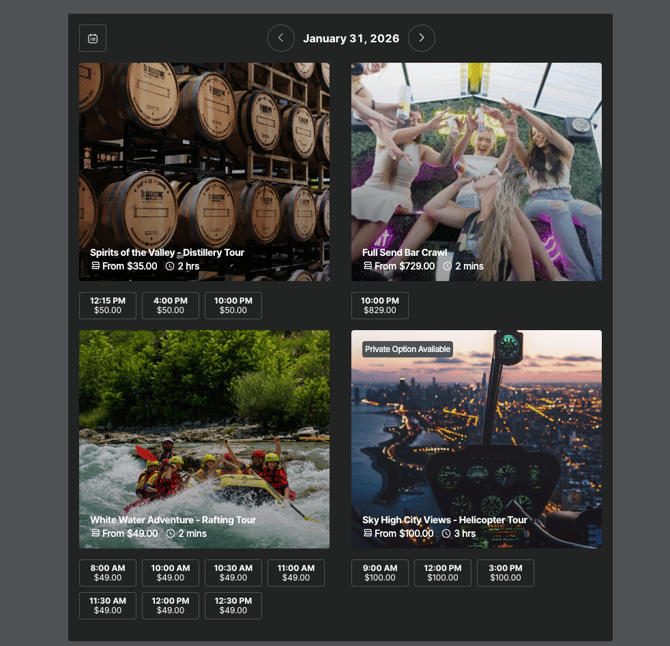
Link Day Button: