---
title: Analytics Report
description: Learn to utilize Xola's Analytics Reports to gain insights into your business performance. Understand the differences between Events and Transactions Reports, and how to interpret data such as income, charges, refunds, and fees.
---
[Skip to content](https://support.xola.com/analytics-report#main-content)
English
Show submenu for translations
[](https://www.xola.com/)
- [Home](https://support.xola.com/)
- [24/7 Live Support](https://www.xola.com/support/)
Open main navigation
Close main navigation
- [Home](https://support.xola.com/)
- [24/7 Live Support](https://www.xola.com/support/)
- English
Show submenu for translations
- [Login](https://xola.com/_public/login.html)
[Login](https://xola.com/_public/login.html)
How can we help you?
- There are no suggestions because the search field is empty.
1. [Help Center](https://support.xola.com/?hsLang=en)
2. [Reporting](https://support.xola.com/reporting?hsLang=en)
# Analytics Report
## Comprehensive Financial Insights—Analyze Revenue, Transactions, and Trends for Confident Decision-Making
The **Analytics Report** in **Xola** is your go-to tool for gaining a clear, detailed view of your business’s **financial health**. It unifies your most important **revenue** and **transaction data** in one place, bringing together **high-level trends**, **daily operations insights**, and **granular transaction breakdowns**.
Whether you’re tracking **real-time cash flow**, reviewing **recognized revenue** for each **experience**, or drilling into the **details of every transaction**, the Analytics Report empowers you to understand not just how much money your business is making, but also **when**, **how**, and **from where**. You can **filter data** by **date**, **product**, **channel**, **payment method**, and more—allowing you to zero in on exact **timeframes**, **products**, or **scenarios**.
View **performance over time** with **dynamic charts**, dig into the specifics of **charges**, **refunds**, **fees**, and **taxes**, and spot **patterns** in how and where guests are purchasing. **Export** flexible, **accountant-ready reports** for deep analysis or **audits**, and seamlessly **reconcile events** with transaction records for **rock-solid financial management**. With **intuitive filters** and multiple **export options**, the Analytics Report supports everything from **daily checkups** to **strategic financial planning**, making it an essential resource for **owners**, **managers**, **accountants**, and anyone invested in your business’s success.
**User Access:** **Administrator** or **Accountant** roles have access to the Analytics Report in Xola.
To **grant access** to users, [click here](https://seller.xola.app/settings/users).
---
**What's covered in this article:**
- [What You'll Learn From This Report](https://support.xola.com/analytics-report#learn)
- [How to Access the Report](https://support.xola.com/analytics-report#access)
- [What You’ll See in the Chart and Table](https://support.xola.com/analytics-report#see)
- [Exporting the Analytics Report](https://support.xola.com/analytics-report#exporting)
- [Exported Events Report Overview](https://support.xola.com/analytics-report#events)
- [Exported Transactions Report Overview](https://support.xola.com/analytics-report#transaction)
- [How Cash Flow and Realized Earnings Impact Gifts and Store Credits](https://support.xola.com/analytics-report#gift)
---
### What You'll Learn From This Report
The Analytics Report offers valuable information, including:
- **Revenue Trends**: Analyze income over time across different experiences and channels.
- **Transaction Details**: Examine individual transactions, including charges, refunds, and processing fees.
- **Performance Metrics**: Identify top-performing products, add-ons, partners, and guides.
- **Tax and Fee Breakdown**: Review collected sales tax and service fees.
This report is essential for in-depth financial analysis and strategic decision-making.
---
### How to Access the Report
To access the Analytics Report:
- Navigate to your Xola dashboard.
- Click on the **Reports** tab.
- Click on **Analytics** from the dropdown menu.
- Use the filters at the top to customize your view:
- **Date Range**: Choose a date range by which to filter.
- **Products Filter**: Filter transactions based on the Products that you offer.
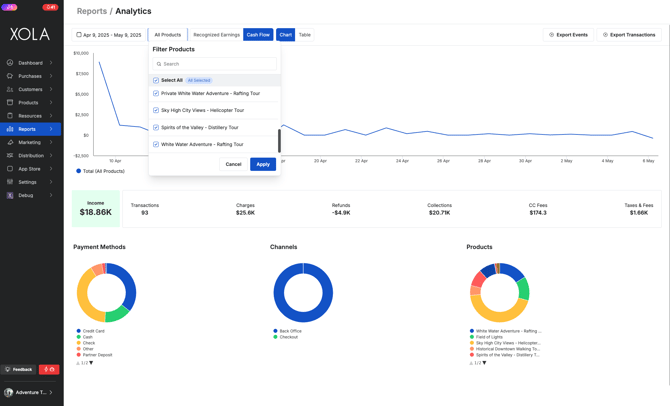
- - **Recognized Earnings vs Cash Flow Filter:** Use this filter option to toggle between Recognized Earnings and Cash Flow. By default, the Analytics report will always be set to Cash Flow. Here's what each term means:
- **Recognized Earnings**: This view shows revenue *earned* based on when the service (such as a tour or activity) was delivered. It aligns with accrual accounting principles and is helpful when you want to match revenue to the date the experience occurred, not when the payment was received.
- - - **Cash Flow**: This view displays revenue based on when the *payment* was received, regardless of when the service was provided. It reflects actual money movement in and out of your business.
- **Chart/Table View**: Switch between graphical representation and detailed tables. To discover more about this, continue reading.
---
### What You’ll See in the Chart and Table
#### Understanding the Chart View
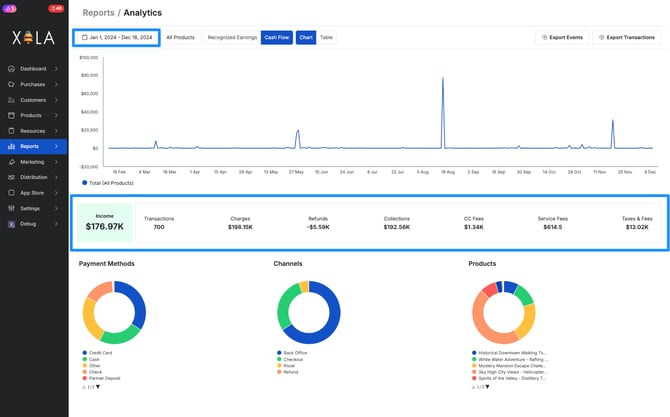
The **Chart View** in the Analytics Report provides a visual overview of your business performance over a selected date range. It lets you quickly spot trends and patterns in your revenue, helping you make informed decisions.
At the top of the Chart View, you'll see a **line graph** that tracks revenue activity over time. Spikes in the graph typically represent periods of high transaction volume or increased sales, giving you a clear picture of when your business was most active.
Beneath the graph, you'll find a summary of your key financial figures for the selected period:
- **Income:** Total earnings after deductions
*(Collections – Credit Card Fees – Service Fees – Taxes and Fees)*
- **Transactions:** Total number of completed transactions
- **Charges:** Total amount charged to customers
- **Refunds:** Total amount refunded
- **Collections:** Charges minus refunds
- **Credit Card Fees (CC Fees):** Processing fees incurred from your payment processor
- **Service Fees:** Total Xola service fees assessed on purchases
**Note:** If your guests pay the Xola Service Fee, this amount may not be visible.
- **Taxes and Fees**: Total taxes and additional fees collected
**Note:** This does not include the Xola Service Fee.
These metrics update automatically based on the filters and date range you select.
Below the financial summary, you'll see three donut charts that provide a breakdown of:
- **Payment Methods** — How customers paid (e.g., credit card, cash, check)
- **Channels** — Where purchases were made (e.g., Back Office, Checkout, Kiosk)
- **Products** — Performance of each product or experience
Hovering over or clicking on any section of these charts reveals the exact percentage of that data point.
#### Understanding the Table View
The **Table View** in the Analytics Report gives you a detailed, row-by-row breakdown of each individual transaction that occurred during your selected date range. This view is especially helpful when you need to audit specific transactions, calculate fees, or track down discrepancies.
**What You'll See in the Table**
Each row in the table represents a single transaction and includes the following details:
- **Item:** The product or experience associated with the transaction
- **Date:** The date the transaction occurred
- **Gross:** The total amount charged before any deductions
- **Processing Fee:** Credit card processing fees applied to the transaction
- **Service Fee:** Total Xola service fees assessed on purchases
**Note:** If your guests pay the Xola Service Fee, this amount may not be visible.
- **Taxes and Fees**: Total taxes and additional fees collected
**Note:** This does not include the Xola Service Fee.
- **Net:** The amount remaining after all deductions
- **Balance:** Your running Xola account balance after each transaction.
- **Source:** Where the transaction was made (e.g., Checkout, Back Office)
- **Method:** The payment method used (e.g., Credit Card, Cash, Voucher)
Transactions are listed with the most recent first by default. You can click into any item to view the associated purchase record in the **Purchases** tab.
---
### Exporting the Analytics Report
The Analytics Report gives you powerful insights into your events and reservations. When exporting, you can choose between two accounting views, **Cash Flow** or **Recognized Earnings,** depending on how you want to view and use the financial data.
#### Choosing Your Export Type
Before exporting, use the filters at the top of the report:
- Select either **Cash Flow** or **Recognized Earnings**.
- Choose your **desired date range**.
- Click **Export Events** or **Export Transactions** to download your report.
**Cash Flow Export**
This report shows revenue based on **when payments are received**, regardless of the event date.
**What It Shows:**
- Revenue reflects **actual money collected** within the date range.
- This includes transactions for future events if the customer **pays during the selected period**.
> **Example:** If a guest purchases today for an event next month and pays now, the revenue appears in **today’s** report.
**Recognized Earnings Export**
This report uses accrual accounting, which means revenue is recorded **when the service is delivered**, not when it's paid.
**What It Shows:**
- Revenue is tied to the **event date**, even if the payment was made earlier or later.
- Gives an accurate picture of **earned income** within a specific timeframe.
> **Example:** If a guest paid last month for today’s event, the revenue is **recognized today** in this report.
---
#### Exported Events Report Overview
When you export your report, you'll receive a file with multiple tabs. Each one offers a different layer of insight into your business.
**Events Tab – High-Level Operational Overview**
This tab gives you a snapshot of all scheduled events and how they're performing.
**Key Data Points:**
- **Name:** Name of the experience or activity
- **Date & Time:** When the event takes place
- **Total Demographics:** Total number of participants
- **Demographics Breakdown:** Guests by category (adults, children, students, etc.)
- **Coupons:** Discounts applied via coupon codes
- **Total Taxes & Fees:** Sum of all applicable taxes and fees
- Each individual tax and fee appears in its own column
- **Total Value:** Full reservation value before fees, discounts, or taxes
- **Revenue:** Net income after adjustments, discounts, and fees
- **Staff Columns:** Assigned staff or guides (listed by name, with indicators)
**How to Use:**
- Review daily capacity and reservations
- Confirm guide or staff assignments
- Forecast revenue and plan resources
**Best For:** Operational planning, staff scheduling, and revenue forecasting
**Reservations Tab – Detailed Guest & Purchase Information**
This tab dives into the specifics of each reservation tied to events.
**Key Data Points:**
- **Reservation ID** and **Purchase ID**
- **Package:** If part of a package deal, the name of the package will show
- **Product:** Name of experience reserved
- **Arrival Date & Time**
- **Customer Info:**
- **Name**
- **Email**
- **Guest Demographic Breakdown:** Adults, children, etc.
- **Taxes & Fees:** Full breakdown per booking
- **Add-ons:** Additional addons selected
- **Coupons:**
- **Coupon Code:** Code applied
- **Coupon Amount:** Value discounted
- **Partner Details:**
- **Partner Name**
- **Partner Discount**
- **Partner Commission**
- **Adjustments:** Other adjustments made the reservation
- **Total Value:** Full reservation value before fees, discounts, or taxes
- **Revenue:** Net income after adjustments, discounts, and fees
- **Payment Status:** Paid, unpaid, or balance due
- **Source:** Where the reservation was made (e.g., website, back office)
- **Status:** Reservation status (confirmed, canceled, pending)
- **Guides:** Assigned guide(s)
- **Guest Status:** Check-in status or no-show
- **Total Check-ins**
- **Purchase Date**
- **Purchased By**
- **Tags:** Custom or automated tags
- **Confirmation Code:** Code provided to the customer via email
**How to Use:**
- Quickly find guest and booking info
- Support customer inquiries or check-ins
- Audit purchase details and track upsells
**Best For:** Front desk check-ins, customer support, and financial auditing
---
#### Exported Transactions Report Overview
When exporting transaction data, you’ll receive two key files depending on your selected filter: **Cash Flow** or **Recognized Earnings**. Each version includes two tabs: **Summary** and **Transactions**, with slightly different insights depending on how you want to view your earnings.
#### Cash Flow Transactions Report
This export reflects **when money actually moves,** showing revenue based on payment dates, not event delivery.
**Summary Tab – Payments by Method**
Provides a high-level breakdown of total payments received by method during the selected date range.
**Columns Include:**
- **Method:** Payment type used (e.g., Credit Card, Cash, Check, Gift Certificate)
- **Gross:** Total amount collected before any deductions
- **Processing Fee:** Fees charged by your payment processor
- **Service Fee:** Xola’s platform fee
- **Guest Fee:** Fee charged per guest (visible for Flex level plans only)
- **Net:** Final earnings after all fees are deducted
**Tip:** Use this tab to quickly see which payment methods are most used and how much they cost your business.
**Transactions Tab – Every Transaction in Detail**
This tab shows each transaction within the selected period, with complete breakdowns.
**Columns Include:**
- **ID:** Internal transaction ID
- **Booking ID:** Booking reference number
- **Confirmation Code:** Code shared with the customer
- **Transaction Date:** When payment was processed
- **Arrival:** Scheduled event date
- **Realized Date:** When revenue is recognized
- **Package:** If part of a package deal, the name of the package will show
- **Item:** Product or experiences reserved
- **Customer Name**
- **Currency:** e.g., USD
- **Gross:** Total collected
- **Processing Fee:** Fees charged by your payment processor
- **Service Fee:** Xola’s platform fee
- **Guest Fee:** Fee charged per guest (visible for Flex level plans only)
- **Net:** Earnings after deductions
- **Balance:** Running Xola account balance
- **Source:** Transaction origin (e.g., checkout, back office)
- **Method:** Payment method used
- **CC Brand:** Visa, Mastercard, etc.
- **Tags:** Custom or auto-applied tags
- **Payout Date:** Date on which the transaction was paid out.
- **Taxes & Fees:** Combined, plus detailed columns for each tax/fee
**Note:** This does not include the Xola Service Fee.
**Tip:** Use this tab to reconcile deposits, check processor fees, and audit payments line-by-line.
#### Recognized Transactions Report
This export aligns with **accrual-based accounting**, showing revenue based on when the service is delivered, not when it was paid for.
**Summary Tab – Recognized Payments by Method**
This tab mirrors the Cash Flow Summary, but aligns with when revenue is **earned**.
**Columns Include:**
- **Method:** Payment method (Credit Card, Cash, etc.)
- **Gross**: Total collected per method
- **Processing Fee:** Fees charged by your payment processor
- **Service Fee:** Xola’s platform fee
- **Guest Fee:** Fee charged per guest (visible for Flex level plans only)
- **Net:** Net earnings after fees
**Tip:** Best for accounting teams tracking actual earned revenue for monthly or quarterly reports.
**Transactions Tab – Recognized Earnings Detail**
It displays all transactions recognized during the selected period, with split views of when money was collected versus when it was earned.
**Columns Include:**
- **ID**: Internal transaction ID.
- **Booking ID**: The booking reference number.
- **Confirmation Code**: The confirmation number shared with the customer.
- **Transaction Date**: When the transaction was processed.
- **Arrival**: The date the customer is scheduled to arrive or participate.
- **Realized Date**: The date revenue was recognized, which is after the experience has been completed.
- **Item**: The product, tour, or activity reserved.
- **Package**: If the transaction is part of a package.
- **Customer Name**: Who made the reservation.
- **Currency**: The currency used (e.g., USD).
- **Recognized In Period:** The amount of revenue recognized during the report period.
- **Previously Collected - Gross:** Total amount collected before the report period.
- **Previously Collected - Processing Fee:** Processing fees collected before the report period.
- **Previously Collected - Service Fee:** Xola’s fee for using the platform collected before the report period.
- **Previously Collected - Net:** Net revenue collected before the report period.
- **Collected In Period - Gross:** Total amount collected during the report period.
- **Collected In Period - Processing Fee:** Processing fees collected during the report period.
- **Collected In Period - Service Fee:** Xola’s fee for using the platform collected during the report period.
- **Collected In Period - Net:** Net revenue collected during the report period.
- **Balance**: Your running Xola account balance after each transaction.
- **Source**: Where the transaction originated (e.g., checkout, back office).
- **Method**: Payment method used (e.g., Credit Card, Cash).
- **CC Brand**: Brand of credit card used (e.g., Visa, Mastercard).
- **Tags**: Custom tags you may have applied to purchases.
- **Payout Date:** Date on which the transaction was paid out.
- **Taxes & Fees**: Combined total of all taxes and other fees.
- Each tax and fee will be broken out into the columns following taxes and fees.
#### Understanding Collected vs. Recognized Revenue
**Collected Revenue**
- Money **received** from customers (when the transaction occurred)
- Doesn’t depend on when the service is delivered
- Includes:
- **Previously Collected** – Before the report period
- **Collected In Period** – During the report period
> **Example:** A guest pays in March for a tour in April. That payment is **“previously collected”** in April’s report.
**Recognized Revenue**
- Revenue **earned** when the experience takes place
- Independent of when the customer paid
- Follows accrual accounting practices
> **Example:** The same guest’s April tour is **“recognized”** in April’s report, even if payment was made earlier.
**Why This Matters**
Understanding the split between collected and recognized revenue ensures you:
- Accurately track business performance
- Stay compliant with accounting standards
- Plan both short-term cash flow and long-term earnings
#### Events vs. Transactions Reports: Why the Numbers Might Not Match
**“Why doesn't the revenue in my Events Report match what I see in my Transactions Report for the same date range?”**
An **event** can have **multiple transactions** tied to it, often spread across different dates. For example:
- Alice books an experience and pays a **deposit in May**
- She pays the **remaining balance in July**, on the day of the event
If you're running a report for May, you'll only see her deposit in the **Transactions Report,** not the final payment, which happened outside the date range. Meanwhile, the **Events Report** might include the full revenue value for that reservation, making it appear higher.
**“Why are there events on my Realized Earnings report that don't line up with the event date?”**
This comes down to how **realized revenue** is calculated:
- Xola records the **realized date** based on **when the revenue is actually collected**
- If payment happens **after** the event, the realized date reflects **that later payment date**, not the event date
So, if you're reconciling events long after they've occurred (say, due to a delayed payment or manual adjustment), your Realized Earnings Report might include past events because the **associated transaction happened more recently**.
---
### How Cash Flow and Realized Earnings Impact Gifts and Store Credits
Now that we've covered the definitions of **Cash Flow** vs. **Realized Earnings** and broken down each column in the reports, let's walk through a few “trickier” scenarios. These examples illustrate how the values in your transaction reports reflect the lifecycle of **Gift Certificates** and **Store Credits,** which often prompt the most questions.
Each scenario outlines real-life steps (numbered), followed by how those actions appear in both the **Cash Flow** and **Realized Earnings** reports across different reporting periods.
#### Scenario 1: Gift Certificate Purchased and Used
- A Gift Certificate is purchased for $100
- A $200 reservation is made, paid with $100 from the Gift Certificate and $100 via Credit Card, for an event scheduled in the future
**Report Export: Period When Purchase and Reservation Occurred**
- **Cash Flow Report:**
- Shows $100 collected via Gift Certificate and $100 via Credit Card
- Gross reflects both payments; Net reflects received funds minus fees
- **Realized Earnings Report:**
- Shows **no recognized revenue** yet, since the event hasn't taken place
**Report Export: Period When the Event Occurs**
- **Cash Flow Report:**
- Stays the same—cash flow reflects the date funds were collected
- **Realized Earnings Report:**
- Shows $200 in recognized revenue (the full value of the event)
- Breaks down payment source as $100 GC, $100 Credit Card
**Note:** Cash Flow reports are based on when money was collected and remain static. Realized Earnings reports vary based on **event date**, **payment method**, and **reporting range.**
---
#### Scenario 2: Store Credit Issued and Used
- A reservation is made and paid via Credit Card
- The reservation is canceled and refunded to Store Credit
- A new reservation is made using that Store Credit, for an upcoming event
**Report Export: Period When Original Reservation and Refund Occurred**
- **Cash Flow Report:**
- Reflects the original Credit Card payment
- The issuance of Store Credit does **not** impact cash flow, it's internal
- **Realized Earnings Report:**
- Shows **no recognized revenue** yet, since the event hasn't taken place
**Report Export: Period When the New Reservation Occurs**
- **Cash Flow Report:**
- Remains unchanged—funds were already collected during the original reservation
- **Realized Earnings Report:**
- Shows recognized revenue for the new reservation
- Payment method is shown as **Store Credit**, though the funds were collected earlier
**Note:** Store Credits don’t show as new revenue in cash flow reports. Instead, they rely on the original payment date. But the recognized report reflects when the new reservation earns revenue, even though no new payment occurred.
These examples highlight why understanding the **difference between collection and recognition** is key for interpreting your reports. It ensures your financials reflect both **cash movement** and **revenue performance** accurately.
- [Getting Started](https://support.xola.com/getting-started?hsLang=en#main-content)
- [Account Setup & Configuration](https://support.xola.com/getting-started?hsLang=en#account-setup-configuration)
- [Website Integration & Installation](https://support.xola.com/getting-started?hsLang=en#website-integration-installation)
- [Flex Plans](https://support.xola.com/getting-started?hsLang=en#flex-plans)
- [Managing Purchases & Customers](https://support.xola.com/managing-purchases-customers?hsLang=en#main-content)
- [Purchases Management](https://support.xola.com/managing-purchases-customers?hsLang=en#purchases-management)
- [Reservation Management](https://support.xola.com/managing-purchases-customers?hsLang=en#reservation-management)
- [Customer Management](https://support.xola.com/managing-purchases-customers?hsLang=en#customer-management)
- [Customer Data & Engagement](https://support.xola.com/managing-purchases-customers?hsLang=en#customer-data-engagement)
- [Reporting](https://support.xola.com/reporting?hsLang=en)
- [Integrations & Advanced Tools](https://support.xola.com/integrations-advanced-tools?hsLang=en#main-content)
- [Xola App Store Integrations](https://support.xola.com/integrations-advanced-tools?hsLang=en#xola-app-store-integrations)
- [Partner & Agent Management](https://support.xola.com/integrations-advanced-tools?hsLang=en#partner-agent-management)
- [Marketing & Tracking Integrations](https://support.xola.com/integrations-advanced-tools?hsLang=en#marketing-tracking-integrations)
- [Mobile and Hardware](https://support.xola.com/mobile-and-hardware?hsLang=en#main-content)
- [Mobile Tools and Apps](https://support.xola.com/mobile-and-hardware?hsLang=en#mobile-tools-and-apps)
- [Hardware Setup & Devices](https://support.xola.com/mobile-and-hardware?hsLang=en#hardware-setup-devices)
- Company
- [About Us](https://www.xola.com/about)
- [Careers](https://www.xola.com/team)
- [Press](https://www.xola.com/press)
- [Support](https://www.xola.com/support)
- [Security Policy](https://www.xola.com/security-policy/)
- Resources
- [Articles](https://www.xola.com/articles/)
- [Help Center](https://support.xola.com/)
- [Success Stories](https://www.xola.com/success-stories/)
- [App Store](https://www.xola.com/app-store)
- [Demo](https://www.xola.com/demo)
- [Xola Universe](https://www.xola.com/universe/)
- Documentation
- [API Documentation](https://developers.xola.com/)
- [Payment Services Agreement](https://www.xola.com/payment-services-agreement/)
- [Terms](https://www.xola.com/terms/)
[](https://www.xola.com/)
© 2026 Xola Inc. All rights reserved.
[Privacy Policy](https://www.xola.com/privacy-policy) [Terms of Service](https://www.xola.com/terms)