---
title: Adjusting Capacity
description: This article explains how to adjust event capacities in Xola, allowing you to accommodate additional guests or limit availability as needed. Learn to modify capacities using List, Day, Week, and Month views, and understand options like capping events or blacking out time slots to manage reservations effectively.
---
[Skip to content](https://support.xola.com/adjusting-capacity#main-content)
English
Show submenu for translations
[](https://www.xola.com/)
- [Home](https://support.xola.com/)
- [24/7 Live Support](https://www.xola.com/support/)
Open main navigation
Close main navigation
- [Home](https://support.xola.com/)
- [24/7 Live Support](https://www.xola.com/support/)
- English
Show submenu for translations
- [Login](https://xola.com/_public/login.html)
[Login](https://xola.com/_public/login.html)
How can we help you?
- There are no suggestions because the search field is empty.
1. [Help Center](https://support.xola.com/?hsLang=en)
2. [Managing Purchases & Customers](https://support.xola.com/managing-purchases-customers?hsLang=en)
3. [Reservation Management](https://support.xola.com/managing-purchases-customers?hsLang=en#reservation-management)
# Adjusting Capacity
## Dynamic Capacity Management: Effortlessly Adjust Capacity and Keep Your Schedule Guest-Friendly with Xola
There are many situations where you may need to adjust an event’s **capacity** to adapt to real-time changes or customer needs. For example, a fully booked tour might have a guest show up with an extra friend, prompting you to **add another seat** to accommodate them. Conversely, if a **guide becomes unexpectedly unavailable**—like calling in sick—you might have to **reduce capacity** or **close the event** to prevent overbooking. Xola’s **Adjust Capacity** function gives you the **flexibility** to handle these **last-minute changes** by letting you modify the capacity for a specific event right from the **roster**, without altering the default settings or availability for other time slots. This allows you to respond quickly, manage operational challenges as they arise, and maintain a **smooth guest experience** without disrupting your overall schedule.
**User Access:** **Administrator** or **Reservationist** roles have access to Adjust Capacity on the Dashboard.
To **grant access** to users, [click here](https://seller.xola.app/settings/users).
---
**What's covered in this article:**
- [How to Adjust Capacity in List View](https://support.xola.com/adjusting-capacity#list)
- [How to Adjust in Day, Week, and Month View](https://support.xola.com/adjusting-capacity#day)
---
### [How to Adjust Capacity in List View](https://support.xola.com/adjusting-capacity#list)
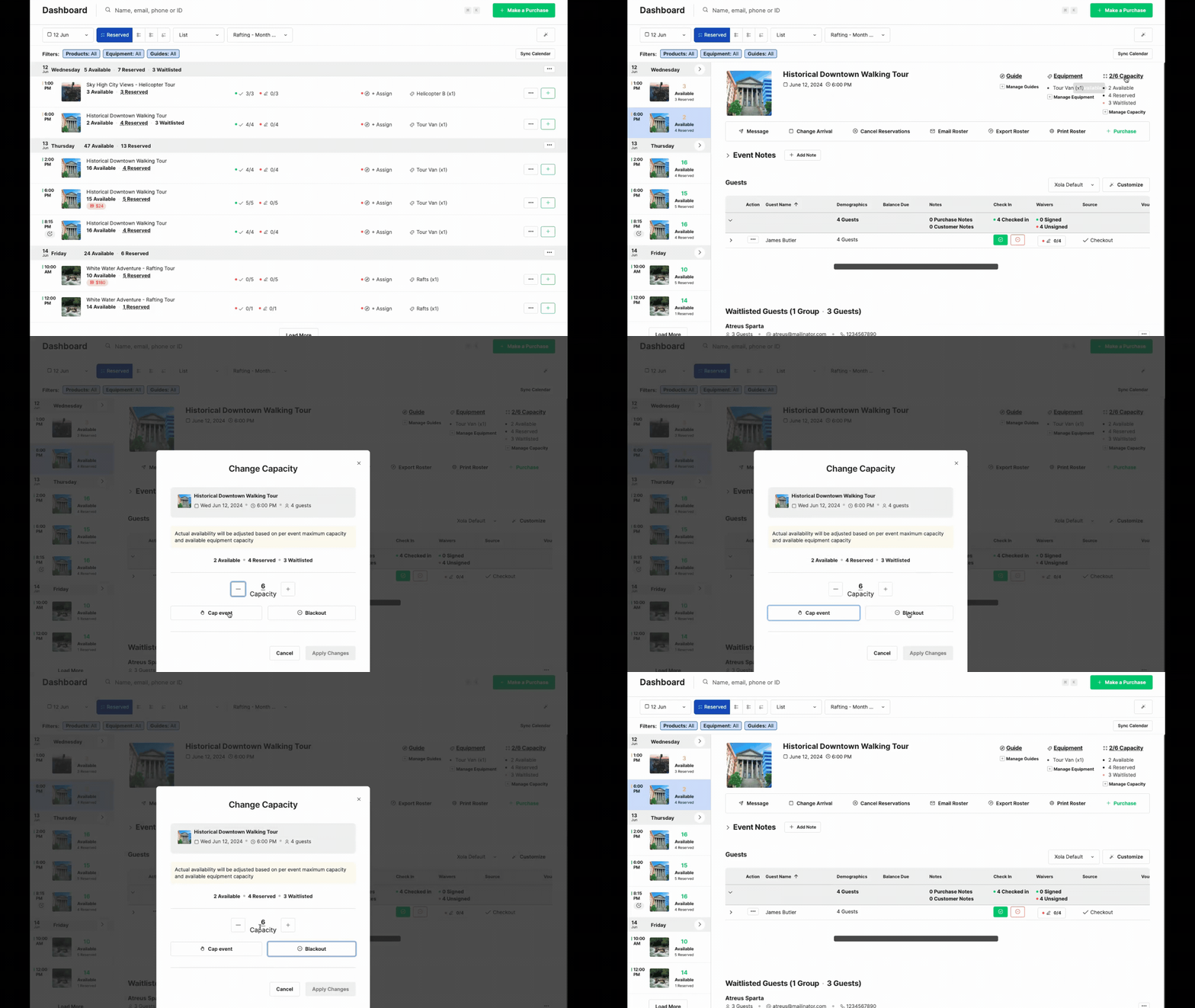
- Click on the event for which you want to adjust the capacity; this will take you to the Roster.
- Click on **Manage Capacity**.
- Use the **+** and **-** buttons to adjust the capacity up or down or click on the number to simply enter your capacity and hit apply.
- **Cap Event:** The event's capacity will be adjusted to reflect the number of reservations that have already been made, and no new reservations will be accepted. If all reservations for the event are canceled, it will still be visible on your dashboard, allowing you to reopen it at a later time.
- **Blackout:** A blackout schedule will be created for this event. Reservations will no longer be accepted, and the event will not be displayed on the dashboard if all reservations are canceled.
- Click **Apply Changes**.
**Note:** Blacking out an event disables the Waitlist functionality for that event in the back office and front-end checkout. Read more about the Waitlist **[here](https://support.xola.com/waitlist?hsLang=en)**.
---
### [How to Adjust in Day, Week, and Month View](https://support.xola.com/adjusting-capacity#day)
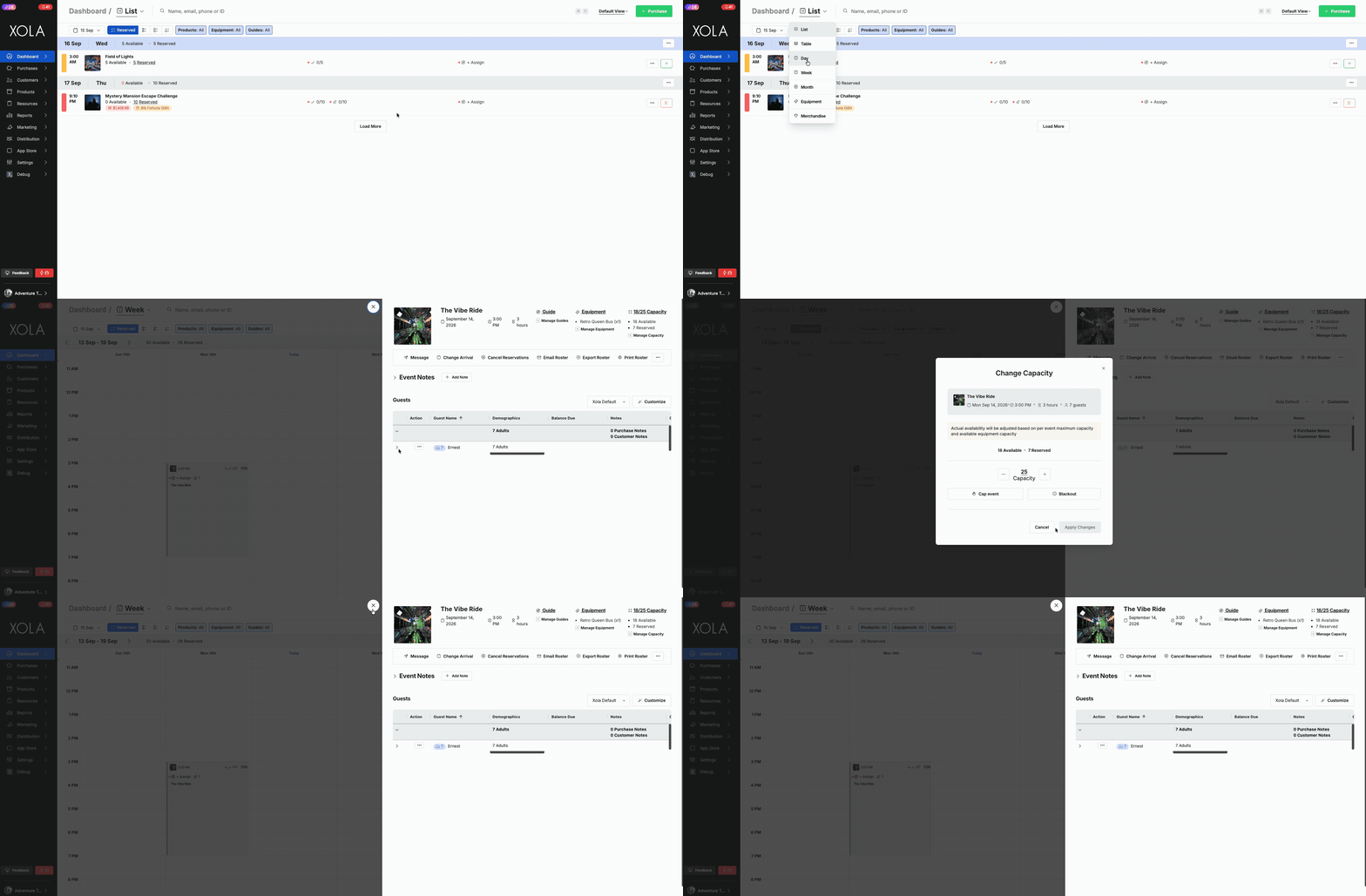
- Select the time slot whose capacity you want to adjust \>This will open the roster in a drawer on the right\> Select **Adjust Capacity**.
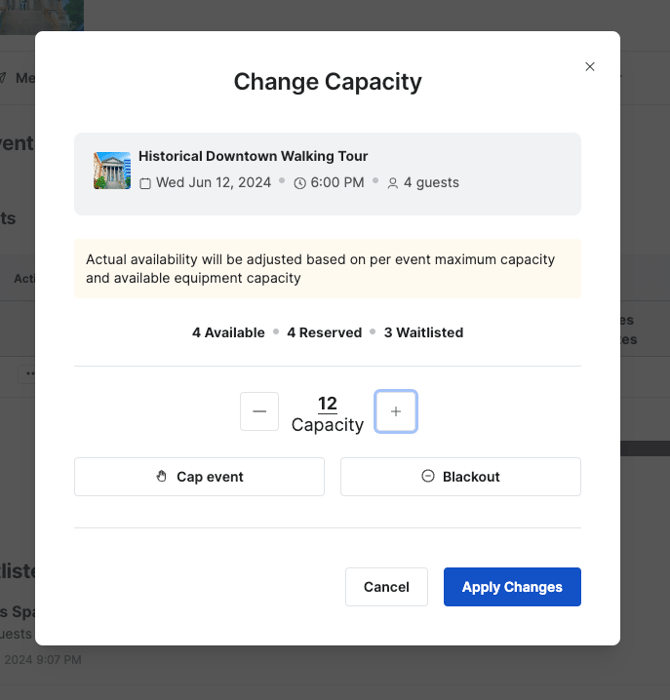
- Use the **+** and **-** buttons to adjust the capacity up or down or click on the number to simply enter your capacity and hit apply.
- **Cap Event:** The event's capacity will be adjusted to reflect the number of reservations that have already been made, and no new reservations will be accepted. If all reservations for the event are canceled, it will still be visible on your dashboard, allowing you to reopen it at a later time.
- **Blackout:** A blackout schedule will be created for this event. Reservations will no longer be accepted, and the event will not be displayed on the dashboard if all reservations are canceled.
- Click **Apply Changes**.
**Note**: Changes to capacity are made in real time and saved automatically, so you're all set!
**Cap and Blackout capacity** actions can be done in bulk. To do this, hold down the Command key and click to select multiple events. Then, click on the three dots at the bottom. Here you can:
- [**Cap Events:**](https://support.xola.com/adjusting-capacity?hsLang=en)The event's capacity will be adjusted to reflect the number of reservations that have already been made, and no new reservations will be accepted. If all reservations for the event are canceled, it will still be visible on your dashboard, allowing you to reopen it at a later time.
- [**Blackout:**](https://support.xola.com/adjusting-capacity?hsLang=en)A blackout schedule will be created for these events. Reservations will no longer be accepted, and the event will not be displayed on the dashboard if all reservations are canceled.
- [Getting Started](https://support.xola.com/getting-started?hsLang=en#main-content)
- [Account Setup & Configuration](https://support.xola.com/getting-started?hsLang=en#account-setup-configuration)
- [Website Integration & Installation](https://support.xola.com/getting-started?hsLang=en#website-integration-installation)
- [Flex Plans](https://support.xola.com/getting-started?hsLang=en#flex-plans)
- [Managing Purchases & Customers](https://support.xola.com/managing-purchases-customers?hsLang=en#main-content)
- [Purchases Management](https://support.xola.com/managing-purchases-customers?hsLang=en#purchases-management)
- [Reservation Management](https://support.xola.com/managing-purchases-customers?hsLang=en#reservation-management)
- [Customer Management](https://support.xola.com/managing-purchases-customers?hsLang=en#customer-management)
- [Customer Data & Engagement](https://support.xola.com/managing-purchases-customers?hsLang=en#customer-data-engagement)
- [Reporting](https://support.xola.com/reporting?hsLang=en)
- [Integrations & Advanced Tools](https://support.xola.com/integrations-advanced-tools?hsLang=en#main-content)
- [Xola App Store Integrations](https://support.xola.com/integrations-advanced-tools?hsLang=en#xola-app-store-integrations)
- [Partner & Agent Management](https://support.xola.com/integrations-advanced-tools?hsLang=en#partner-agent-management)
- [Marketing & Tracking Integrations](https://support.xola.com/integrations-advanced-tools?hsLang=en#marketing-tracking-integrations)
- [Mobile and Hardware](https://support.xola.com/mobile-and-hardware?hsLang=en#main-content)
- [Mobile Tools and Apps](https://support.xola.com/mobile-and-hardware?hsLang=en#mobile-tools-and-apps)
- [Hardware Setup & Devices](https://support.xola.com/mobile-and-hardware?hsLang=en#hardware-setup-devices)
- Company
- [About Us](https://www.xola.com/about)
- [Careers](https://www.xola.com/team)
- [Press](https://www.xola.com/press)
- [Support](https://www.xola.com/support)
- [Security Policy](https://www.xola.com/security-policy/)
- Resources
- [Articles](https://www.xola.com/articles/)
- [Help Center](https://support.xola.com/)
- [Success Stories](https://www.xola.com/success-stories/)
- [App Store](https://www.xola.com/app-store)
- [Demo](https://www.xola.com/demo)
- [Xola Universe](https://www.xola.com/universe/)
- Documentation
- [API Documentation](https://developers.xola.com/)
- [Payment Services Agreement](https://www.xola.com/payment-services-agreement/)
- [Terms](https://www.xola.com/terms/)
[](https://www.xola.com/)
© 2026 Xola Inc. All rights reserved.
[Privacy Policy](https://www.xola.com/privacy-policy) [Terms of Service](https://www.xola.com/terms)