---
title: Abandoned Reservation Recovery
description: This article explains how Xola's Abandoned Reservation Recovery feature helps businesses recapture potential bookings by automatically sending customized emails to customers who initiated but did not complete a reservation. Learn how to enable and personalize this feature to boost conversions and revenue.
---
[Skip to content](https://support.xola.com/abandoned-reservation-recovery#main-content)
English
Show submenu for translations
[](https://www.xola.com/)
- [Home](https://support.xola.com/)
- [24/7 Live Support](https://www.xola.com/support/)
Open main navigation
Close main navigation
- [Home](https://support.xola.com/)
- [24/7 Live Support](https://www.xola.com/support/)
- English
Show submenu for translations
- [Login](https://xola.com/_public/login.html)
[Login](https://xola.com/_public/login.html)
How can we help you?
- There are no suggestions because the search field is empty.
1. [Help Center](https://support.xola.com/?hsLang=en)
2. [Integrations & Advanced Tools](https://support.xola.com/integrations-advanced-tools?hsLang=en)
3. [Marketing & Tracking Integrations](https://support.xola.com/integrations-advanced-tools?hsLang=en#marketing-tracking-integrations)
# Abandoned Reservation Recovery
## Recover Lost Sales with Automated Abandoned Reservation Recovery
**Xola's Abandoned Reservation Recovery feature** is designed to help you capture lost sales and boost your revenue. This powerful tool allows you to configure **automated remarketing campaigns** that re-engage **customers** who began making a **reservation** through one of your **checkout buttons** but did not complete the **purchase**.
By automatically reaching out to these potential guests—you have the opportunity to encourage them to return and complete their **reservation**. This feature not only helps recover lost opportunities but also provides an easy way to **gain incremental revenue** that might otherwise slip through the cracks.
**User Access:** **Administrator** or **Marketer** roles have access to set up Abandoned Reservation Recovery in Xola.
**Administrator** or **Reservationist** roles can view Abandoned Reservation in the Pending Action Queue.
**Administrator** or **Accountant** roles can run reports on Abandoned Reservation in Custom Reports.
To **grant access** to users, [click here](https://seller.xola.app/settings/users).
---
**What's covered in this article:**
- [How to Enable](https://support.xola.com/abandoned-reservation-recovery#how-to-enable)
- [How to Customize](https://support.xola.com/abandoned-reservation-recovery#how-to-customize)
- [How Abandoned Reservation Recovery Works](https://support.xola.com/abandoned-reservation-recovery#how-abandoned-reservation-recovery-works)
---
### How to Enable
- Navigate to the [Xola App Store](https://seller.xola.app/apps) by clicking the App Store tab on the left.
- Locate **Abandoned Reservation Recovery** and select the App Store tile.
- Click the green **Install** button.
- All is set up and ready to go!
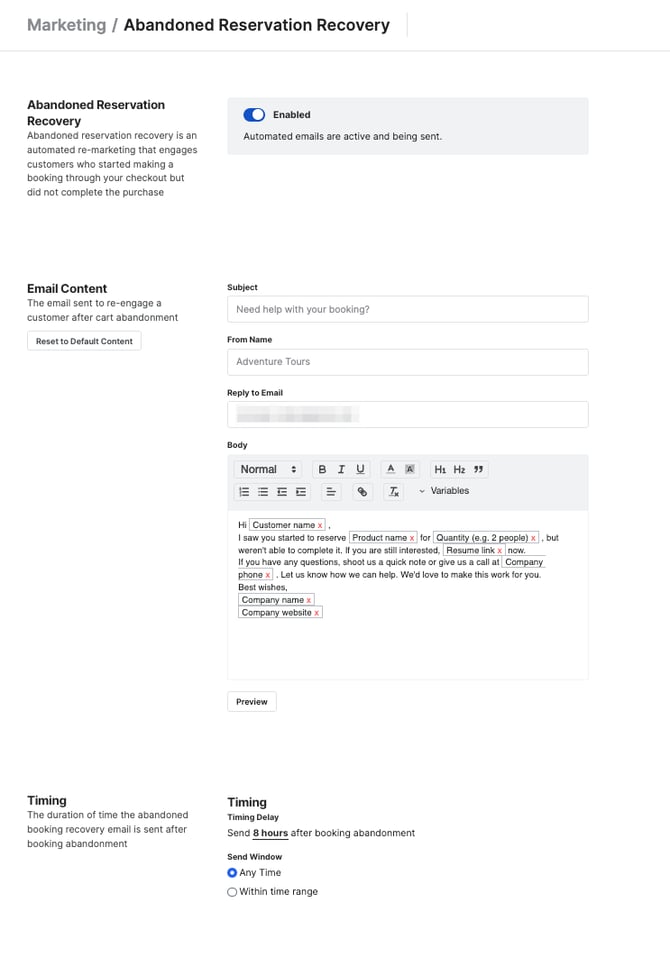
By default, Abandoned Reservation Recovery emails have the following text, and the timing is sent out 8 hours after the cart was abandoned:
---
### How to Customize
After navigating to **[Marketing \> Abandoned Reservation Recovery](https://seller.xola.app/abandonedBookingRecovery)**:
- You can choose to override this content and create your own email by simply editing the body of the email.
- If you override the default, you can customize the **Subject, From Name,** and **Reply to Email.** In addition to your own text, you have several **Variables** to choose from when adding custom content to your email. These variables will dynamically populate content in the email based on the abandoned reservation in question.
- - **Arrival**: Will auto-populate the start date entered by the customer.
- **Company**: Your company's name, as entered in the [settings tab](https://seller.xola.app/settings/company).
- **Company email**: Your account's primary email address.
- **Company communication email**: Your account's communication email address.
- **Company phone**: Your company's phone number, as entered in the [settings tab](https://seller.xola.app/settings/company).
- **Company website**: Your company's website, as entered in the [settings tab](https://seller.xola.app/settings/company).
- **Customer name**: Will auto-populate what the customer entered in the name field.
- **Experience name**: Will show the name of the experience that was abandoned.
- **Quantity count**: Will show only the number of demographics entered by the customer.
- **Quantity**: Will show the number and name of the demographics entered (i.e. 1 adult).
- **Resume button**: Will display a green button that reads **Resume Booking**. This button will open up a checkout window for the reservation that was abandoned.
- **Resume link**: Allows you to customize a link that leads to a checkout window for the reservation that was abandoned.
**Note:** You can see a preview of your email by clicking the **Generate Preview** button under the email body.
#### Timing
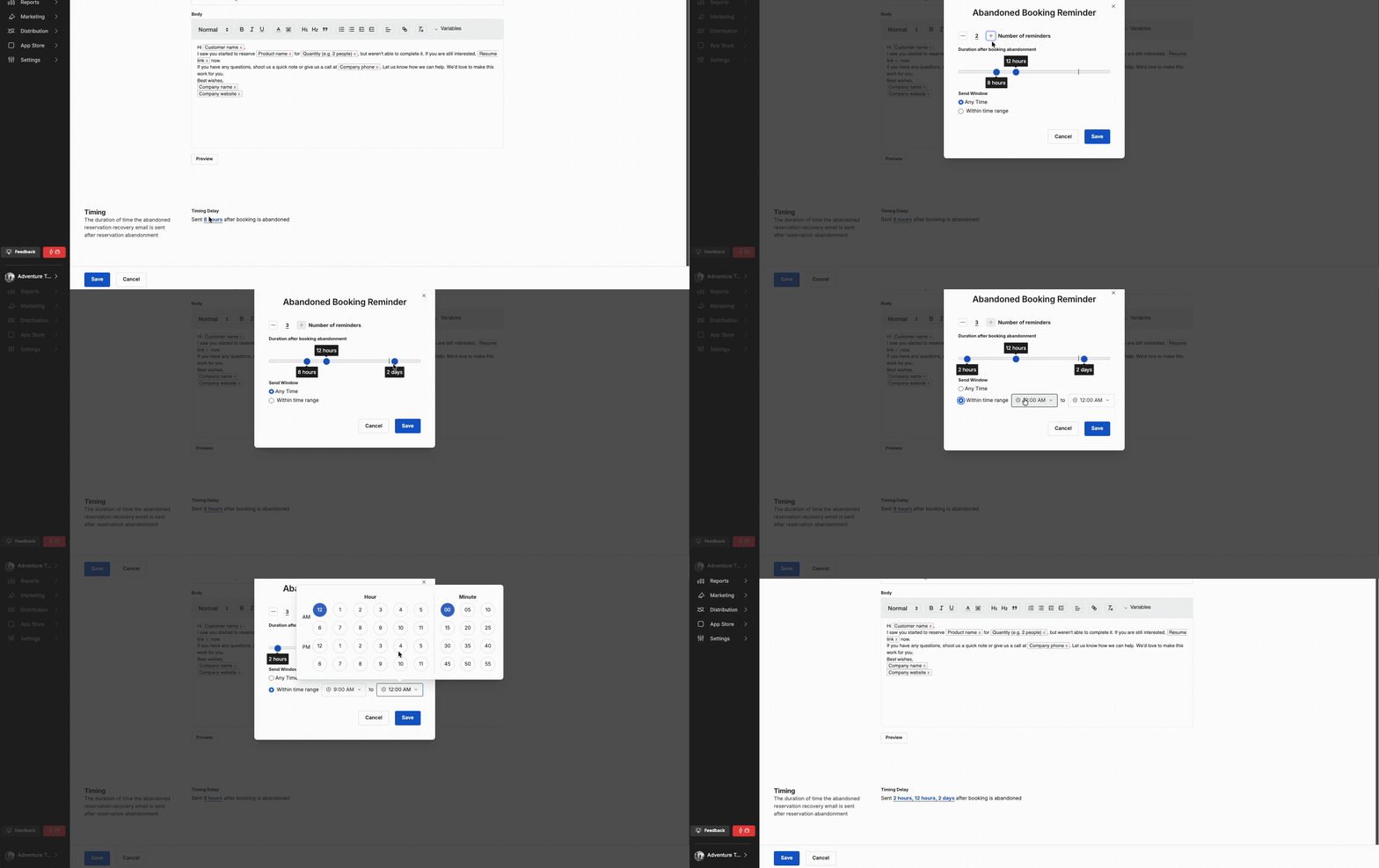
By default, abandoned reservation recovery emails are sent 8 hours after the reservation has been abandoned. Reservations are considered abandoned after 1 hour of inactivity from the customer. If the customer drops off of the Payment Details page and does not return within an hour, that reservation is now considered "abandoned". You can choose to override these settings and implement your own custom timing.
- **Timing Delay:** This parameter allows you to designate how long after the one hour of inactivity you'd like to have your Abandoned Reservation recovery email be sent.
- You choose how many reminders are sent (up to 3) and when each reminder is sent.
- **Send Window:** Here you can choose between:
- **Any time:** This means the email will be sent as soon as your specified timing hits, no matter what time of day that moment occurs.
- **Within time range:** here you can specify a "window" of time within which you'd like to allow Abandoned Reservation recovery emails to be sent. If your specified send timing falls outside of your Send Window, the email will be sent at the beginning of your send window the next day.
### How Abandoned Reservation Recovery Works
If a customer begins the checkout process by entering reservation information on the **Reservation Details** page of one of your checkout windows and reaches the **Payment Details** page but does not follow through with the purchase, this reservation will be considered "abandoned" after one hour of inactivity.
They will then be sent an email inviting them to finish the reservation they started.
If a customer does come back and complete their purchase, the purchase will automatically be tagged with a "rescue" tag.
You can also see an **[Abandoned Reservations Report,](https://support.xola.com/abandoned-reservation-recovery)** which contains information about abandoned reservations, including a column indicating whether or not they were recovered and reserved via Abandoned Reservation Recovery.
**Note:** From the [Pending Action Queue](https://support.xola.com/pending-action-queue?hsLang=en), you can view these abandoned reservations and contact the customer.
- [Getting Started](https://support.xola.com/getting-started?hsLang=en#main-content)
- [Account Setup & Configuration](https://support.xola.com/getting-started?hsLang=en#account-setup-configuration)
- [Website Integration & Installation](https://support.xola.com/getting-started?hsLang=en#website-integration-installation)
- [Flex Plans](https://support.xola.com/getting-started?hsLang=en#flex-plans)
- [Managing Purchases & Customers](https://support.xola.com/managing-purchases-customers?hsLang=en#main-content)
- [Purchases Management](https://support.xola.com/managing-purchases-customers?hsLang=en#purchases-management)
- [Reservation Management](https://support.xola.com/managing-purchases-customers?hsLang=en#reservation-management)
- [Customer Management](https://support.xola.com/managing-purchases-customers?hsLang=en#customer-management)
- [Customer Data & Engagement](https://support.xola.com/managing-purchases-customers?hsLang=en#customer-data-engagement)
- [Reporting](https://support.xola.com/reporting?hsLang=en)
- [Integrations & Advanced Tools](https://support.xola.com/integrations-advanced-tools?hsLang=en#main-content)
- [Xola App Store Integrations](https://support.xola.com/integrations-advanced-tools?hsLang=en#xola-app-store-integrations)
- [Partner & Agent Management](https://support.xola.com/integrations-advanced-tools?hsLang=en#partner-agent-management)
- [Marketing & Tracking Integrations](https://support.xola.com/integrations-advanced-tools?hsLang=en#marketing-tracking-integrations)
- [Mobile and Hardware](https://support.xola.com/mobile-and-hardware?hsLang=en#main-content)
- [Mobile Tools and Apps](https://support.xola.com/mobile-and-hardware?hsLang=en#mobile-tools-and-apps)
- [Hardware Setup & Devices](https://support.xola.com/mobile-and-hardware?hsLang=en#hardware-setup-devices)
- Company
- [About Us](https://www.xola.com/about)
- [Careers](https://www.xola.com/team)
- [Press](https://www.xola.com/press)
- [Support](https://www.xola.com/support)
- [Security Policy](https://www.xola.com/security-policy/)
- Resources
- [Articles](https://www.xola.com/articles/)
- [Help Center](https://support.xola.com/)
- [Success Stories](https://www.xola.com/success-stories/)
- [App Store](https://www.xola.com/app-store)
- [Demo](https://www.xola.com/demo)
- [Xola Universe](https://www.xola.com/universe/)
- Documentation
- [API Documentation](https://developers.xola.com/)
- [Payment Services Agreement](https://www.xola.com/payment-services-agreement/)
- [Terms](https://www.xola.com/terms/)
[](https://www.xola.com/)
© 2026 Xola Inc. All rights reserved.
[Privacy Policy](https://www.xola.com/privacy-policy) [Terms of Service](https://www.xola.com/terms)